
Top 3 Apps From SetApp to Boost Your Productivity as a Software Developer

Top 3 Apps From SetApp to Boost Your Productivity as a Software Developer

SetApp provides a fantastic set of tools that can boost your productivity as a Software Developer.

I just switched the PC laptop that I used extensively for the last years for a new Macbook Pro last week, and I have entered into a new world. I have used OS X environments in the past. I had my first Macbook in 2008 and my second one in 2016, so I am not new to the OS X ecosystem, but even with that, things change quickly in the App industry, especially in the last four years.

So, when I face the login screen of Big Sur in front of me, I just wondered about how I can equip myself, and I remember SetApp. I discovered SetApp a long time ago because one of the main podcasters I listen to, Emilio Cano, is a very supportive fan of SetApp and uses any chance he has to talk about its benefits.

So I decided to give it a try, and I could not be happier for doing so. But before I start talking about the apps, I would like to give a summary of what SetApp is, and I will use their own words from their official website:

Setapp is a cross-platform suite of apps, solving your daily tasks. Stay in your flow, anywhere.

So, It is like a Netflix for Apps, you pay a monthly subscription, and you have access to paid apps automatically, and they keep adding new ones to their repository so you can use them.

As a Software Developer, I try to focus this post on the apps that help me in my daily job, and here are the three (3) ones that help me more:

1.- Shimo — An Awesome VPN Client

On these days of remote work, we will need to connect to several VPN each day to access your company environment or even customer environment. If you are like me that you work daily for several customers switching from one customer VPN to another is your daily task, and if you can do it fast, you optimize your time.

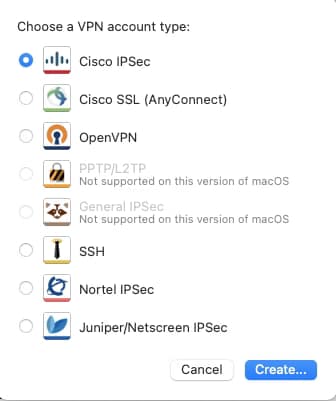
Shimo is a VPN client who supports all the main protocols that companies used: Cisco, Juniper, OpenVPN … all you can need.
Top 3 Apps From SetApp to Boost Your Productivity as a Software Developer
VPN options that Shimo provides to you (screenshot by the author)

You can connect to more than one VPN if they are not overlapping, and you can also access a quick way to connect or disconnect to any VPN from the MenuBar.

2.- Paste — The Ultimate Clipboard

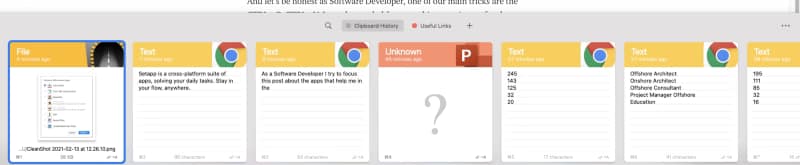
This is an app that is key for any developer and for any person who uses a computer. Paste is just how the clipboard should be. It is an enhanced clipboard with a history, so you can go back and select something that you copied yesterday and you need to recover.

And let’s be honest, as Software Developer, one of our main tricks is the CTRL+C, CTRL+V. It can be needed for everything: a snippet of code a colleague shared with you or the UNIX command that you always forget about it or recover the username that somebody shared with you using an email or Slack.
Top 3 Apps From SetApp to Boost Your Productivity as a Software Developer
Screenshot from Paste taken by the author

3.- DevUtils

This is a clear choice. A tool that is named DevUtils should be on this list. But, what DevUtils is? It is a collection of all these tools you always look on the internet to do simple but usual tasks.

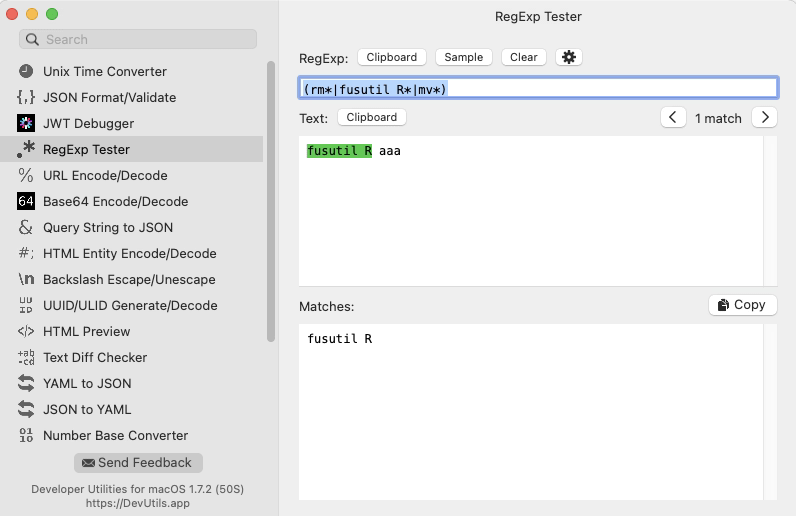
Tasks like encode or decode from base64, a regular expression tester, UNIX time converter, JSON formatter, JWT debugger, and much more… How many times do you google to do one of these tasks? How much time can you save just having that in your dock all the time? The answer is simple a lot!!
Top 3 Apps From SetApp to Boost Your Productivity as a Software Developer
Screenshot from DevUtils taken by the Author

Summary

There are a lot more apps in the catalog from SetApp. When writing this article, the number goes up to 210 apps that cover all the aspects of your life, including one of the best-selling apps in the App Store. But I would like to focus on the ones that I use most in my life as a Software Developer, and if you are like me, you will find it awesome!

Lens Kubernetes IDE Explained: Improve Development and Cluster Management Productivity

Lens Kubernetes IDE Explained: Improve Development and Cluster Management Productivity

Find the greatest way to manage your Kubernetes development cluster

I need to start this article by admitting that I am an advocate of Graphical User Interfaces and everything that provides a way to speed up the way we do things and be more productive.

So when we talk about how to manage our Kubernetes cluster mainly for development purposes, you can imagine that I am one of those people who tries any available tool to make that journey easier. The ones who’ve started using Portainer to manage their local Docker engine or are a fan of the new dashboard in Docker for Windows/Mac. But that is far from reality.

In terms of Kubernetes management, I got used to typing all the commands to check the pods, the logs, the status of the cluster to do the port-forwards, etc. Any task I did was with a terminal, and I felt that it was the right thing to do. I did not even use a Kubernetes dashboard to have a web page for my Kubernetes environment. All of that changed last week when I met with a colleague who showed me what Lens could do.

Lens is a totally different story. I am not praising it because I am being paid to do so. This is an open source project that you can find on GitHub. But the way that it does the job is just awesome!

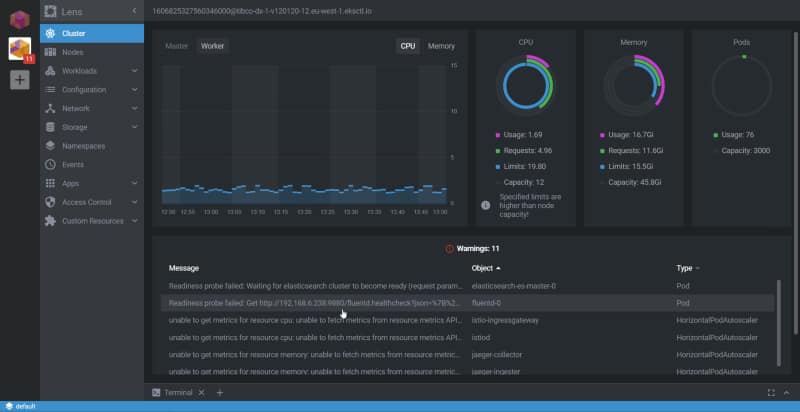
Image of Len showing the status of a Kubernetes cluster
Image of Len showing the status of a Kubernetes cluster — Screenshot by the author.

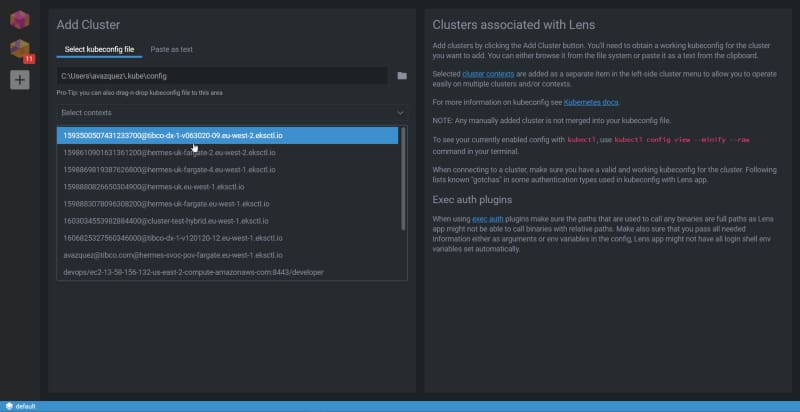
The first thing I would like to mention regarding Lens is that it has multi-context support, so you can have all the different Kubernetes contexts available to switch following a Slack approach when we switch from different workspaces. It just reads your .kube/config file and makes all those contexts available to you to connect to the one you would like.

Kubernetes context selection in Lens
Kubernetes context selection in Lens

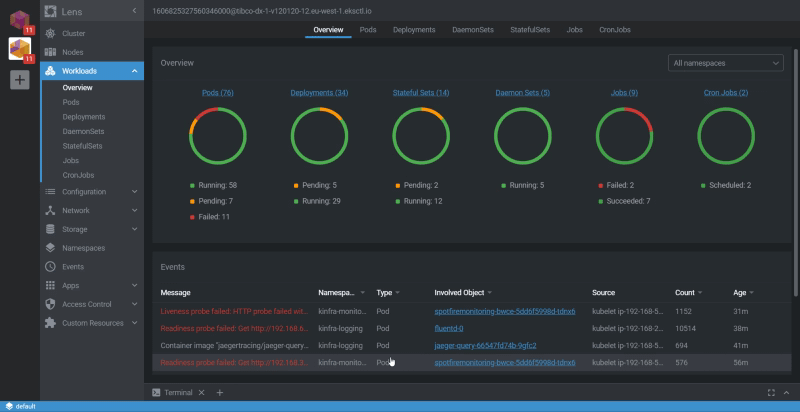
Once we have connected to one of these clusters, we have different options to see the status of it, but the first one is to check the Workloads using the Overview option:

Workloads Overview in Lens
Workloads Overview in Lens

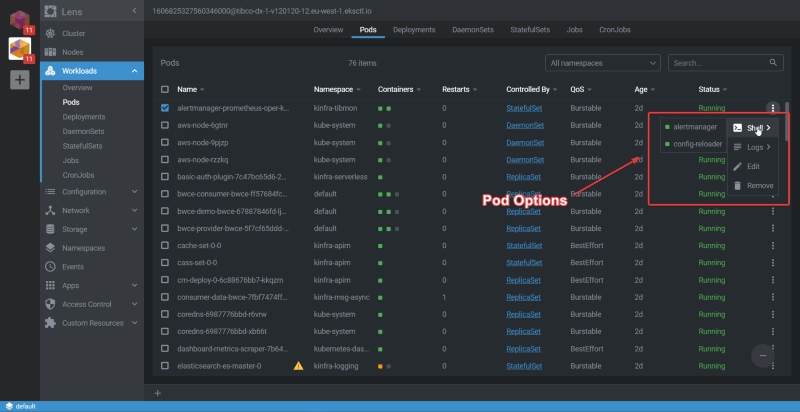
Then, you can drill down to any pod or different object inside Kubernetes to check its status and at the same time do the main actions you usually do when you deal with a pod, such as check the logs, execute a terminal to one of the containers that belong to that pod, or even edit the YAML for that pod.

Pod options inside Lens
Pod options inside Lens

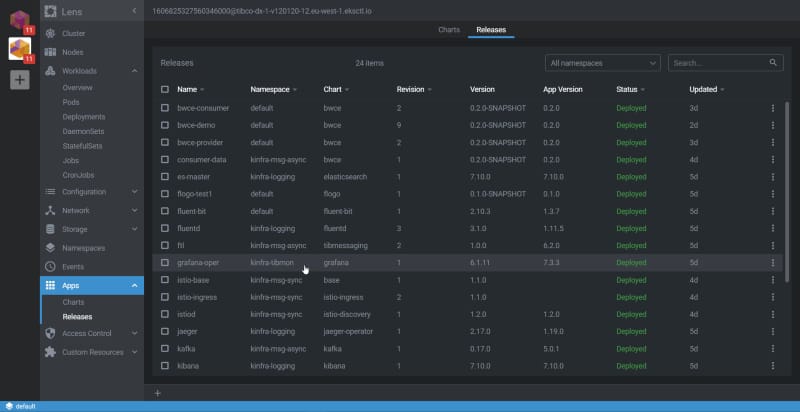
But Lens goes beyond the usual Kubernetes tasks because it also has a Helm integration, so you can check the releases that you have there, the version of the status, and so on:

Helm integration option in Lens
Helm integration option in Lens

The experience of managing everything feels perfect. You are more productive as well. Even those who love the CLI and terminals need to admit that to do regular tasks, the Graphical approach and the mouse are faster than the keyboard — even for the defenders of the mechanical keyboard like myself.

So, I encourage you to download Lens and start using it right now. To do so, go to their main web page and download it:

Thanks for reading!

📚 Want to dive deeper into Kubernetes? This article is part of our comprehensive Kubernetes Architecture Patterns guide, where you’ll find all fundamental and advanced concepts explained step by step.