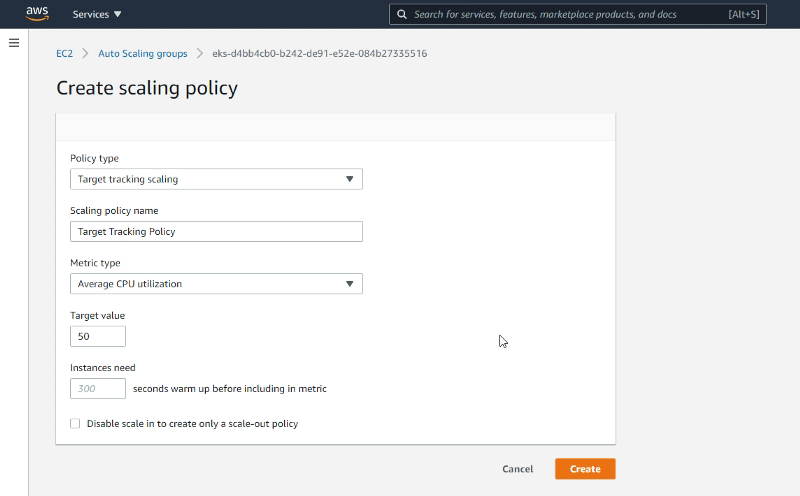

Kubernetes has introduced as its alpha version in its Kubernetes 1.27 release the Vertical Pod Autoscaling capability to provide the option for the Kubernetes workload to be able to scale using the “vertical” approach by adding more resources to an existing pod. This increases the autoscaling capabilities of your Kubernetes workloads that you have at your disposal such as KEDA or Horizontal Pod Autoscaling.
Vertical Scaling vs Horizontal Scaling
Vertical and horizontal scaling are two approaches used in scaling up the performance and capacity of computer systems, particularly in distributed systems and cloud computing. Vertical scaling, also known as scaling up or scaling vertically, involves adding more resources, such as processing power, memory, or storage, to a single instance or server. This means upgrading the existing compute components or migrating to a more powerful infrastructure. Vertical scaling is often straightforward to implement and requires minimal changes to the software architecture. It is commonly used when the system demands can be met by a single, more powerful infrastructure.
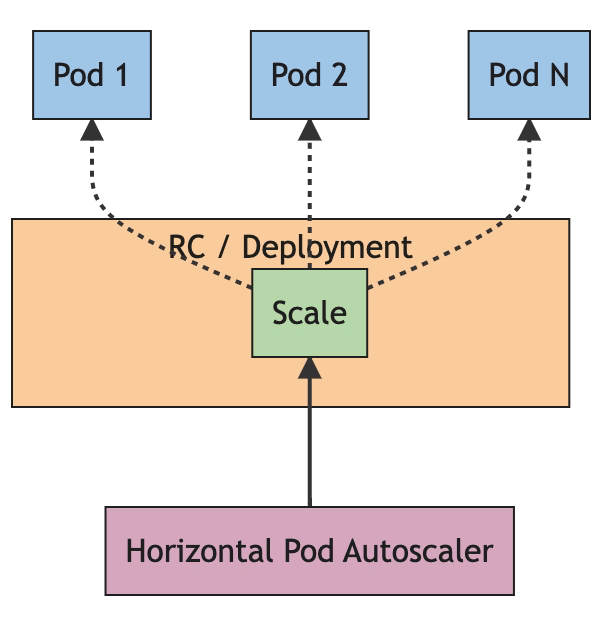
On the other hand, horizontal scaling, also called scaling out or scaling horizontally, involves adding more instances or servers to distribute the workload. Instead of upgrading a single instance, multiple instances are employed, each handling a portion of the workload. Horizontal scaling offers the advantage of increased redundancy and fault tolerance since multiple instances can share the load. Additionally, it provides the ability to handle larger workloads by simply adding more machines to the cluster. However, horizontal scaling often requires more complex software architectures, such as load balancing and distributed file systems, to efficiently distribute and manage the workload across the machines.
In summary, vertical scaling involves enhancing the capabilities of a single object, while horizontal scaling involves distributing the workload across multiple instances. Vertical scaling is easier to implement but may have limitations in terms of the maximum resources available on a single machine. Horizontal scaling provides better scalability and fault tolerance but requires more complex software infrastructure. The choice between vertical and horizontal scaling depends on factors such as the specific requirements of the system, the expected workload, and the available resources.
Why Kubernetes Vertical AutoScaling?
This is an interesting topic because we have been living in a world where the state was that was always better to scale out (using Horizontal Scaling) rather than scaling up (using Vertical Scaling) and especially this was one of the mantras you heard in cloud-native developments. And, that hasn’t changed because horizontal scaling provides much more benefits than vertical scaling and it is well covered with the Autoscaling capabilities or side-projects such as KEDA. So, in that case, why is Kubernetes including this feature and why are we using this site to discuss it?
Because with the transformation of Kubernetes to be the de-facto alternative to any deployment you do nowadays, the characteristic and capabilities of the workloads that you need to handle have extended and that’s why you need to use different techniques to provide the best experience to each of the workloads types
How Kubernetes Vertical Autoscaling?
Here you will find all the documentation about this new feature that as commented is still in the “alpha” stage to is something to try as an experimental mode rather than using it at the production level HPA Documentation
Vertical Scaling works in the way that you will be able to change the resources assigned to the pod, CPU, and memory without needing to restart the pod and change the manifest declaration and that’s a clear benefit of this approach. As you know, until now if you want to change the resources applied to a workload you need to update the manifest document and restart the pod to apply the new changes.
To define this you need to specify the resizePolicy by adding a new section to the manifest pod as you can see here:
apiVersion: v1
kind: Pod
metadata:
  name: qos-demo-5
  namespace: qos-example
spec:
  containers:
  - name: qos-demo-ctr-5
    image: nginx
    resizePolicy:
    - resourceName: cpu
      restartPolicy: NotRequired
    - resourceName: memory
      restartPolicy: RestartContainer
    resources:
      limits:
        memory: "200Mi"
        cpu: "700m"
      requests:
        memory: "200Mi"
        cpu: "700m"
For example in this case we define for the different resource names the policy that we want to apply, if we’re going to change the cpu assigned it won’t require a restart but in case we’re changing the memory it would require a restart.
That implied that if would like to change the CPU assigned you can directly patch the manifest as you can see in the snippet below and that provides an update of the assigned resources:
kubectl -n qos-example patch pod qos-demo-5 --patch '{"spec":{"containers":[{"name":"qos-demo-ctr-5", "resources":{"requests":{"cpu":"800m"}, "limits":{"cpu":"800m"}}}]}}'
When to use Vertical Scaling are the target scenarios?
It will depend on a lot of different scenarios from the use-case but also from the technology stack that your workload is using to know what of these capabilities can apply. As a normal thing, the CPU change will be easy to adapt to any technology but the memory one would be more difficult depending on the technology used as in most of the technologies the memory assigned is defined at the startup time.
This will help to update components that have changed their requirements as an average scenario or when you’re testing new workloads with live load and you don’t want to disrupt the current processing of the application or simply workloads that don’t support horizontal scaling because are designed on a single-replica mode
Conclusion
In conclusion, Kubernetes has introduced Vertical Pod Autoscaling, enabling Kubernetes vertical autoscaling of workloads by adding resources to existing pods. Kubernetes Vertical autoscaling allows for resource changes without restarting pods, providing flexibility in managing CPU and memory allocations.
Kubernetes Vertical autoscaling offers a valuable option for adapting to evolving workload needs. It complements horizontal scaling by providing flexibility without the need for complex software architectures. By combining vertical and horizontal scaling approaches, Kubernetes users can optimize their deployments based on specific workload characteristics and available resources.
📚 Want to dive deeper into Kubernetes? This article is part of our comprehensive Kubernetes Architecture Patterns guide, where you’ll find all fundamental and advanced concepts explained step by step.