
Inject Secrets into Kubernetes Pods Using HashiCorp Vault (Agent Injector Guide)

Inject Secrets into Kubernetes Pods Using HashiCorp Vault (Agent Injector Guide)

Introduction

This article will cover how to inject secrets in Pods using Hashicorp Vault. In previous articles, we covered how to install Hashicorp Vault in Kubernetes, configure and create secrets in Hashicorp, and how tools such as TIBCO BW can retrieve them. Still, today, we are going to go one step ahead.

The reason why Inject secrets in pods is very important is that it allows the application inside the pod to be transparent around any communication to Hashicorp. After all, for the applications, the secret will be just a regular file located in a specific path inside the container. It doesn’t need to worry if this file came from a Hashicorp Secret or a total of different resources.

This injection approach facilitates the Kubernetes ecosystem’s polyglot approach because it frees any responsibility for the underlying application. The same happens with injector approaches such as Istio or much more.

But, let’s explain how this approach works to inject secrets in Pods using Hashicorp Vault. As part of the installation alongside the vault server we have installed (or several ones if you have done a distributed installation), we have seen another pod under the name of value-agent-injector, as you can see in the picture below:

Inject Secrets In Pods: Vault Injector Pod

This agent will be responsible for listening to the new deployments you do and, based on the annotations this deployment has, will launch a sidecar alongside your application and send the configuration to be able to connect to the vault and download the secrets required and mount it as files inside your pod as shown in the picture below:

To do that, we need to do several steps as part of the configuration as we are going to include in the upcoming sections of the article

Enabling Kubernetes Authentication in Hashicorp

The first thing we need to do at this stage is to enable the Kubernetes Authentication in Hashicorp. This method allows clients to authenticate with a Kubernetes Service Account Token. We do that with the following command:

 Vault auth enable kubernetes

Vault accepts a service token from any client in the Kubernetes cluster. During authentication, Vault verifies that the service account token is valid by querying a token review Kubernetes endpoint. Now, we need to configure this authentication method providing the location our the Kubernetes API, and to do that, we need to run the following command:

 vault write auth/kubernetes/config \
    kubernetes_host="https://$KUBERNETES_PORT_443_TCP_ADDR:443"

Defining a Kubernetes Services Account and Defining a Policy

Now, we will create a Kubernetes Service Account that will run our pods, and this service account will be allowed to retrieve the secret we generated in the previous post.

To do that, we will start with the creation of the service account by running this command from outside the pod:

kubectl create sa internal-app

This will create a new service account under the name of internal-app, and now we are going to generate a policy inside the Hashicorp Vault server by using this command inside the vault server pod:

 vault policy write internal-app - <<EOF
path "internal/data/database/config" {
  capabilities = ["read"]
}
EOF

And now, we associated this policy with the service account by running this command also inside the vault server pod:

  vault write auth/kubernetes/role/internal-app \
    bound_service_account_names=internal-app \
    bound_service_account_namespaces=default \
    policies=internal-app \
    ttl=24h

And that’s pretty much all the configuration we need to do at the Vault side to be able to inject secrets in pods using Hashicorp Vault. Now, we need to configure our application accordingly by doing the following modifications:

  • Specify the ServiceAccountName to the deployment to be the one we created previously: internal-app
  • Specify the specific annotations to inject the vault secrets and the configuration of those secrets.

Let’s start with the first point. We need to add the serviceAccountName to our Kubernetes Manifest YAML file as shown below:
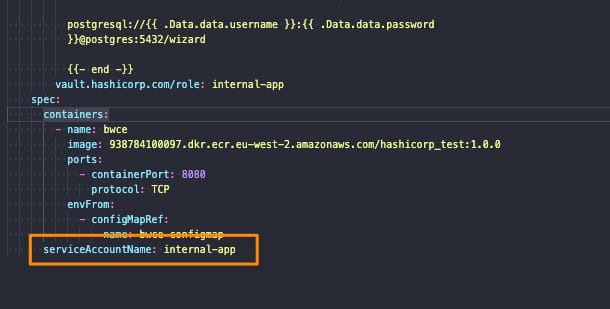
Inject Secrets In Pods: Service Account Name definition

And regarding the second point, we would solve it by adding several annotations to our deployment, as shown below:
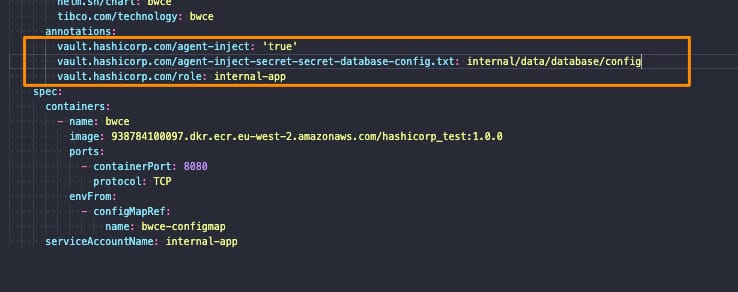
Inject Secrets In Pods: Annotations

The annotations used to inject secrets in pods are the following ones:

  • vault.hashicorp.com/agent-inject: ‘true’: This tells the vault injector that we would like to inject the sidecar agent in this deployment and have the Vault configuration. This is required to do any further configuration
  • vault.hashicorp.com/role: internal-app: This is the vault role we are going to use when we’re asking for secrets and information to the vault to be sure that we only access the secrets we have allowed based on the policy we created in the previous section
  • vault.hashicorp.com/agent-inject-secret-secret-database-config.txt: internal/data/database/config: This will be one annotation per secret we plan to add, and it is composed of three parts:
    • vault.hashicorp.com/agent-inject-secret- this part is fixed
    • secret-database-config.txt this part will be the filename that is created under /vault/secrets inside our pod
    • internal/data/database/config This is the path inside the vault of our secret to being linked to that file.

And that’s it! If we deploy now our deployment we will see the following things:

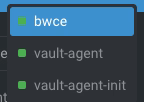
  • Our deployment application has been launched with three containers instead of one because two of them are Hashicorp Vault related, as you can see in the picture below:
Inject Secrets into Kubernetes Pods Using HashiCorp Vault (Agent Injector Guide)
  • vault-agent-init will be the container that establishes the connection to the vault-server because any container starts and does the first download and injecting secrets in the pod based on the configuration provided.
  • vault-agent will be the container running as a watcher to detect any modification on the related secrets and update them.
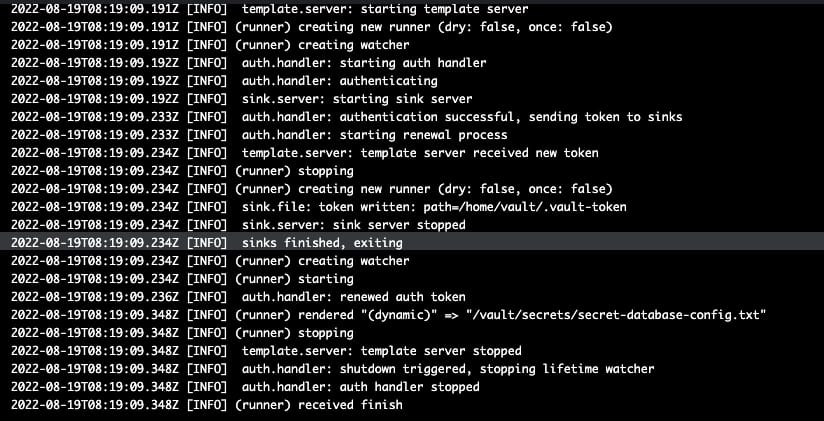
Inject Secrets into Kubernetes Pods Using HashiCorp Vault (Agent Injector Guide)

And now, if we go to the main container, we will see in the /vault/secrets path the secret has been finally injected as expected:

Inject Secrets into Kubernetes Pods Using HashiCorp Vault (Agent Injector Guide)

And this is how easily and without any knowledge about the underlying app we can inject secrets in pods using Hashicorp Vault.

📚 Want to dive deeper into Kubernetes? This article is part of our comprehensive Kubernetes Architecture Patterns guide, where you’ll find all fundamental and advanced concepts explained step by step.

TIBCO BusinessWorks HashiCorp Vault Integration: Secure Secrets in 3 Steps

TIBCO BusinessWorks HashiCorp Vault Integration: Secure Secrets in 3 Steps

Introduction

This article aims to show the TIBCO BW Hashicorp Vault Configuration to integrate your TIBCO BW application with the secrets stored in Hashicorp Vault, mainly for the externalization and management of password and credentials resources.

This article is part of my comprehensive TIBCO Integration Platform Guide where you can find more patterns and best practices for TIBCO integration platforms.

As you probably know, in the TIBCO BW application, the configuration is stored in Properties at different levels (Module or Application properties). You can read more about them here. And the primary purpose of that properties is to provide flexibility to the application configuration.

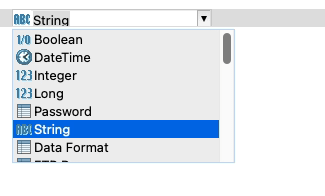
These properties can be of different types, such as String, Integer, Long, Double, Boolean, and DateTime, among other technical resources inside TIBCO BW, as shown in the picture below:

TIBCO BW Hashicorp Vault Configuration: BW Property Types

The TIBCO BW Hashicorp Vault integration will affect only those properties of Password type (at least up to 2.7.2/6.8.1 BW version). The reason behind that is that those properties are the kind of data relevant to the information that is sensitive and needs to be secure. Other concepts can be managed through standard Kubernetes components such as ConfigMaps.

BW Application Definition

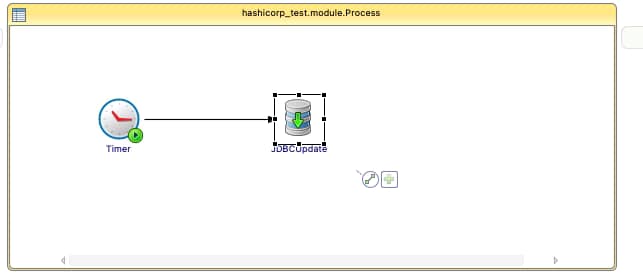
We are going to start with a straightforward application, as you can see in the picture below:

TIBCO BW Hashicorp Vault Configuration: Property sample

Just a simple timer that will be executed once and insert the current time into the PostgreSQL database. We will use Hashicorp Vault to store the password of the database user to be able to connect to it. The username and the connection string will reside on a ConfigMap.

We will skip the part of the configuration regarding the deployment of the TIBCO BW application Containers and link to a ConfigMap you have an article covering that in detail in case you need to follow it, and we will focus just on the topic regarding TIBCO BW Hashicorp Vault integration.

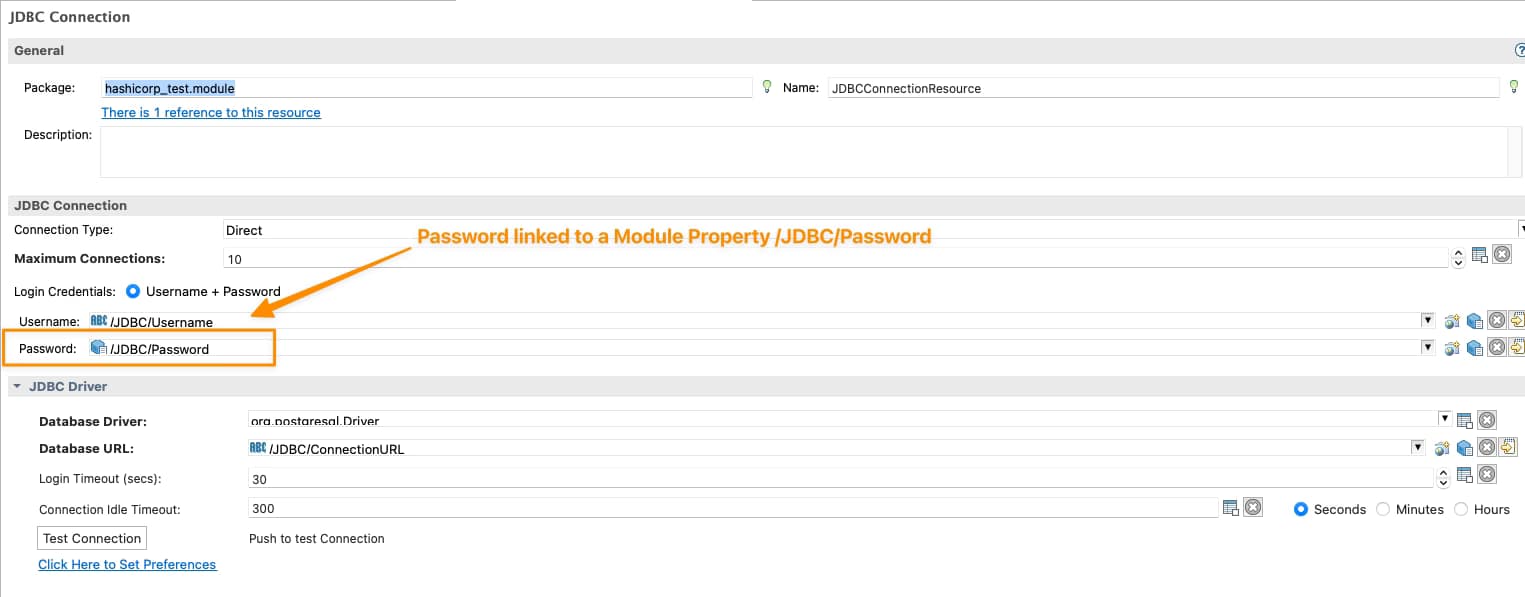
So we will need to tell TIBCO BW that the password of the JDBC Shared Resource will be linked to Hashicorp Vault configuration, and to do that, the first thing is to have tied the Password of the Shared Resources to a Module Property as shown in the picture below:

TIBCO BW Hashicorp Vault Configuration: Password linked to Module Property

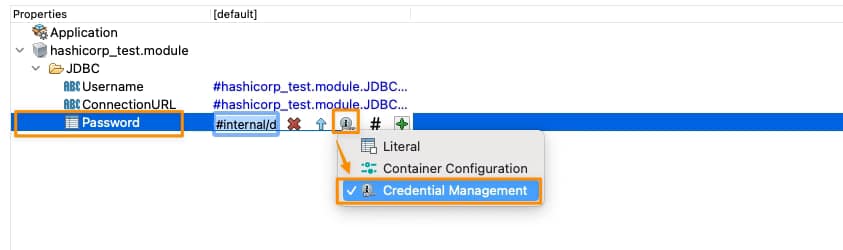
Now, we need to tell this Module Property that is Linked to Hashicorp Vault, and we will do that on the Application Property View, selecting that this property is linked to a Credential Management Solution as shown in the picture below:

TIBCO BW Hashicorp Vault Configuration: Credential Management Configuration for Property

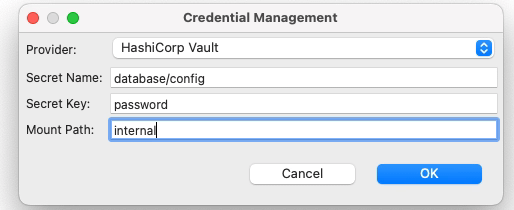
And it is now when we establish the TIBCO BW Hashicorp Vault relationship. We need to click directly on the green plus sign, and we will have a modal window asking for the technology of credentials management that we’re going to use and the data needed for each of them, as you can see in the following picture:

TIBCO BW Hashicorp Vault Configuration: Credential Management Configuration for Property

We will select Hashicorp Vault as the provided. Then we will need to provide three attributes that we already commented on in the previous article when we start creating secrets in Hashicorp Vault:

  • Secret Name: this is the secret name path after the root path of the element.
  • Secret Key: This is the key inside the secret itself
  • Mount Path: This is the root path of the secret

To get more details about these three concepts, please look at our article about how to create secrets in Hashicorp Vault.

So with all this, we have pretty much everything we need to connect to Hashicorp Vault and grab the secret, and from the TIBCO BW BusinessStudio side, everything is done; we can generate the EAR file and deploy it into Kubernetes because here it is the last part of our configuration.

 Kubernetes Deployment

Until this moment, we have the following information already provided:

  • BW Process that has the login to connect to the Database and insert information
  • Link between the password property used to connect and the Hashicorp Secret definition

So, pretty much everything is there, but one concept is missing. How will the Kubernetes Pod connect to Hashicorp once the pod is deployed? Until this point, we didn’t provide the Hashicorp Vault server location of the authentication method to connect to it. This is the missing part of the TIBCO BW Hashicorp Vault integration and will be part of the Kubernetes Deployment YAML file.

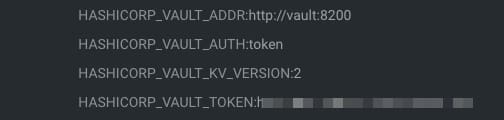
We will do that using the following environment properties in this sample:

TIBCO BW Hashicorp Vault Configuration: Hashicorp Environment Variables
  • HASHICORP_VAULT_ADDR: This variable will point to where the Hashicorp Vault server is located
  • HASHICORP_VAULT_AUTH: This variable will indicate which authentication options will be used. In our case, we will use the token one as we used in the previous article
  • HASHICORP_VAULT_KV_VERSION: This variable indicates which version of the KV storage solution we are using and will be two by default.
  • HASHICORP_VAULT_TOKEN: This will be just the token value to be able to authentication against the Hashicorp Vault server

If you are using other authentication methods or just want to know more about those properties please take a look at this documentation from TIBCO.

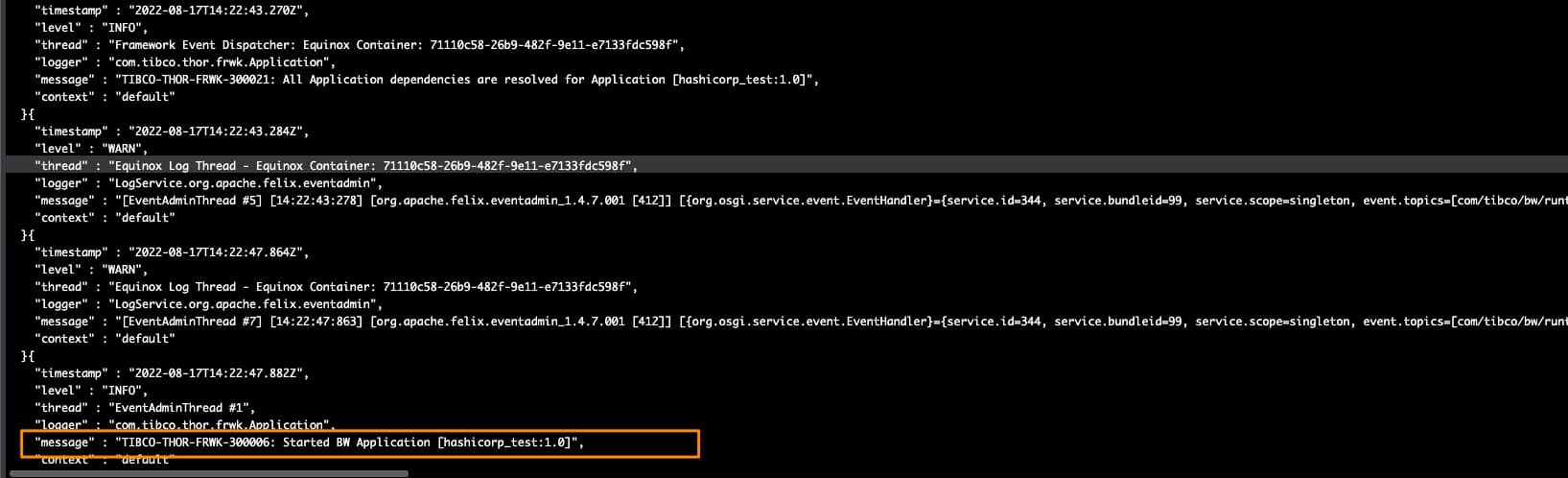
With all that added to the environment properties of our TIBCO BW application, we can run it, and we will get an output similar to this one, and that shows that the TIBCO BW Hashicorp Vault integration has been done and the application was able to start without any issue

TIBCO BW Hashicorp Vault Configuration: Running sample

Create Secrets in HashiCorp Vault: CLI and REST API Explained Step by Step

Create Secrets in HashiCorp Vault: CLI and REST API Explained Step by Step

Introduction

Create secrets in Hashicorp Vault is one of the most important and relevant things you can do once you have installed Hashicorp Vault on your environment, probably by recovering and getting these secrets from the components they need it. But in today’s article, we will focus on the first part so you can learn how easily you can create secrets in Hashicorp Vault.

In previous articles we commented on the importance of Hashicorp Vault and the installation process, as you can read here. Hence, at this point, we already have our vault ready to start working with it wholly initialized and unseal to be able to start serving requests.

Create Secrets in Hashicorp Vault using Hashicorp Vault CLI Commands

All the commands we will do will use a critical component named Hashicorp Vault CLI, and you will notice that because all of our commands will start with vault. To be honest, we already started with that in the previous article; if you remember, we already run some of these commands to initialize or unseal the vault, but now this will be our main component to interact with.

The first thing we need to do is to be able to log into the vault, and to do that; we are going to use the root token that was provided to us when we initialized the vault; we are going to store this vault in an environment variable so it will be easy to work with it. All the commands we are going to run now are going to be inside the vault agent server pod, as shown in the picture below:

Create Secrets in Hashicorp Vault: Detecting Vault Server Pod

Once we are inside of it, we are going to do the log command with the following syntax:

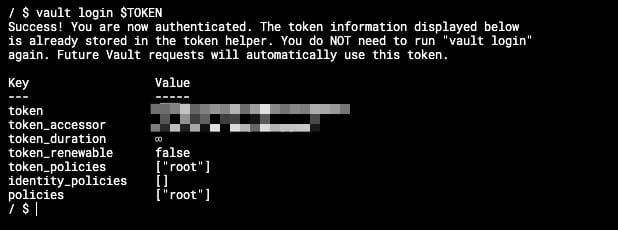
 vault login 

And we will get an output similar to this one:

Create Secrets in Hashicorp Vault: Login in Hashicorp Vault

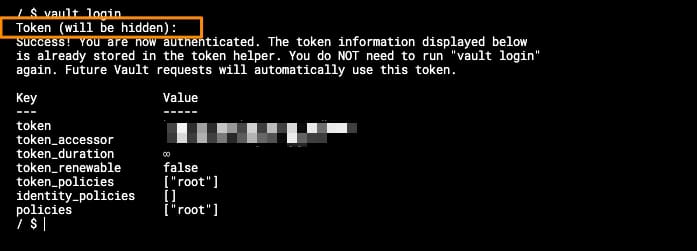
If we do not provide the token in advance, the console will ask for the token to be typed afterward, and it will be automatically hidden, as you can see in the picture below:

Create Secrets in Hashicorp Vault: Login without Token provided

After this point, we are already logged into the vault, so we can start typing commands to create secrets in Hashicorp Vault. Let’s start with that process.

To start with our process for creating secrets in Hashicorp Vault, we first need to make or be more accurate to the Hashicorp Vault syntax to enable a secret path that you can think about as the root path to which all your secrets will be related to. If we are talking about having secrets for different applications, each path can be each of the applications, but the organization of secrets can be other depending on the context. We will cover that in much more detail in the following articles.

To enable the secret path to start the creation of secrets in Hashicorp Vault, we will type the following command:

 vault secrets enable -path=internal kv-v2

That will enable a secret store of the type kv-v2 (key-value store in its v2), and the path will be “internal,” so everything else that we create after that will be under this “internal” root path.

And now, we’re going to do the creation of the secret in Hashicorp Vault, and as we are using a key-value store, the syntax is also related to that because we are going to “put” a secret using the following command:

 vault kv put internal/database/config username="db-readonly-username" password="db-secret-password"

That will create inside the internal path a child path /database/config where it will store two keys:

  • username that will have the value db-readonly-username
  • password that will have the value db-secret-password

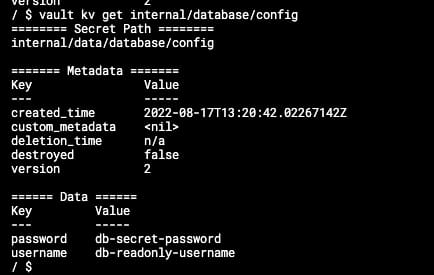
As you can see, it is quite easy to create new secrets on the Vault linked to the path, and if you want to retrieve its content, you can also do it using the Vault CLI, but this time using the get command as shown in the snippet below:

 vault kv get internal/database/config

And the output will be similar to the one shown below:

Create Secrets in Hashicorp Vault: Retrieving Secrets from the Vault

This will help you interact with your store’s content to retrieve, add or update what you already have there. Once you have everything ready there, we can move to the client side to configure it to gather all this data as part of its lifecycle workflow.

Create Secrets in Hashicorp Vault using REST API

The Hashicorp Vault CLI simplifies the interaction with the vault server, but all the interaction between the CLI and the server happens through a REST API that the server exposes and the CLI client consumes. It provides a simplified syntax to the user and translates the parameters provided into REST requests to the server, but you can use also REST requests to go to the server directly. Please look at this article in the official documentation to get more details about the REST API.

HashiCorp Vault Installation on Kubernetes Using Helm (Quick Start Guide)

HashiCorp Vault Installation on Kubernetes Using Helm (Quick Start Guide)

Introduction

In this article, we are going to cover the Hashicorp Vault Installation on Kubernetes. Hashicorp Vault has become one of the industry standards when we talk about managing secrets and sensitive data in production environments, and this covers cloud and non-cloud-native deployments. But especially in Kubernetes, this is a critical component. We have already commented that the Kubernetes Secrets are not very secured by default, so HashiCorp Vault solves that problem.

Installation Methods

Hashicorp Vault provides many different installation methods that you can read about on their official page here; most still focus on a traditional environment. But in summary, these are the ones you have available:

  • Install from Package Manager
  • Install from pre-existing binary
  • Install it from the source
  • Helm for Kubernetes

As you can imagine, the path we will follow here is the Helm way. I guess you are already familiar with help, but if not, take a look here, and if you are also in the process of creating helm charts, this other one can also help you.

Helm Chart for Hashicorp Vault

For the sake of this article, we are going to what is called a standalone hashicorp vault installation, so we are not going to create in this post an architecture with High-Availability (HA) that is production-ready but something that can help you to start playing with the tool and see how this tool can be integrated with other ones that belong to the same cloud-native environment. To get more information about deploying Hashicorp Vault into a production-ready setup, please look at the following link.

We first need to install the helm chart in our local environment, but we need to be very careful about the helm version we have. When writing this article, Hashicorp Vault Installation requires a 3.7+ Helm Version, so you must first check the version you have installed.

In case you’re running on an older version, you will get the following error:

 Error: parse error at (vault/templates/_helpers.tpl:38): unclosed action

You can get more details on this GitHub issue.

At the time of writing this article, the latest version of Helm is 3.9, but this version generates an issue with AWS EKS with this error:

 Error: Kubernetes cluster unreachable: exec plugin: invalid apiVersion "client.authentication.k8s.io/v1alpha1."
Failed installing **** with helm

You can get more details on this GitHub issue.

So, in that case, the best way to ensure there will not be a problem with the Hashicorp Vault Installation is to downgrade to 3.8, and you will be able to deploy the helm chart without any issue.

Hashicorp Vault Installation Process

To proceed with the Hashicorp Vault Installation, we need to run the following commands:

helm repo add hashicorp https://helm.releases.hashicorp.com
helm install vault hashicorp/vault

This will install two different components a single vault server as part of a StatefulSet and a vault-agent-injector to manage the injection of vault configuration on the various components and deployments on the other namespaces.

To get the pods running, we need to initialize and unseal the vault before being ready to use. To do that, we need to enter inside the vault-server pod and execute the following commands:

 vault operator init

This will generate several essential things:

  • It will generate the keys to be able to unseal the vault to be able to start using it. It will prompt a different number of keys, in our sample 5, and you will need at least 3 of them to be able to unseal the vault as
  • It will also generate a root token to be able to log into the CLI and interactor with the server to be able to read and write secrets

After that, we will need to run the following command at least three times, providing each of them with a different unseal key:

 Vault operator unseal

After that point, all components are Running and Ready and we can conclude our Hashicorp Vault Installation and start interacting with the vault to create your secrets.

Hashicorp Vault Installation: All Components Ready

Discovering The Truth Behind Kubernetes Secrets

man in white dress shirt wearing black framed eyeglasses

We have been talking recently about ConfigMap being one of the objects to store a different configuration for Kubernetes based-workloads. But what happens with sensitive data?

This is an interesting question, and the initial answer from the Kubernetes platform was to provide a Secrets object. Based on its definition from the Kubernetes official website, they define secrets like this:

A Secret is an object that contains a small amount of sensitive data such as a password, a token, or a key. Such information might otherwise be put in a Pod specification or in a container image. Using a Secret means that you don’t need to include confidential data in your application code

So, by default, secrets are what you should use to store your sensitive data. From the technical perspective, to use them, they behave very similar to ConfigMap, so you can link it to the different environment variables, mount it inside a pod, or even have specific usages for managing credentials for different kinds of accounts such as Service Accounts. This classifies the different types of secrets that you can create:

  • Opaque: This defines a generic secret that you can use for any purpose (mainly configuration data or configuration files)
  • Service-Account-Token: This defines the credentials for service accounts, but this is deprecated and no longer in use since Kubernetes 1.22.
  • Docker-Registry Credentials: This defines credentials to connect to the Docker registry to download images as part of your deployment process.
  • Basic or SSH Auth: This defines specific secrets to handle authentication.
  • TLS Secret:
  • Bootstrap Secrets:

But is it safe to use Kubernetes Secrets to store sensitive data? The main answer for any question in any tech-related topic is: It depends. But some controversy has arisen that this topic is also covered in the official Kubernetes page, highlighting the following aspects:

Kubernetes Secrets are, by default, stored unencrypted in the API server’s underlying data store (etcd). Anyone with API access can retrieve or modify a Secret, and so can anyone with access to etcd. Additionally, anyone who is authorized to create a Pod in a namespace can use that access to read any Secret in that namespace; this includes indirect access such as the ability to create a Deployment.

So, the main thing is, by default, this is a very, very insecure way. It seems more like a categorization of the data than a proper secure handle. Also, Kubernetes provide some tips to try to make this alternative more secure:

  • Enable Encryption at Rest for Secrets.
  • Enable or configure RBAC rules that restrict reading data in Secrets (including indirect means).
  • Where appropriate, also use mechanisms such as RBAC to limit which principals are allowed to create new Secrets or replace existing ones.

But that can be not enough, and that has created room for third-party and cloud providers to provide their solution that covers these needs and at the same time also offer additional features. Some of these options are the ones shown below:

  • Cloud Key Management Systems: Pretty much all the big cloud providers provide some way of Secret Management to go beyond these features and mitigate those risks. If we talk about AWS, there is AWS Secrets Manager , if we are talking about Azure, we have Azure Key Vault , and in the case of Google, we also have Google Secret Manager.
  • Sealed Secrets is a project that tries to extend Secrets to provide more security, especially on the Configuration as a Code approach, offers a safe way to store those objects in the same kind of repositories as you expose any other Kubernetes resource file. In its own words, “ The SealedSecret can be decrypted only by the controller running in the target cluster, and nobody else (not even the original author) can obtain the original Secret from the SealedSecret.”
  • Third-party Secrets Managers that are similar to the ones from the Cloud Providers that allows a more independent approach, and there are several players here such as Hashicorp Vault or CyberArk Secret Manager
  • Finally also, Spring Cloud Config can provide security to store data that are related to sensitive configuration concepts such as passwords and at the same time covers the same need as the ConfigMap provides from a unified perspective.

I hope this article has helped to understand the purpose of the Secrets in Kubernetes and, at the same time, the risks regarding its security and how we can mitigate them or even rely on other solutions that provide a more secure way to handle this critical piece of information.

📚 Want to dive deeper into Kubernetes? This article is part of our comprehensive Kubernetes Architecture Patterns guide, where you’ll find all fundamental and advanced concepts explained step by step.