If you’ve been running Kubernetes clusters for any meaningful amount of time, you’ve likely encountered a familiar problem: orphaned ConfigMaps and Secrets piling up in your namespaces. These abandoned resources don’t just clutter your cluster—they introduce security risks, complicate troubleshooting, and can even impact cluster performance as your resource count grows.
The reality is that Kubernetes doesn’t automatically clean up ConfigMaps and Secrets when the workloads that reference them are deleted. This gap in Kubernetes’ native garbage collection creates a housekeeping problem that every production cluster eventually faces. In this article, we’ll explore why orphaned resources happen, how to detect them, and most importantly, how to implement sustainable cleanup strategies that prevent them from accumulating in the first place.
Understanding the Orphaned Resource Problem
What Are Orphaned ConfigMaps and Secrets?
Orphaned ConfigMaps and Secrets are configuration resources that no longer have any active references from Pods, Deployments, StatefulSets, or other workload resources in your cluster. They typically become orphaned when:
- Applications are updated and new ConfigMaps are created while old ones remain
- Deployments are deleted but their associated configuration resources aren’t
- Failed rollouts leave behind unused configuration versions
- Development and testing workflows create temporary resources that never get cleaned up
- CI/CD pipelines generate unique ConfigMap names (often with hash suffixes) on each deployment
Why This Matters for Production Clusters
While a few orphaned ConfigMaps might seem harmless, the problem compounds over time and introduces real operational challenges:
Security Risks: Orphaned Secrets can contain outdated credentials, API keys, or certificates that should no longer be accessible. If these aren’t removed, they remain attack vectors for unauthorized access—especially problematic if RBAC policies grant broad read access to Secrets within a namespace.
Cluster Bloat: Kubernetes stores these resources in etcd, your cluster’s backing store. As the number of orphaned resources grows, etcd size increases, potentially impacting cluster performance and backup times. In extreme cases, this can contribute to etcd performance degradation or even hit storage quotas.
Operational Complexity: When troubleshooting issues or reviewing configurations, sifting through dozens of unused ConfigMaps makes it harder to identify which resources are actually in use. This “configuration noise” slows down incident response and increases cognitive load for your team.
Cost Implications: While individual ConfigMaps are small, at scale they contribute to storage costs and can trigger alerts in cost monitoring systems, especially in multi-tenant environments where resource quotas matter.
Detecting Orphaned ConfigMaps and Secrets
Before you can clean up orphaned resources, you need to identify them. Let’s explore both manual detection methods and automated tooling approaches.
Manual Detection with kubectl
The simplest approach uses kubectl to cross-reference ConfigMaps and Secrets against active workload resources. Here’s a basic script to identify potentially orphaned ConfigMaps:
#!/bin/bash
# detect-orphaned-configmaps.sh
# Identifies ConfigMaps not referenced by any active Pods

NAMESPACE=${1:-default}

echo "Checking for orphaned ConfigMaps in namespace: $NAMESPACE"
echo "---"

# Get all ConfigMaps in the namespace
CONFIGMAPS=$(kubectl get configmaps -n $NAMESPACE -o jsonpath='{.items[*].metadata.name}')

for cm in $CONFIGMAPS; do
    # Skip kube-root-ca.crt as it's system-managed
    if [[ "$cm" == "kube-root-ca.crt" ]]; then
        continue
    fi

    # Check if any Pod references this ConfigMap
    REFERENCED=$(kubectl get pods -n $NAMESPACE -o json | \
        jq -r --arg cm "$cm" '.items[] |
        select(
            (.spec.volumes[]?.configMap.name == $cm) or
            (.spec.containers[].env[]?.valueFrom.configMapKeyRef.name == $cm) or
            (.spec.containers[].envFrom[]?.configMapRef.name == $cm)
        ) | .metadata.name' | head -1)

    if [[ -z "$REFERENCED" ]]; then
        echo "Orphaned: $cm"
    fi
done
A similar script for Secrets would look like this:
#!/bin/bash
# detect-orphaned-secrets.sh

NAMESPACE=${1:-default}

echo "Checking for orphaned Secrets in namespace: $NAMESPACE"
echo "---"

SECRETS=$(kubectl get secrets -n $NAMESPACE -o jsonpath='{.items[*].metadata.name}')

for secret in $SECRETS; do
    # Skip service account tokens and system secrets
    SECRET_TYPE=$(kubectl get secret $secret -n $NAMESPACE -o jsonpath='{.type}')
    if [[ "$SECRET_TYPE" == "kubernetes.io/service-account-token" ]]; then
        continue
    fi

    # Check if any Pod references this Secret
    REFERENCED=$(kubectl get pods -n $NAMESPACE -o json | \
        jq -r --arg secret "$secret" '.items[] |
        select(
            (.spec.volumes[]?.secret.secretName == $secret) or
            (.spec.containers[].env[]?.valueFrom.secretKeyRef.name == $secret) or
            (.spec.containers[].envFrom[]?.secretRef.name == $secret) or
            (.spec.imagePullSecrets[]?.name == $secret)
        ) | .metadata.name' | head -1)

    if [[ -z "$REFERENCED" ]]; then
        echo "Orphaned: $secret"
    fi
done
Important caveat: These scripts only check currently running Pods. They won’t catch ConfigMaps or Secrets referenced by Deployments, StatefulSets, or DaemonSets that might currently have zero replicas. For production use, you’ll want to check against all workload resource types.
Automated Detection with Specialized Tools
Several open-source tools have emerged to solve this problem more comprehensively:
Kor: Comprehensive Unused Resource Detection
Kor is a purpose-built tool for finding unused resources across your Kubernetes cluster. It checks not just ConfigMaps and Secrets, but also PVCs, Services, and other resource types.
# Install Kor
brew install kor

# Scan for unused ConfigMaps and Secrets
kor all --namespace production --output json

# Check specific resource types
kor configmap --namespace production
kor secret --namespace production --exclude-namespaces kube-system,kube-public
Kor works by analyzing resource relationships and identifying anything without dependent objects. It’s particularly effective because it understands Kubernetes resource hierarchies and checks against Deployments, StatefulSets, and DaemonSets—not just running Pods.
Popeye: Cluster Sanitization Reports
Popeye scans your cluster and generates reports on resource health, including orphaned resources. While broader in scope than just ConfigMap cleanup, it provides valuable context:
# Install Popeye
brew install derailed/popeye/popeye

# Scan cluster
popeye --output json --save

# Focus on specific namespace
popeye --namespace production
Custom Controllers with Kubernetes APIs
For more sophisticated detection, you can build custom controllers using client-go that continuously monitor for orphaned resources. This approach works well when integrated with your existing observability stack:
// Pseudocode example
func detectOrphanedConfigMaps(namespace string) []string {
    configMaps := listConfigMaps(namespace)
    deployments := listDeployments(namespace)
    statefulSets := listStatefulSets(namespace)
    daemonSets := listDaemonSets(namespace)

    referenced := make(map[string]bool)

    // Check all workload types for ConfigMap references
    for _, deploy := range deployments {
        for _, cm := range getReferencedConfigMaps(deploy) {
            referenced[cm] = true
        }
    }
    // ... repeat for other workload types

    orphaned := []string{}
    for _, cm := range configMaps {
        if !referenced[cm.Name] {
            orphaned = append(orphaned, cm.Name)
        }
    }

    return orphaned
}
Prevention Strategies: Stop Orphans Before They Start
The best cleanup strategy is prevention. By implementing proper resource management patterns from the beginning, you can minimize orphaned resources in the first place.
Use Owner References for Automatic Cleanup
Kubernetes provides a built-in mechanism for resource lifecycle management through owner references. When properly configured, child resources are automatically deleted when their owner is removed.
apiVersion: v1
kind: ConfigMap
metadata:
  name: app-config
  namespace: production
  ownerReferences:
    - apiVersion: apps/v1
      kind: Deployment
      name: myapp
      uid: d9607e19-f88f-11e6-a518-42010a800195
      controller: true
      blockOwnerDeletion: true
data:
  app.properties: |
    database.url=postgres://db:5432
Tools like Helm and Kustomize automatically set owner references, which is one reason GitOps workflows tend to have fewer orphaned resources than imperative deployment approaches.
Implement Consistent Labeling Standards
Labels make it much easier to identify resource relationships and track ownership:
apiVersion: v1
kind: ConfigMap
metadata:
  name: api-gateway-config-v2
  labels:
    app: api-gateway
    component: configuration
    version: v2
    managed-by: argocd
    owner: platform-team
data:
  config.yaml: |
    # configuration here
With consistent labeling, you can easily query for ConfigMaps associated with specific applications:
# Find all ConfigMaps for a specific app
kubectl get configmaps -l app=api-gateway

# Clean up old versions
kubectl delete configmaps -l app=api-gateway,version=v1
Adopt GitOps Practices
GitOps tools like ArgoCD and Flux excel at preventing orphaned resources because they maintain a clear desired state:
- Declarative management: All resources are defined in Git
- Automatic pruning: Tools can detect and remove resources not defined in Git
- Audit trail: Git history shows when and why resources were created or deleted
ArgoCD’s sync policies can automatically prune resources:
apiVersion: argoproj.io/v1alpha1
kind: Application
metadata:
  name: myapp
spec:
  syncPolicy:
    automated:
      prune: true  # Remove resources not in Git
      selfHeal: true
Use Kustomize ConfigMap Generators with Hashes
Kustomize’s ConfigMap generator feature appends content hashes to ConfigMap names, ensuring that configuration changes trigger new ConfigMaps:
# kustomization.yaml
configMapGenerator:
  - name: app-config
    files:
      - config.properties
generatorOptions:
  disableNameSuffixHash: false  # Include hash in name
This creates ConfigMaps like app-config-dk9g72hk5f. When you update the configuration, Kustomize creates a new ConfigMap with a different hash. Combined with Kustomize’s --prune flag, old ConfigMaps are automatically removed:
kubectl apply --prune -k ./overlays/production \
  -l app=myapp
Set Resource Quotas
While quotas don’t prevent orphans, they create backpressure that forces teams to clean up:
apiVersion: v1
kind: ResourceQuota
metadata:
  name: config-quota
  namespace: production
spec:
  hard:
    configmaps: "50"
    secrets: "50"
When teams hit quota limits, they’re incentivized to audit and remove unused resources.
Cleanup Strategies for Existing Orphaned Resources
For clusters that already have accumulated orphaned ConfigMaps and Secrets, here are practical cleanup approaches.
One-Time Manual Cleanup
For immediate cleanup, combine detection scripts with kubectl delete:
# Dry run first - review what would be deleted
./detect-orphaned-configmaps.sh production > orphaned-cms.txt
cat orphaned-cms.txt

# Manual review and cleanup
for cm in $(cat orphaned-cms.txt | grep "Orphaned:" | awk '{print $2}'); do
    kubectl delete configmap $cm -n production
done
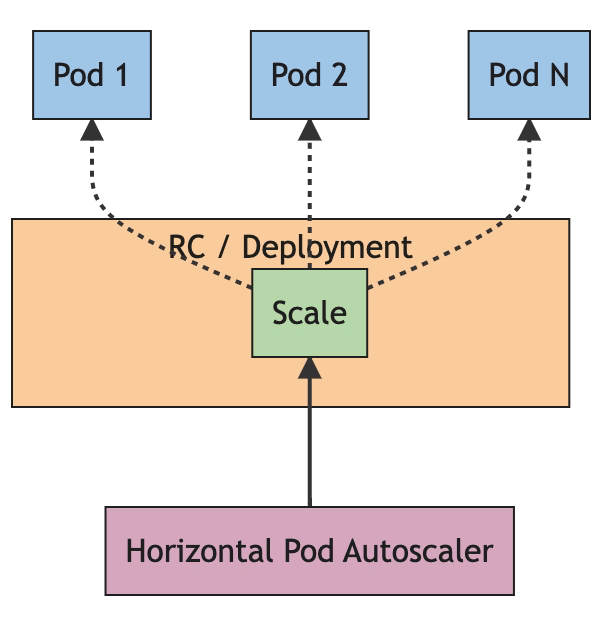
Critical warning: Always do a dry run and manual review first. Some ConfigMaps might be referenced by workloads that aren’t currently running but will scale up later (HPA scaled to zero, CronJobs, etc.).
Scheduled Cleanup with CronJobs
For ongoing maintenance, deploy a Kubernetes CronJob that runs cleanup scripts periodically:
apiVersion: batch/v1
kind: CronJob
metadata:
  name: configmap-cleanup
  namespace: kube-system
spec:
  schedule: "0 2 * * 0"  # Weekly at 2 AM Sunday
  successfulJobsHistoryLimit: 3
  failedJobsHistoryLimit: 3
  jobTemplate:
    spec:
      template:
        spec:
          serviceAccountName: cleanup-sa
          containers:
          - name: cleanup
            image: bitnami/kubectl:latest
            command:
            - /bin/bash
            - -c
            - |
              # Cleanup script here
              echo "Starting ConfigMap cleanup..."

              for ns in $(kubectl get ns -o jsonpath='{.items[*].metadata.name}'); do
                echo "Checking namespace: $ns"

                # Get all workload-referenced ConfigMaps
                REFERENCED_CMS=$(kubectl get deploy,sts,ds -n $ns -o json | \
                  jq -r '.items[].spec.template.spec |
                  [.volumes[]?.configMap.name,
                   .containers[].env[]?.valueFrom.configMapKeyRef.name,
                   .containers[].envFrom[]?.configMapRef.name] |
                  .[] | select(. != null)' | sort -u)

                ALL_CMS=$(kubectl get cm -n $ns -o jsonpath='{.items[*].metadata.name}')

                for cm in $ALL_CMS; do
                  if [[ "$cm" == "kube-root-ca.crt" ]]; then
                    continue
                  fi

                  if ! echo "$REFERENCED_CMS" | grep -q "^$cm$"; then
                    echo "Deleting orphaned ConfigMap: $cm in namespace: $ns"
                    kubectl delete cm $cm -n $ns
                  fi
                done
              done
          restartPolicy: OnFailure
---
apiVersion: v1
kind: ServiceAccount
metadata:
  name: cleanup-sa
  namespace: kube-system
---
apiVersion: rbac.authorization.k8s.io/v1
kind: ClusterRole
metadata:
  name: cleanup-role
rules:
- apiGroups: [""]
  resources: ["configmaps", "secrets", "namespaces"]
  verbs: ["get", "list", "delete"]
- apiGroups: ["apps"]
  resources: ["deployments", "statefulsets", "daemonsets"]
  verbs: ["get", "list"]
---
apiVersion: rbac.authorization.k8s.io/v1
kind: ClusterRoleBinding
metadata:
  name: cleanup-binding
subjects:
- kind: ServiceAccount
  name: cleanup-sa
  namespace: kube-system
roleRef:
  kind: ClusterRole
  name: cleanup-role
  apiGroup: rbac.authorization.k8s.io
Security consideration: This CronJob needs cluster-wide permissions to read workloads and delete ConfigMaps. Review and adjust the RBAC permissions based on your security requirements. Consider limiting to specific namespaces if you don’t need cluster-wide cleanup.
Integration with CI/CD Pipelines
Build cleanup into your deployment workflows. Here’s an example GitLab CI job:
cleanup_old_configs:
  stage: post-deploy
  image: bitnami/kubectl:latest
  script:
    - |
      # Delete ConfigMaps with old version labels after successful deployment
      kubectl delete configmap -n production \
        -l app=myapp,version!=v${CI_COMMIT_TAG}

    - |
      # Keep only the last 3 ConfigMap versions by timestamp
      kubectl get configmap -n production \
        -l app=myapp \
        --sort-by=.metadata.creationTimestamp \
        -o name | head -n -3 | xargs -r kubectl delete -n production
  only:
    - tags
  when: on_success
Safe Deletion Practices
When cleaning up ConfigMaps and Secrets, follow these safety guidelines:
- Dry run first: Always review what will be deleted before executing
- Backup before deletion: Export resources to YAML files before removing them
- Check age: Only delete resources older than a certain threshold (e.g., 30 days)
- Exclude system resources: Skip kube-system, kube-public, and other system namespaces
- Monitor for impact: Watch application metrics after cleanup to ensure nothing broke
Example backup and conditional deletion:
# Backup before deletion
kubectl get configmap -n production -o yaml > cm-backup-$(date +%Y%m%d).yaml

# Only delete ConfigMaps older than 30 days
kubectl get configmap -n production -o json | \
  jq -r --arg date "$(date -d '30 days ago' -u +%Y-%m-%dT%H:%M:%SZ)" \
  '.items[] | select(.metadata.creationTimestamp < $date) | .metadata.name' | \
  while read cm; do
    echo "Would delete: $cm (created: $(kubectl get cm $cm -n production -o jsonpath='{.metadata.creationTimestamp}'))"
    # Uncomment to actually delete:
    # kubectl delete configmap $cm -n production
  done
Advanced Patterns for Large-Scale Clusters
For organizations running multiple clusters or large multi-tenant platforms, housekeeping requires more sophisticated approaches.
Policy-Based Cleanup with OPA Gatekeeper
Use OPA Gatekeeper to enforce ConfigMap lifecycle policies at admission time:
apiVersion: templates.gatekeeper.sh/v1beta1
kind: ConstraintTemplate
metadata:
  name: configmaprequiredlabels
spec:
  crd:
    spec:
      names:
        kind: ConfigMapRequiredLabels
  targets:
    - target: admission.k8s.gatekeeper.sh
      rego: |
        package configmaprequiredlabels

        violation[{"msg": msg}] {
          input.review.kind.kind == "ConfigMap"
          not input.review.object.metadata.labels["app"]
          msg := "ConfigMaps must have an 'app' label for lifecycle tracking"
        }

        violation[{"msg": msg}] {
          input.review.kind.kind == "ConfigMap"
          not input.review.object.metadata.labels["owner"]
          msg := "ConfigMaps must have an 'owner' label for lifecycle tracking"
        }
This policy prevents ConfigMaps without proper labels from being created, making future tracking and cleanup much easier.
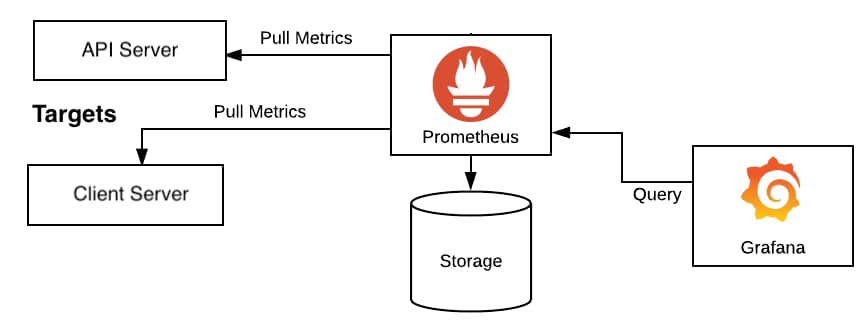
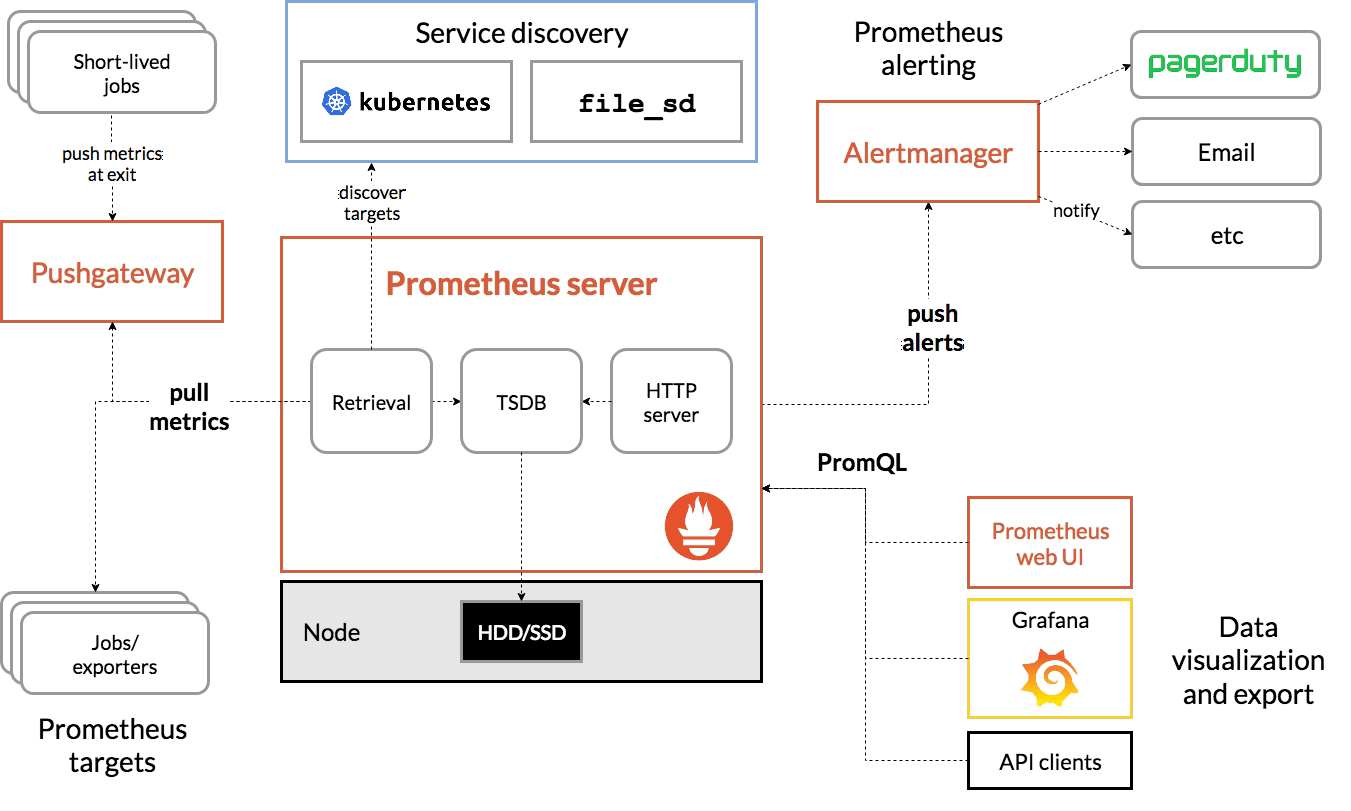
Centralized Monitoring with Prometheus
Monitor orphaned resource metrics across your clusters:
apiVersion: v1
kind: ConfigMap
metadata:
  name: orphan-detection-exporter
data:
  script.sh: |
    #!/bin/bash
    # Expose metrics for Prometheus scraping
    while true; do
      echo "# HELP k8s_orphaned_configmaps Number of orphaned ConfigMaps"
      echo "# TYPE k8s_orphaned_configmaps gauge"

      for ns in $(kubectl get ns -o jsonpath='{.items[*].metadata.name}'); do
        count=$(./detect-orphaned-configmaps.sh $ns | grep -c "Orphaned:")
        echo "k8s_orphaned_configmaps{namespace=\"$ns\"} $count"
      done

      sleep 300  # Update every 5 minutes
    done
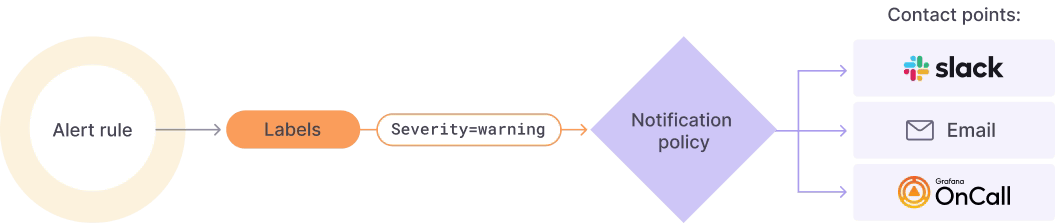
Create alerts when orphaned resource counts exceed thresholds:
groups:
- name: kubernetes-housekeeping
  rules:
  - alert: HighOrphanedConfigMapCount
    expr: k8s_orphaned_configmaps > 20
    for: 24h
    labels:
      severity: warning
    annotations:
      summary: "High number of orphaned ConfigMaps in {{ $labels.namespace }}"
      description: "Namespace {{ $labels.namespace }} has {{ $value }} orphaned ConfigMaps"
Multi-Cluster Cleanup with Crossplane or Cluster API
For platform teams managing dozens or hundreds of clusters, extend cleanup automation across your entire fleet:
# Crossplane Composition for cluster-wide cleanup
apiVersion: apiextensions.crossplane.io/v1
kind: Composition
metadata:
  name: cluster-cleanup-policy
spec:
  compositeTypeRef:
    apiVersion: platform.example.com/v1
    kind: ClusterCleanupPolicy
  resources:
    - name: cleanup-cronjob
      base:
        apiVersion: kubernetes.crossplane.io/v1alpha1
        kind: Object
        spec:
          forProvider:
            manifest:
              apiVersion: batch/v1
              kind: CronJob
              # ... CronJob spec from earlier
Housekeeping Checklist for Production Clusters
Here’s a practical checklist to implement sustainable ConfigMap and Secret housekeeping:
Immediate Actions:
- [ ] Run detection scripts to audit current orphaned resource count
- [ ] Backup all ConfigMaps and Secrets before any cleanup
- [ ] Manually review and delete obvious orphans (with team approval)
- [ ] Document which ConfigMaps/Secrets are intentionally unused but needed
Short-term (1-4 weeks):
- [ ] Implement consistent labeling standards across teams
- [ ] Add owner references to all ConfigMaps and Secrets
- [ ] Deploy scheduled CronJob for automated detection and reporting
- [ ] Integrate cleanup steps into CI/CD pipelines
Long-term (1-3 months):
- [ ] Adopt GitOps tooling (ArgoCD, Flux) with automated pruning
- [ ] Implement OPA Gatekeeper policies for required labels
- [ ] Set up Prometheus monitoring for orphaned resource metrics
- [ ] Create runbooks for incident responders
- [ ] Establish resource quotas per namespace
- [ ] Conduct quarterly cluster hygiene reviews
Ongoing Practices:
- [ ] Review orphaned resource reports weekly
- [ ] Include cleanup tasks in sprint planning
- [ ] Train new team members on resource lifecycle best practices
- [ ] Update cleanup automation as cluster architecture evolves
Conclusion
Kubernetes doesn’t automatically clean up orphaned ConfigMaps and Secrets, but with the right strategies, you can prevent them from becoming a problem. The key is implementing a layered approach: use owner references and GitOps for prevention, deploy automated detection for ongoing monitoring, and run scheduled cleanup jobs for maintenance.
Start with detection to understand your current situation, then focus on prevention strategies like owner references and consistent labeling. For existing clusters with accumulated orphaned resources, implement gradual cleanup with proper safety checks rather than aggressive bulk deletion.
Remember that housekeeping isn’t a one-time task—it’s an ongoing operational practice. By building cleanup into your CI/CD pipelines and establishing clear resource ownership, you’ll maintain a clean, secure, and performant Kubernetes environment over time.
The tools and patterns we’ve covered here—from simple bash scripts to sophisticated policy engines—can be adapted to your organization’s scale and maturity level. Whether you’re managing a single cluster or a multi-cluster platform, investing in proper resource lifecycle management pays dividends in operational efficiency, security posture, and team productivity.
Frequently Asked Questions (FAQ)
Can Kubernetes automatically delete unused ConfigMaps and Secrets?
No. Kubernetes does not garbage-collect ConfigMaps or Secrets by default when workloads are deleted. Unless they have ownerReferences set, these resources remain in the cluster indefinitely and must be cleaned up manually or via automation.
Is it safe to delete ConfigMaps or Secrets that are not referenced by running Pods?
Not always. Some resources may be referenced by workloads scaled to zero, CronJobs, or future rollouts. Always perform a dry run, check workload definitions (Deployments, StatefulSets, DaemonSets), and review resource age before deletion.
What is the safest way to prevent orphaned ConfigMaps and Secrets?
The most effective prevention strategies are:
Using ownerReferences (via Helm or Kustomize)
Adopting GitOps with pruning enabled (ArgoCD / Flux)
Applying consistent labeling (app, owner, version)
These ensure unused resources are automatically detected and removed
Which tools are best for detecting orphaned resources?
Popular and reliable tools include:
Kor – purpose-built for detecting unused Kubernetes resources
Popeye – broader cluster hygiene and sanitization reports
Custom scripts/controllers – useful for tailored environments or integrations
For production clusters, Kor provides the best signal-to-noise ratio.
How often should ConfigMap and Secret cleanup run in production?
A common best practice is:
Weekly detection (reporting only)
Monthly cleanup for resources older than a defined threshold (e.g. 30–60 days)
Immediate cleanup integrated into CI/CD after successful deployments
This balances safety with long-term cluster hygiene.
Sources