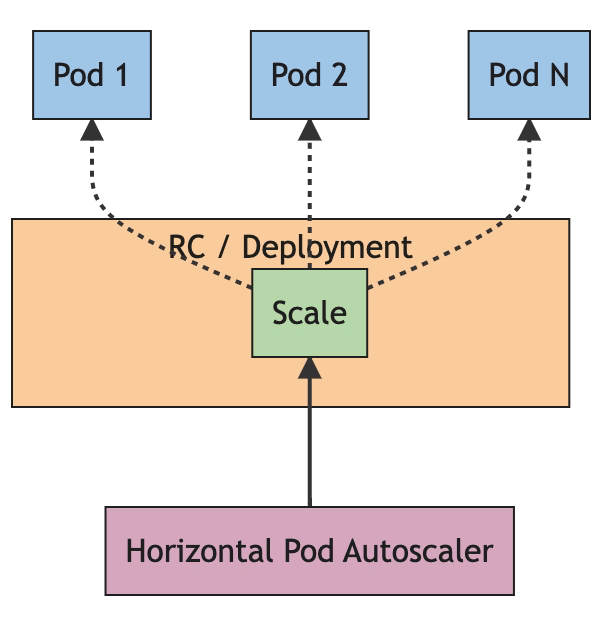
Kubernetes Autoscaling has suffered a dramatic change. Since the Kubernetes 1.26 release, all components should migrate their HorizontalPodAutoscaler objects from the v1 to the new release v2that has been available since Kubernetes 1.23.
HorizontalPodAutoscaler is a crucial component in any workload deployed on a Kubernetes cluster, as the scalability of this solution is one of the great benefits and key features of this kind of environment.
A little bit of History
Kubernetes has introduced a solution for the autoscaling capability since the version Kubernetes 1.3 a long time ago, in 2016. And the solution was based on a control loop that runs at a specific interval that you can configure with the property --horizontal-pod-autoscaler-sync-period parameters that belong to the kube-controller-manager.
So, once during this period, it will get the metrics and evaluate through the condition defined on the HorizontalPodAutoscaler component. Initially, it was based on the compute resources used by the pod, main memory, and CPU.
This provided an excellent feature, but with the past of time and adoption of the Kubernetes environment, it has been shown as a little narrow to handle all the scenarios that we should have, and here is where other awesome projects we have discussed here, such as KEDA brings into the picture to provide a much more flexible set of features.
Kubernetes AutoScaling Capabilities Introduced v2
With the release of the v2 of the Autoscaling API objects, we have included a range of capabilities to upgrade the flexibility and options available now. There most relevant ones are the following:
Scaling on custom metrics: With the new release, you can configure an HorizontalPodAutoscaler object to scale using custom metrics. When we talk about custom metrics, we talk about any metric generated from Kubernetes. You can see a detailed walkthrough about using Custom metrics in the official documentation
Scaling on multiple metrics: With the new release, you also have the option to scale based on more than one metric. So now the HorizontalPodAutoscalerwill evaluate each scaling rule condition, propose a new scale value for each of them, and take the maximum value as the final one.
Support for Metrics API: With the new release, the controller from the HoriztalPodAutoscaler components retrieves metrics from a series of registered APIs, such as metrics.k8s.io, custom.metrics.k8s.io ,external.metrics.k8s.io. For more information on the different metrics available, you can take a look at the design proposal
Configurable Scaling Behavior: With the new release, you have a new field, behavior, that allows configuring how the component will behave in terms of scaling up or scaling down activity. So, you can define different policies for the scaling up and others for the scaling down, limit the max number of replicas that can be added or removed in a specific period, to handle the issues with the spikes of some components as Java workloads, among others. Also, you can define a stabilization window to avoid stress when the metric is still fluctuating.
Kubernetes Autoscaling v2 vs KEDA
We have seen all the new benefits that Autoscaling v2 provides, so I’m sure that most of you are asking the same question: Is Kubernetes Autoscaling v2 killing KEDA?
Since the latest releases of KEDA, KEDA already includes the new objects under the autoscaling/v2 group as part of their development, as KEDA relies on the native objects from Kubernetes, and simplify part of the process you need to do when you want to use custom metric or external ones as they have scalers available for pretty much everything you could need now or even in the future.
But, even with that, there are still features that KEDA provides that are not covered here, such as the scaling “from zero” and “to zero” capabilities that are very relevant for specific kinds of workloads and to get a very optimized use of resources. Still, it’s safe to say that with the new features included in the autoscaling/v2 release, the gap is now smaller. Depending on your needs, you can go with the out-of-the-box capabilities without including a new component in your architecture.
Grafana Alerting capabilities continue to improve in each new release the GrafanaLabs team does. Especially with the changes done in Grafana 8 and Grafana 9, many questions have been raised regarding its usage, the capabilities supported, and the comparison with other alternatives.
We want to start setting the context about Grafana Alerting based on the usual stack we deployed to improve the observability of our workloads. Grafana can be used for any workload; there is a preference for some specific ones being the most used solution when we talk about Kubernetes workloads.
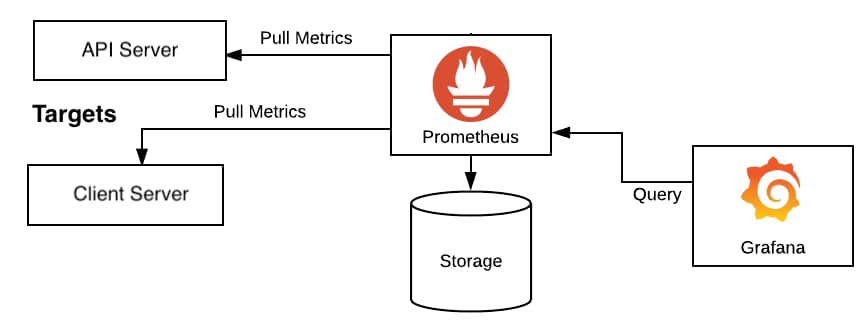
In this kind of deployment, the stack we usually deploy is Grafana as the visualization tool and Prometheus as the core to gather all metrics, so all responsibilities are differentiated. Grafana draws all the information using its excellent dashboarding capabilities, gathering the information from Prometheus.
When we plan to start including alerts, as we cannot accept that we need to have a specific team just watching dashboards to detect where something is going wrong, we need to implement a way to push alerts.
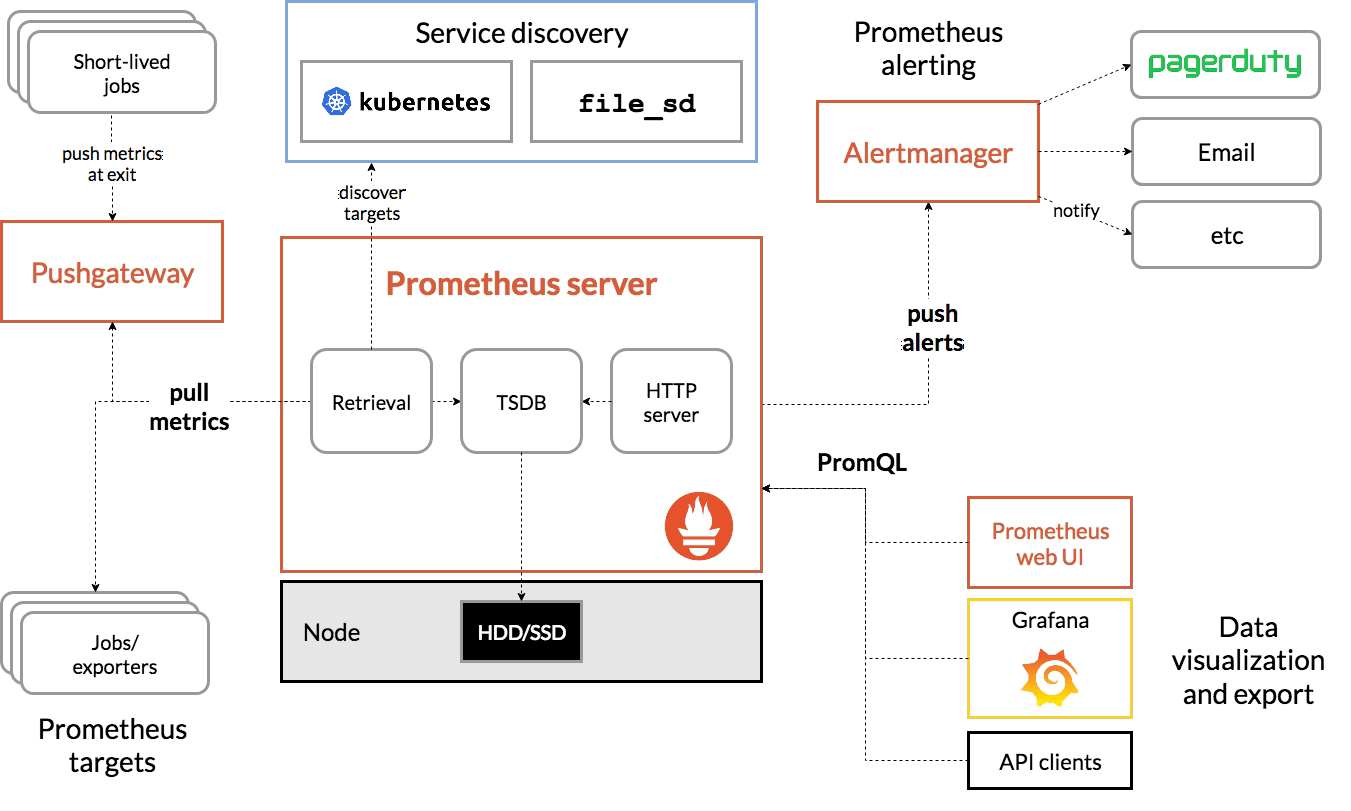
Alerting capabilities in Grafana have been present since the beginning, but its capabilities in the early stages have been limited to generating graphical alerts focused on the dashboards. Instead of that, Prometheus acting as the brain, includes a side-card component called AlertManager that can handle the creation and notification of any alerts generated from all the information stored in Prometheus.
As main capabilities that Alert Manager provides are the definition of the alerts, a grouping of the alerts, dismiss rules to mute some notifications, and finally, the way to send that alert to any system based on a plugin system and a webhook to be able to extend it to any component available.
So, this is the initial stage, but this has been changed with the latest releases of Grafana in the last months, as commented, and now the barrier between both components is much fuzzier, as we’re going to see.
What are the main capabilities Grafana Alerting provides today?
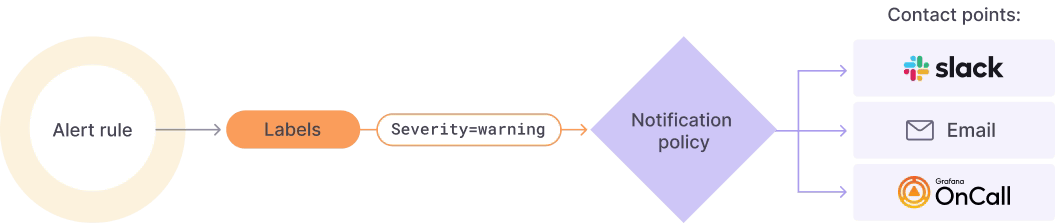
Grafana Alerting allows you to define Alert rules defining the criteria under which this alert should fire. It can have different queries, conditions, evaluation frequency, and the duration over which the condition is met.
This alert can be generated from any of the sources supported in Grafana, and that’s a very relevant topic as this is not limited to the Prometheus data. With the eclosion of the GrafanaLabs stack with many new products such as Grafana Loki and Grafana Mimir, among others, this is especially relevant.
Once each of the alerts once it fires, you can define a Notification policy to decide where, when, and how each of these alerts is routed to. A notification policy also has a contact point associated with one or more notifiers.
Additionally, you can silence alerts to stop receiving notifications of a specific alert instance and mute alerts when you can define some period where new alerts will not be generated or notified.
All of that with powerful dashboarding capabilities using all the power of the Grafana dashboard features.
Grafana Alerting vs Prometheus Alert Manager
After reading the previous section probably, you are confused because most of the new features added are very similar to the ones we have available on Prometheus AlertManager.
So, in that case, what tool should we use? Should we replace Prometheus AlertManager and start using Grafana Alerting? Should we use both? As you can imagine, this is one of these questions that doesn’t have clear answers as it will depend a lot on the context and your specific scenario, but let me give you some pointers around it.
Grafana Alerting can be very powerful if you are already inside the Grafana stack. If you are already using Grafana Loki (and require to generate alerts from it), Grafana Mimir, or directly Grafana cloud, probably Grafana Alert would provide a better fit for your ecosystem.
If you require complex alerts defined with complex queries and calculations, Prometheus AlertManager will provide a much more complex and rich ecosystem to generate your alerts.
If you are looking for a SaaS approach, Grafana Alerting is also provided as part of Grafana Cloud, so it can be used without the requirement to be installed in your ecosystem.
If you are using Grafana Alerting, you need to consider that the same component serving the dashboards is computing and generating the alerts, which would require additional HA capabilities. It will be a non-evitable relationship between both features (dashboards and alerts). Suppose that doesn’t resonate well with you because the criticality of your dashboard is not the same as the alerts, or you think your dashboard’s usage can affect the alerts’ performance. In that case, Prometheus Alert Manager will provide a better approach as it runs in a specific pod in isolation.
At this moment, Grafana Alerting uses a SQL Database to manage duplication among other features, so depending on the number of alerts you need to work on could not be enough in terms of performance, and the usage of the time series database from Prometheus can be a better fit.
Summary
Grafana Alerting is incredible progress on the journey of the Grafana Labs team to provide an end-to-end observability stack with a great fit on the rest of the ecosystem with the option to run it in SaaS mode and focus on ease of use. But there are better options than depending on your needs.
Istio ServiceEntry is the way to define an endpoint that doesn’t belong to the Istio Service Registry. Once the ServiceEntry is part of the registry, it can define rules and enforce policies as if they belong to the mesh.
Istio Service Entry answers the question you probably have done several times when using a Service Mesh. How can I do the same magic with external endpoints that I can do when everything is under my service mesh scope? And Istio Service Entry objects provide precisely that:
A way to have an extended mesh managing another kind of workload or, even better, in Istio’s own words:
ServiceEntry enables adding additional entries into Istio’s internal service registry so that auto-discovered services in the mesh can access/route to these manually specified services.
These services could be external to the mesh (e.g., web APIs) or mesh-internal services that are not part of the platform’s service registry (e.g., a set of VMs talking to services in Kubernetes).
What are the main capabilities of Istio ServiceEntry?
Here you can see a sample of the YAML definition of a Service Entry:
In this case, we have an external-svc-redirectServiceEntry object that is handling all calls going to the wikipedia.org, and we define the port and protocol to be used (TLS – 443) and classify this service as external to the mesh (MESH_EXTERNAL) as this is an external Web page.
You can also specify more details inside the ServiceEntry configuration, so you can, for example, define a hostname or IP and translate that to a different hostname and port because you can also specify the resolution mode you want to use for this specific Service Entry. If you see the snippet above, you will find a resolution field with NONE value that says it will not make any particular resolution. But other values valid are the following ones:
NONE: Assume that incoming connections have already been resolved (to a specific destination IP address).
STATIC: Use the static IP addresses specified in endpoints as the backing instances associated with the service.
DNS: Attempt to resolve the IP address by querying the ambient DNS asynchronously.
DNSROUNDROBIN: Attempt to resolve the IP address by querying the ambient DNS asynchronously. Unlike DNS, DNSROUNDROBIN only uses the first IP address returned when a new connection needs to be initiated without relying on complete results of DNS resolution, and references made to hosts will be retained even if DNS records change frequently eliminating draining connection pools and connection cycling.
To define the target of the ServiceEntry, you need to specify its endpoints by using a WorkloadEntry object. To do that, you need to provide the following data:
address: Address associated with the network endpoint without the port.
ports: Set of ports associated with the endpoint
weight: The load balancing weight associated with the endpoint.
locality: The locality associated with the endpoint. A locality corresponds to a failure domain (e.g., country/region/zone).
network: Network enables Istio to group endpoints resident in the same L3 domain/network.
What Can You Do With Istio ServiceEntry?
The number of use cases is enormous. Once a ServiceEntry is similar to what you have a Virtual Service defined, you can apply any destination rule to them to do a load balancer, a protocol switch, or any logic that can be done with the DestinationRule object. The same applies to the rest of the Istio CRD, such as RequestAuthentication, and PeerAuthorization, among others.
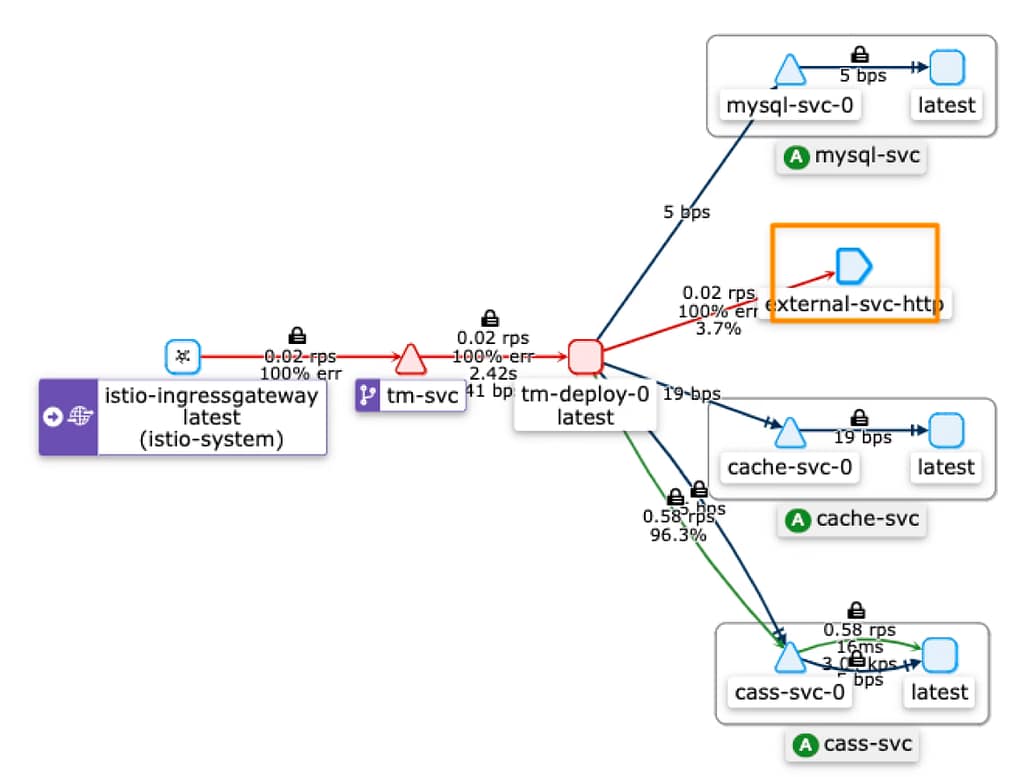
You can also have a graphical representation of the ServiceEntry inside Kiali, a visual representation for the Istio Service Mesh, as you can see in the picture below:
As you can define, an extended mesh with endpoints outside the Kubernetes cluster is something that is becoming more usual with the explosion of clusters available and the hybrid environments when you need to manage clusters of different topologies and not lose the centralized policy-based network management that the Istio Service Mesh provides to your platform.
Istio TLS configuration is one of the essential features when we enable a Service Mesh. Istio Service Mesh provides so many features to define in a centralized, policy way how transport security, among other characteristics, is handled in the different workloads you have deployed on your Kubernetes cluster.
One of the main advantages of this approach is that you can have your application focus on the business logic they need to implement. These security aspects can be externalized and centralized without necessarily including an additional effort in each application you have deployed. This is especially relevant if you are following a polyglot approach (as you should) across your Kubernetes cluster workloads.
So, this time we’re going to have our applications just handling HTTP traffic for both internal and external, and depending on where we are reaching, we will force that connection to be TLS without the workload needed to be aware of it. So, let’s see how we can enable this Istio TLS configuration
Scenario View
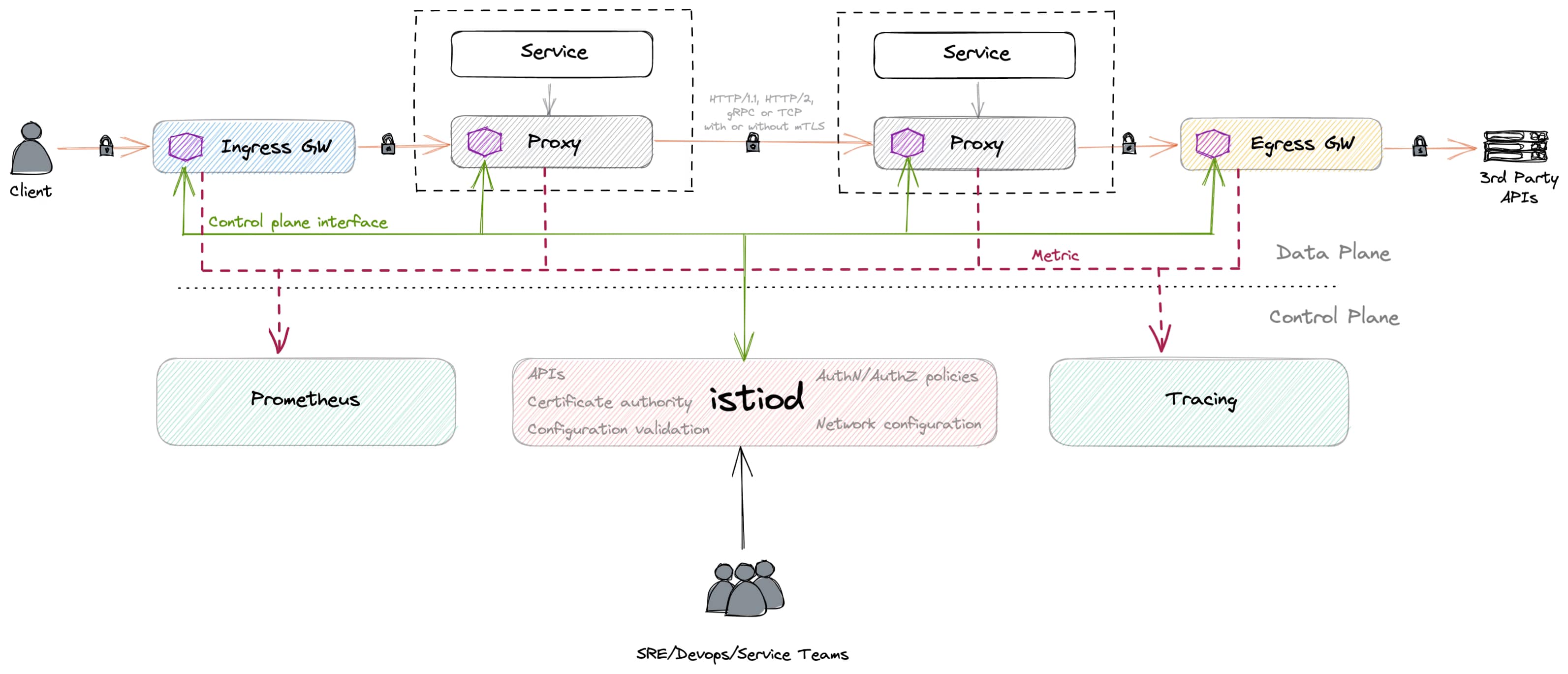
We will use this picture you can see below to keep in mind the concepts and components that will interact as part of the different configurations we will apply to this.
We will use the ingress gateway to handle all incoming traffic to the Kubernetes cluster and the egress gateway to handle all outcoming traffic from the cluster.
We will have a sidecar container deployed in each application to handle the communication from the gateways or the pod-to-pod communication.
To simplify the testing applications, we will use the default sample applications Istio provides, which you can find here.
How to Expose TLS in Istio?
This is the easiest part, as all the incoming communication you will receive from the outside will enter the cluster through the Istio Ingress Gateway, so it is this component the one that needs to handle the TLS connection and then use the usual security approach to talk to the pod exposing the logic.
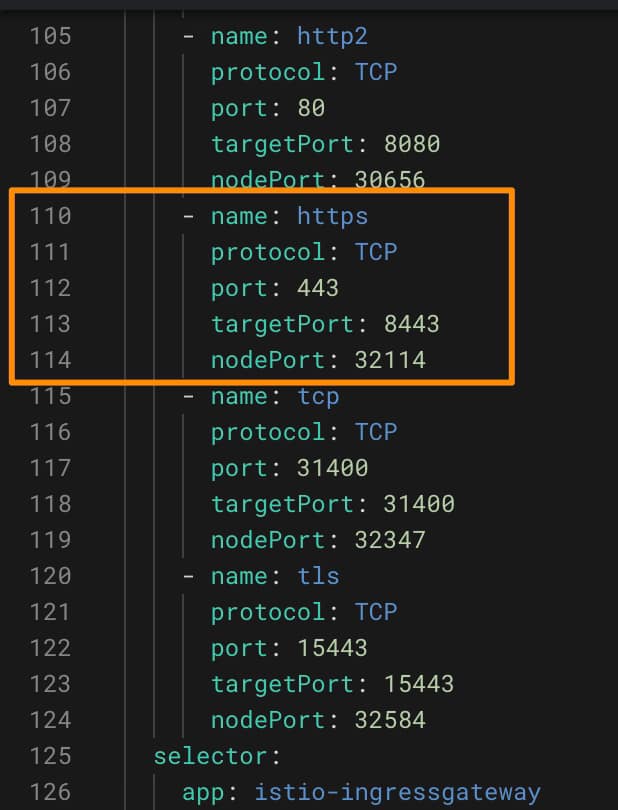
By default, the Istio Ingress Gateway already exposes a TLS port, as you can see in the picture below:
So we will need to define a Gateway that receives all this traffic through the HTTPS and redirect that to the pods, and we will do it as you can see here:
As we can see, it is a straightforward configuration, just adding the port HTTPS on the 443 and providing the TLS configuration:
We will use a SIMPLE mode, also known as one-way TLS, where only the server is authenticated but not the clients. This is the usual configuration for any web page or web service.
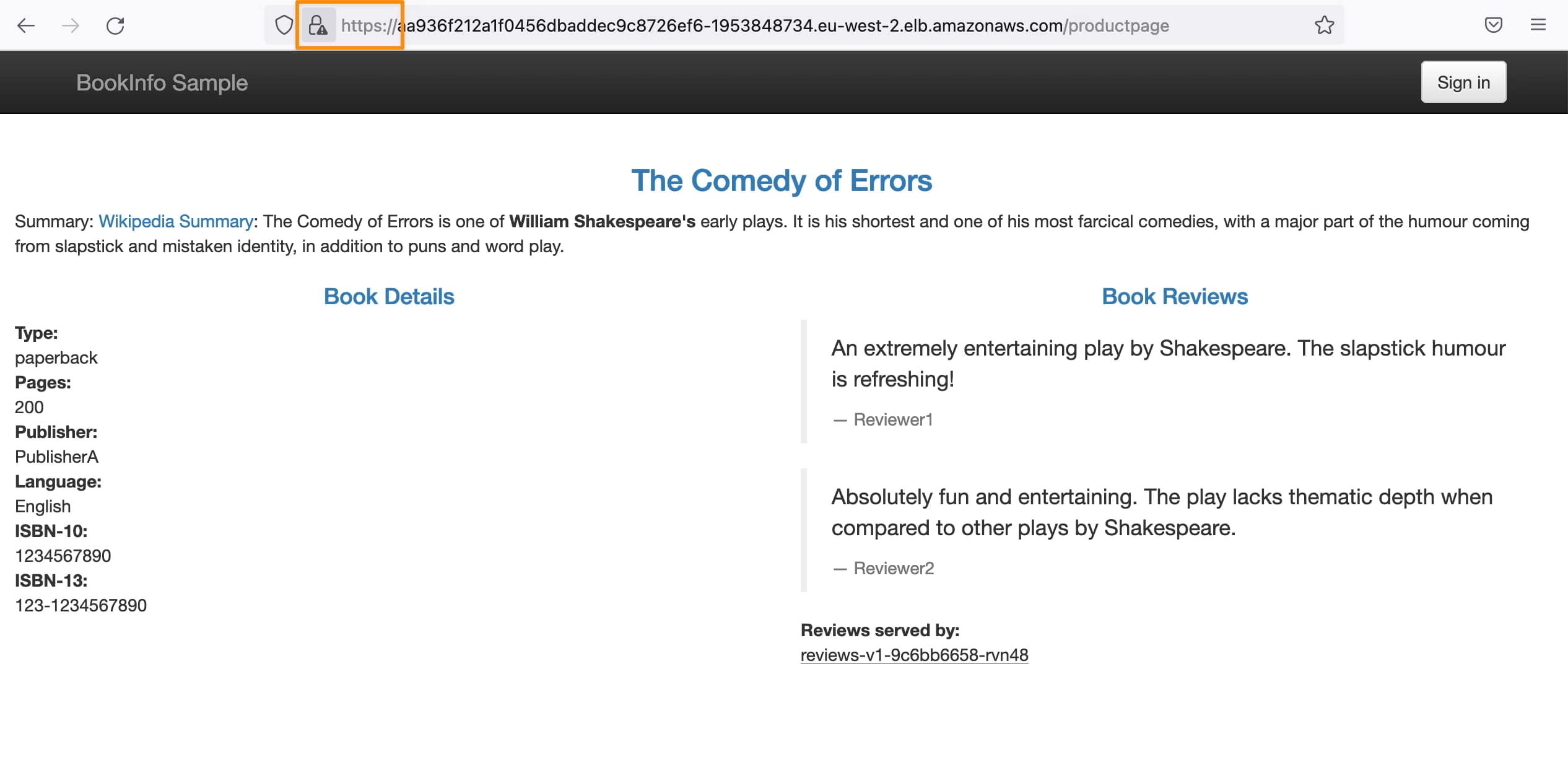
And with that, we can already reach using SSL the same pages:
How To Consume SSL from Istio?
Now that we have generated a TLS incoming request without the application knowing anything, we will go one step beyond that and do the most challenging configuration. We will set up TLS/SSL connection to any outgoing communication outside the Kubernetes cluster without the application knowing anything about it.
Kiali is an open-source project that provides observability for your Istio service mesh. Developed by Red Hat, Kiali helps users understand the structure and behavior of their mesh and any issues that may arise.
Kiali provides a graphical representation of your mesh, showing the relationships between the various service mesh components, such as services, virtual services, destination rules, and more. It also displays vital metrics, such as request and error rates, to help you monitor the health of your mesh and identify potential issues.
What are Kiali Main Capabilities?
One of the critical features of Kiali is its ability to visualize service-to-service communication within a mesh. This lets users quickly see how services are connected, and requests are routed through the mesh. This is particularly useful for troubleshooting, as it can help you quickly identify problems with service communication, such as misconfigured routing rules or slow response times.
Kiali also provides several tools for monitoring the health of your mesh. For example, it can alert you to potential problems, such as a high error rate or a service not responding to requests. It also provides detailed tracking information, allowing you to see the exact path a request took through the mesh and where any issues may have occurred.
In addition to its observability features, Kiali provides several other tools for managing your service mesh. For example, it includes a traffic management module, which allows you to control the flow of traffic through your mesh easily, and a configuration management module, which helps you manage and maintain the various components of your mesh.
Overall, Kiali is an essential tool for anyone using an Istio service mesh. It provides valuable insights into the structure and behavior of your mesh, as well as power monitoring and management tools. Whether you are starting with Istio or an experienced user, Kiali can help ensure that your service mesh runs smoothly and efficiently.
What are the main benefits of using Kiali?
The main benefits of using Kiali are:
Improved observability of your Istio service mesh. Kiali provides a graphical representation of your mesh, showing the relationships between different service mesh components and displaying key metrics. This allows you to quickly understand the structure and behavior of your mesh and identify potential issues.
Easier troubleshooting. Kiali’s visualization of service-to-service communication and detailed tracing information make it easy to identify problems with service communication and pinpoint the source of any issues.
Enhanced traffic management. Kiali includes a traffic management module allowing you to control traffic flow through your mesh easily.
Improved configuration management. Kiali’s configuration management module helps you manage and maintain the various components of your mesh.
How To Install Kiali?
There are several ways to install Kiali as part of your Service Mesh deployment, being the preferred option to use the Operator model available here.
You can install this operator using Helm or OperatorHub. To install it using Helm Charts, you need to add the following repository using this command:
helm repo add kiali https://kiali.org/helm-charts
** Remember that once you add a new repo, you need to run the following command to update the charts available
helm repo update
Now, you can install it using the helm installprimitive such as in the following sample:
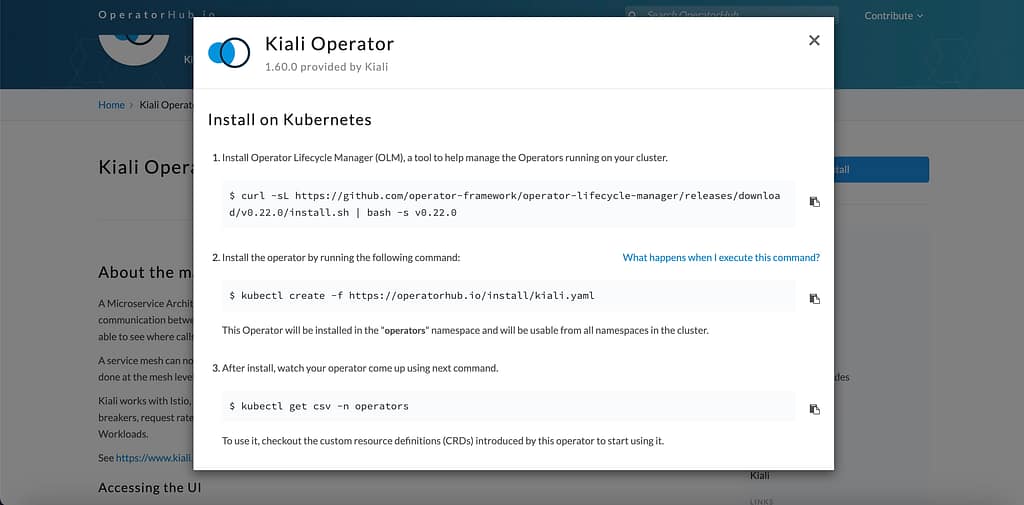
If you prefer going down the route of OperatorHub, you can use the following URL . Now, by clicking on the Install button, you will see the steps to have the component installed in your Kubernetes environment.
In case you want a simple installation of Kiali, you can also use the sample YAML available inside the Istio installation folder using the following command:
Kiali is just the graphical representation of the information available regarding how the service mesh works. So it is not the responsibility of Kiali to store those metrics but to retrieve them and draw them in a relevant way for the user of the tool.
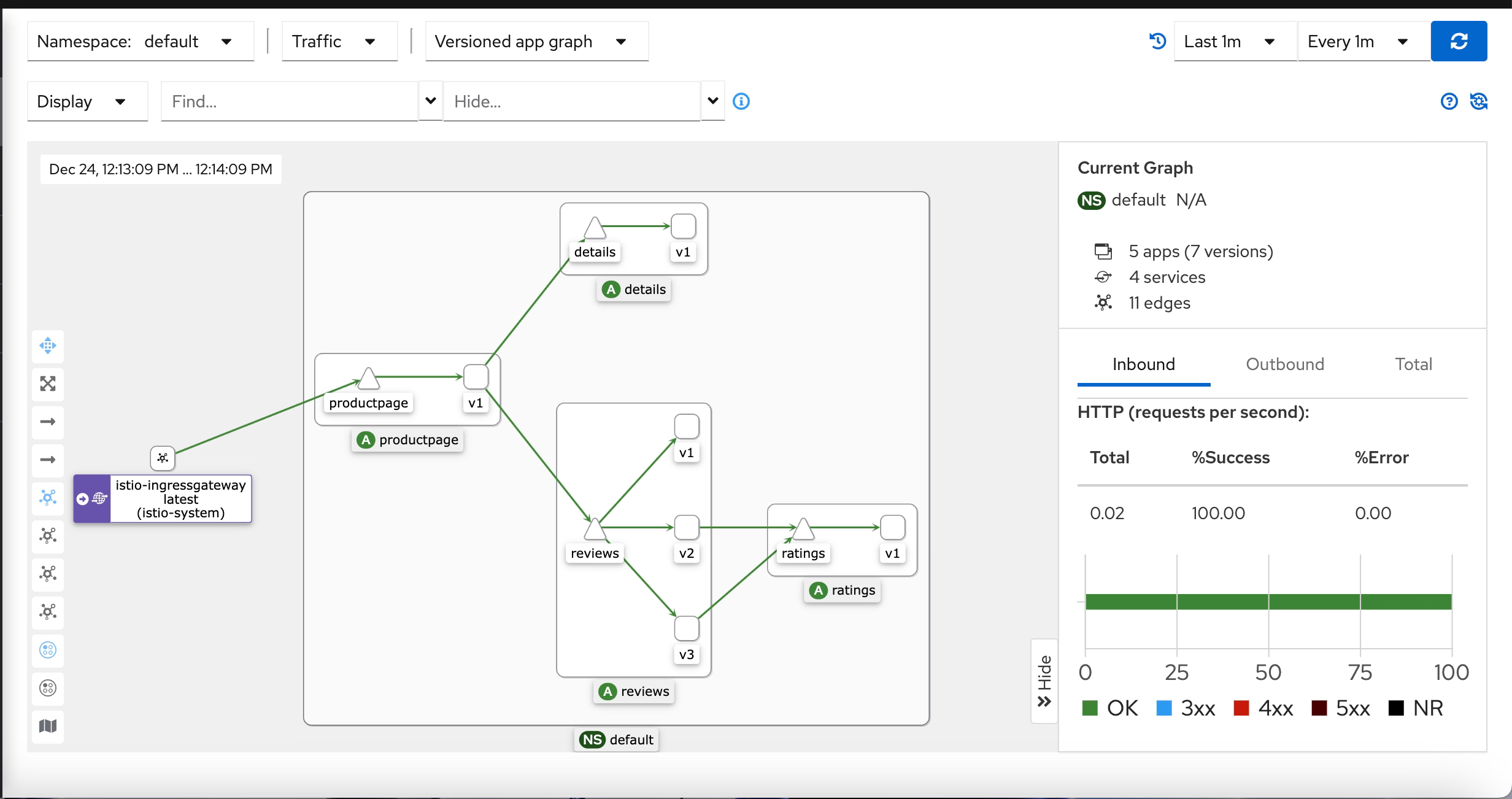
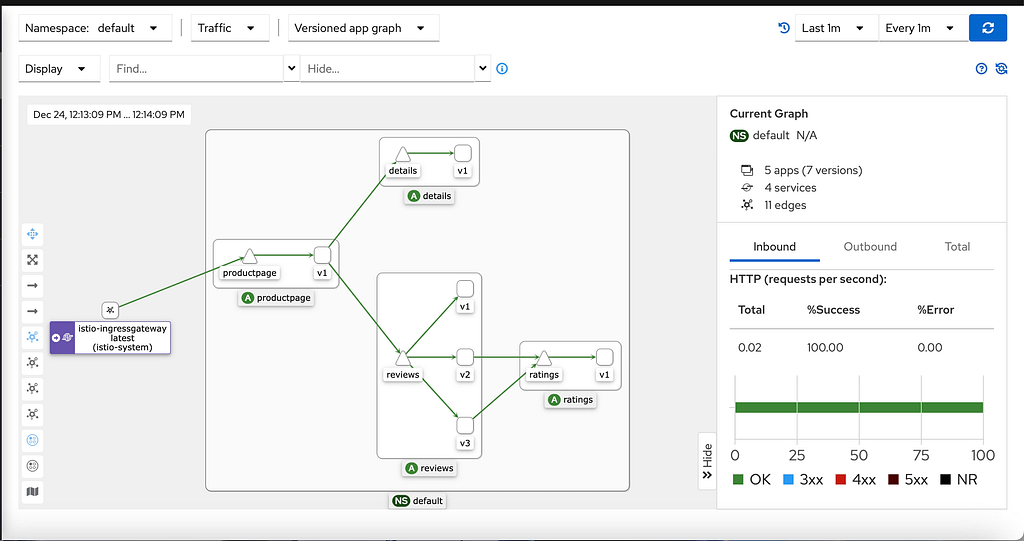
Prometheus does the storage of this data, so Kiali uses the Prometheus REST API to retrieve the information and draw it graphically, as you can see here:
It is going to show several relevant parts of the graph. It will show the namespace selected and inside of them the different apps (it would detect an app in case you have a label added to the workload with the name app ). Inside, each app will add different services and pods with other icons (triangles for the services and squares for the pods).
It will also show how the traffic reaches the cluster through the different ingress gateways and how it goes out in case we have any egress gateway configured.
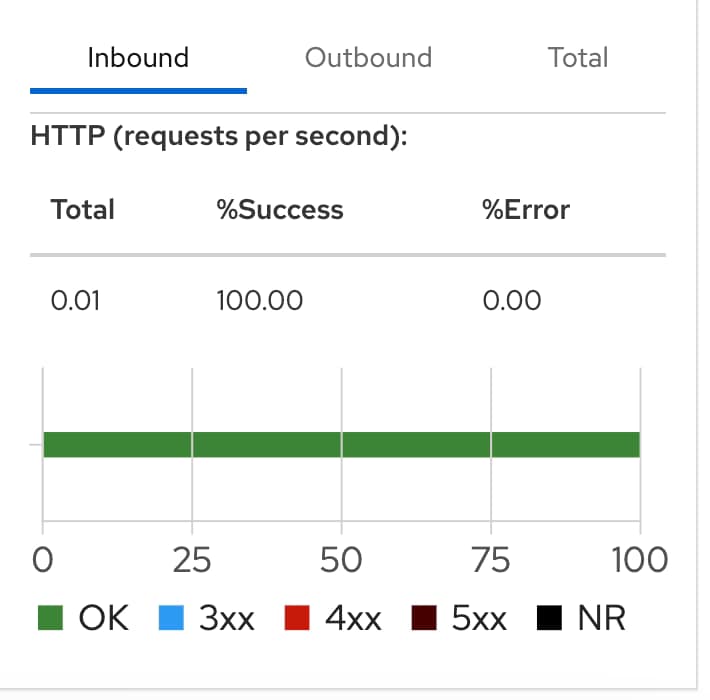
It will show the kind of traffic we’re handling and the different error rates based on the kind of protocol, such as TCP, HTTP, and so on, as you can see in the picture below. The protocol is decided based on a naming convention on the port name from the service with the expected format: protocol-name
Can Kiali be used with any service mesh?
No, Kiali is specifically designed for use with Istio service meshes.
It provides observability, monitoring, and management tools for Istio service meshes but is incompatible with other service mesh technologies.
If you use a different service mesh, you will need to find an additional tool for managing and monitoring it.
Are there other alternatives to Kiali?
Even if you cannot see natural alternatives to Kiali to visualize your workloads and traffic through the Istio Service Mesh, you can use other tools to grab the metrics that feed Kiali and have custom visualization using more generic tools such as Grafana, among others.
Let’s talk about similar tools to Kialia for other Service Meshes, such as Linkerd, Consul Connect, or even Kuma. Most follow a different approach where the visualization part is not a separate “project” but relies on a standard visualization tool. That gives you much more flexibility, but at the same time, it lacks most of the excellent visualization of the traffic that Kialia provides, such as graph views or being able to modify the traffic directly from the graph view.
If you have ever built a Helm chart that includes configuration files, scripts, or property files inside a ConfigMap or Secret, you have probably hit the same wall: the default templating engine only processes YAML files inside the templates/ directory. Everything else is treated as static content.
This is a problem because real-world applications rarely deploy with hardcoded configuration. You need environment-specific values in your .properties files, tokens in your JSON configs, or dynamic hostnames in your shell scripts. Helm provides three core functions to handle this: .Files.Get, .Files.Glob, and tpl. Each solves a different piece of the puzzle, and combining them is where things get powerful.
This guide covers every practical pattern you will need, from the simplest .Files.Get call to the advanced tpl + .Files.Glob combination that gives you full templating inside external files. For a broader look at Helm packaging, see our definitive Helm package management guide.
Understanding the Helm Chart File Structure
Before diving into the functions, it is important to understand what Helm considers a “file” and where it can access them. A typical chart looks like this:
Files inside templates/ go through the full Helm template engine. Files outside it (like config/app.properties or files/zones.json) are accessible via the .Files object, but they are not templated automatically. This is the key distinction that catches most people off guard.
.Files.Get: Reading a Single File
The .Files.Get function reads the content of a specific file by its path, relative to the chart root. This is the simplest way to include file content in a ConfigMap or Secret.
This reads config/app.properties from the chart root and injects it into the ConfigMap, preserving the original content. The indent 4 ensures correct YAML indentation.
Secret Example with .Files.Get and b64enc
For Secrets, Kubernetes expects base64-encoded values in the data field. Combine .Files.Get with b64enc:
.Files.Get Path Limitations: Why “../” Does Not Work
A very common question is whether you can use .Files.Get to access files outside the chart directory, for example .Files.Get "../shared/config.yaml". The answer is no. Helm restricts file access to the chart root for security reasons. Any path that tries to escape the chart directory with ../ will silently return an empty string.
If you need to share files between charts, the recommended patterns are:
Copy shared files into each chart during your CI/CD pipeline before packaging
Pass the content through values.yaml using a parent chart
Also note that files inside the templates/ directory and Chart.yaml itself are not accessible through .Files. Only files that are packaged with the chart and not in templates/ can be read.
.Files.Glob: Working with Multiple Files
When you have multiple configuration files to include, .Files.Glob lets you match files using glob patterns and iterate over them. This is especially useful when your chart ships with several config files that all need to end up in the same ConfigMap.
.Files.Glob with .AsConfig Example: ConfigMap from Multiple Files
The .AsConfig helper takes a set of matched files and formats them as ConfigMap data entries, where each filename becomes the key and the file content becomes the value:
Notice two important details here. First, base $path extracts just the filename (e.g., init.sh) from the full path (scripts/init.sh). Second, inside a range loop the context changes, so you must use $. (dollar-dot) to access the root scope when calling $.Files.Get.
The tpl Function: Full Templating Inside External Files
This is where things get really interesting. The .Files.Get and .Files.Glob functions read file content as-is. If your app.properties file contains {{ .Values.database.host }}, it will be included literally as that string, not replaced with the actual value.
The tpl function solves this by passing a string through the Helm template engine. When you combine tpl with .Files.Get, your external files get the same templating power as files inside templates/.
tpl + .Files.Get: Templated ConfigMap
Consider this config/app.properties file in your chart:
The tpl function takes two arguments: the string to process and the context (.). It runs the content through the template engine, replacing all {{ .Values.* }} references with actual values. The result is a fully dynamic configuration file.
tpl + .Files.Glob: Templating Multiple Files
To template every file matched by a glob pattern, combine the range iteration with tpl:
This iterates over all .json files in the secrets/ directory, passes each through the template engine (so {{ .Values.* }} references are resolved), base64-encodes the result, and includes it in the Secret. This is the most powerful pattern for managing multiple dynamic configuration files.
Common Pitfalls and Troubleshooting
Working with .Files in Helm can produce confusing errors or silent failures. Here are the most common issues and how to fix them.
.Files.Get Returns Empty String
If .Files.Get returns nothing, check these three things:
Wrong path: The path is relative to the chart root, not to the templates directory. Use .Files.Get "config/app.properties", not .Files.Get "../config/app.properties".
File excluded by .helmignore: Check your .helmignore file. If it matches the file’s path, the file will not be packaged with the chart and .Files.Get will return empty.
File in templates/ directory: Files inside templates/ are not accessible via .Files. Move them to a different directory.
YAML Indentation Errors
The most frequent rendering error is incorrect indentation. Always use indent N (or nindent N) when including file content in YAML. The difference between indent and nindent is that nindent adds a newline before the content, which is cleaner when using {{- to trim whitespace:
# Using indent (requires | on the previous line)
data:
  app.properties: |
{{ .Files.Get "config/app.properties" | indent 4 }}

# Using nindent (cleaner, self-contained)
data:
  app.properties: {{ .Files.Get "config/app.properties" | nindent 4 }}
Chart Size Limit
Helm charts stored in Kubernetes as Secrets or ConfigMaps are subject to the 1 MB limit imposed by etcd. If your chart includes many large files, you may hit this limit during helm install. The error typically reads release: invalid or etcd: request is too large. In that case, consider mounting files via persistent volumes or external config management instead of embedding them in the chart.
Context Issues Inside range Loops
Inside a range block, . refers to the current iteration item, not the root context. This means .Files.Get will fail. Use $. to access the root context:
# Wrong: . is the loop item, not the root context
{{- range $path, $_ := .Files.Glob "config/*" }}
  {{ .Files.Get $path }}  {{/* This will fail */}}
{{- end }}

# Correct: use $ to access root context
{{- range $path, $_ := .Files.Glob "config/*" }}
  {{ $.Files.Get $path }}  {{/* This works */}}
{{- end }}
This way, every file in config/ is automatically included, templated, and properly formatted. Adding a new configuration file is as simple as dropping it into the directory. No template changes required.
Quick Reference: .Files Functions Summary
Here is a quick reference of all file-related functions available in Helm:
Function
What it does
Example
.Files.Get
Returns the content of a single file as a string
.Files.Get "config/app.yaml"
.Files.Glob
Returns all files matching a glob pattern
.Files.Glob "config/*.json"
.AsConfig
Formats matched files as ConfigMap data entries
(.Files.Glob "config/*").AsConfig
.AsSecrets
Formats matched files as base64-encoded Secret data
(.Files.Glob "secrets/*").AsSecrets
tpl
Passes a string through the Helm template engine
tpl (.Files.Get "f.yaml") .
.Files.Lines
Returns file content as a list of lines
.Files.Lines "config/hosts.txt"
.Files.AsBytes
Returns file content as a byte array
.Files.Get "bin/tool" \| b64enc
Conclusion
Helm file handling follows a clear escalation path depending on what you need. Use .Files.Get when you need a single file as-is. Use .Files.Glob with .AsConfig or .AsSecrets when you have multiple files that need no modification. And use tpl combined with either function when your files need dynamic values from values.yaml.
The most common mistake is forgetting that .Files only reads files — it does not template them. The moment you need {{ .Values.* }} inside an external file, tpl is the function you are looking for. For more Helm patterns and advanced tips, explore our guides on Helm hooks, Helm loops, and Helm dependencies.
Frequently Asked Questions
Can .Files.Get access files outside the chart directory?
No. Helm restricts .Files.Get to files within the chart root directory. Paths containing ../ will silently return an empty string. This is a security constraint to prevent charts from reading arbitrary files from the filesystem. If you need shared files across charts, use library charts, copy files during CI/CD, or pass content through parent chart values.
What is the difference between .AsConfig and .AsSecrets in Helm?
.AsConfig formats files as plain text ConfigMap data entries (key: filename, value: file content). .AsSecrets does the same but automatically base64-encodes each file’s content, which is required for the data field in Kubernetes Secret resources. Both are called on the result of .Files.Glob.
How do I use Helm values inside a properties file or JSON config?
Use the tpl function. Instead of .Files.Get "config/file.json", use tpl (.Files.Get "config/file.json") .. This passes the file content through the Helm template engine, so any {{ .Values.* }} references in the file will be resolved against your chart’s values.
Why does .Files.Get return an empty string?
Three common causes: the file path is wrong (paths are relative to the chart root, not the templates directory), the file is excluded by .helmignore, or the file is inside the templates/ directory which is not accessible via .Files. Run helm template locally and check the output to debug.
Is there a size limit for files included via .Files.Get?
Helm itself does not impose a file size limit, but the packaged chart is stored as a Kubernetes Secret or ConfigMap which is subject to the etcd 1 MB size limit. If your chart with all its files exceeds this, helm install will fail. For large files, consider external config management or persistent volumes instead of embedding them in the chart.
Nomad is the Hashicorp alternative to the typical pattern of using a Kubernetes-based platform as the only way to orchestrate your workloads efficiently. Nomad is a project started in 2019, but it is getting much more relevant nowadays after 95 releases, and the current version of this article is 1.4.1, as you can see in their GitHub profile.
Nomad approaches the traditional challenges of isolating the application lifecycle for the infrastructure operation lifecycle where that application resides. Still, instead of going full to a container-based application, it tries to provide a solution differently.
What are the main Nomad Features?
Based on its own definition, as you can read on their GitHub profile, they already highlight some of the points of difference between the de-facto industry standard:
Nomad is an easy-to-use, flexible, and performant workload orchestrator that can deploy a mix of microservice, batch, containerized, and non-containerized applications
Easy-to-use: This is the first statement they include in their definition because the Nomad approach is much simpler than alternatives such as Kubernetes because it works on a single-binary approach where it has all the capabilities that are needed running as a node agent based on its own “vocabulary” that you can read more of it in their official documentation.
Flexibility: This is the other critical thing they provide a hypervisor, an intermediate layer between the application and the underlying infrastructure. It is not just limited to container applications but also supports this kind of deployment. It also allows the deploy it as part of a traditional virtual machine approach. The primary use cases highlighted are running standard windows applications, which is tricky when talking about Kubernetes deployments; even though Windows containers have been a thing for so long, their adoption is not at the same level, as you can see in the Linux container world.
Hashicorp Integration: As part of the Hashicorp portfolio, it also includes seamless integration with other Hashicorp projects such as Hashicorp Vault, which we have covered in several articles, or Hashicorp Consul, which helps to provide additional capabilities in terms of security, configuration management, and communication between the different workloads.
Nomad vs Kubernetes: How Nomad Works?
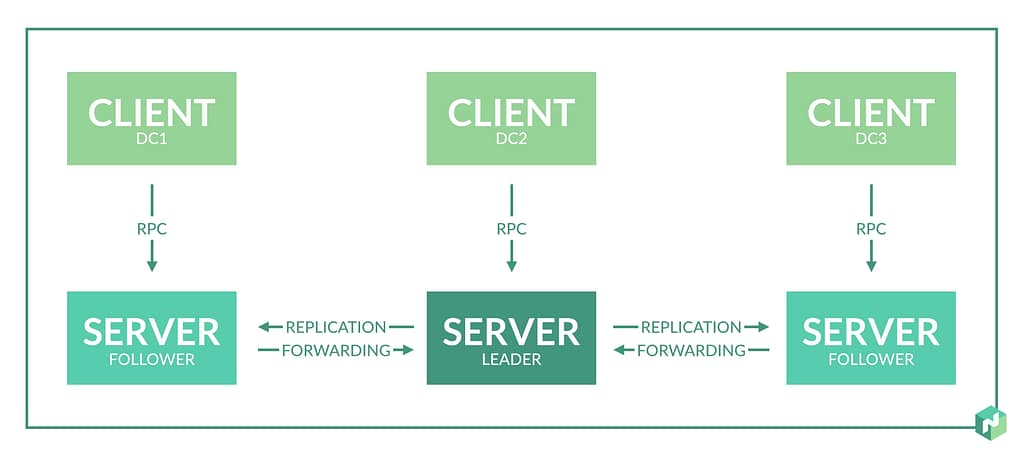
As commented above, Nomad covers everything with a single-component approach. A nomad binary is an agent that can work in server mode or client mode, depending on the role of the machine executing it.
So Nomad is based on a Nomad cluster, a set of machines running a nomad agent in server mode. Those servers are split depending on the role of the leader or followers. The leader performs most of the cluster management, and the followers can create scheduling plans and submit them to the leader for approval and execution. This is represented in the picture below from the Hashicorp Nomad official page:
Once we have the cluster ready, we need to create our jobs, and a job is a definition of the task we would like to execute on the Nomad cluster we have previously set up. A task is the smallest unit of work in Nomad. Here is where the flexibility comes to Nomad because the task driver executes each task, allowing different drivers to execute various workloads. This is how following the same approach, we will have a docker driver to run our container deployment or an exec driver to execute it on top of a virtual infrastructure. Still, you can create your task drivers following a plugin mechanism that you can read more about here.
Jobs and Task are defined using a text-based approach but not following the usual YAML or JSON kind of files but a different format, as you can see in the picture below (click here to download the whole file from the GitHub Nomad Samples repo):
In the end, both try to solve and address the same challenges in terms of scalability, infrastructure sharing and optimization, agility, flexibility, and security from traditional deployments.
Kubernetes focus on different kind of workloads, but everything follows the same deployment mode (container-based) and adopts recent paradigms (service-based, microservice patterns, API-led, and so on) with a robust architecture that allows excellent scalability, performance, flexibility, and with adoption levels in the industry that has become the current de-facto only alternative for modern workload orchestration platforms.
But, at the same time, it also requires effort in management and transforming existing applications to new paradigms.
On the other hand, Nomad tries to address it differently, minimizing the change of the existing application to take advantage of the platform’s benefits and reducing the overhead of management and complexity that a usual Kubernetes platform provides, depending on the situation.
DevSecOps is a concept you probably have heard extensively in the last few months. You will see it in alignment with the traditional idea of DevOps. This probably, at some point, makes you wonder about a DevSecOps vs DevOps comparison, even trying to understand what are the main differences between them or if they are the same concept. And also, with other ideas starting to appear, such as Platform Engineering or Site Reliability, it is beginning to create some confusion in the field that I would like to clarify today in this article.
What is DevSecOps?
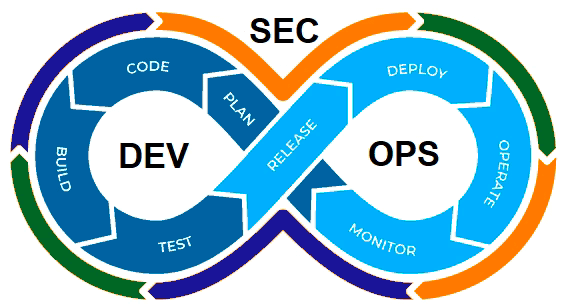
DevSecOps is an extension of the DevOps concept and methodology. Now, it is not a joint effort between Development and Operation practices but a joint effort among Development, Operation, and Security.
Diagram by GeekFlare: A DevSecOps Introduction (https://geekflare.com/devsecops-introduction/)
DevSecOps, or to be more explicit, including security practices as part of the DevOps process, is critical because we are moving to hybrid and cloud architectures where we incorporate new design, deployment, and development patterns such as containers, microservices, and so on.
This situation makes that we are moving from one side to having hundreds of applications in the most complex cases to thousands of applications, and to have dozens of servers to thousands of containers, each of them with different base images and third-party libraries that can be obsolete, have a security hole or just be raised new vulnerabilities such as we have seen in the past with the Spring Framework or the Log4J library to shout some of the most recent global substantial security issues that the companies dealt with.
So, even the most extensive security team cannot be at pace checking manually or with a set of scripting all the different new challenges to the security if we don’t include them as part of the overall process of the development and deployment of the components. This is where the concept of shift-left security is usually considered, and we already covered that in this article you can read here.
DevSecOps vs DevOps: Is DevSecOps just updated DevOps?
So based on the above definition, you can think: “Ok, so when somebody talks about DevOps as not thinking about security”. This is not true.
In the same aspect, when we talk about DevOps, it is not explicitly all the detailed steps, such as software quality assurance, unit testing, etc. So, as happens with many extensions in this industry, the original, global or generic concept includes the contents of the wings as well.
So, in the end, DevOps and DevSecOps are the same things, especially today when all companies and organizations are moving to the cloud or hybrid environments where security is critical and non-negotiable. Hence, every task that we do, from developing software to access to any service, needs to be done with Security in mind. But I used both concepts in different scenarios. I will use DevSecOps when I would like to explicitly highlight the security aspect because of the audience, the context, or the topic we are discussing to do differentiation.
Still, in any generic context, DevOps will include the security checks will be retained for sure because if it is not, it is just useless. Me.
Summary
So, in the end, when somebody speaks today about DevOps, it implicitly includes the security aspect, so there is no difference between both concepts. But you will see and also find it helpful to use the specific term DevSecOps when you want to highlight or differentiate this part of the process.
Scan Docker images or, to be more honest, scan your container images is becoming one of the everyday tasks to be done as part of the development of your application. The change of pace of how easily the new vulnerabilities arise, the explosion of dependencies that each of the container images has, and the number of deployments per company make it quite complex to keep the pace to ensure that they can mitigate the security issues.
But what happens if you are already moving from Docker Desktop to another option, such as podman or Rancher Desktop? How can you scan your docker images?
Several scanners can be used to scan your container images locally, and some of them are easier than others to set up. One of the main knowns is Clair which is also being used as part of the RedHat Quay registry and has a lot of traction. It works on a client-server mode that is great to be used by different teams that require a more “enterprise” deployment, usually closely related to a Registry. Still, it doesn’t play well to be run locally as it requires several components and relationships.
As an easy option to try locally, you have Trivy. Trivy is an exciting tool developed by AquaSecurity. You may remember the company as this is the one that is behind other developments related to security in Kubernetes, such as KubeBench, that we already covered in the past.
In its own words, “Trivy is a comprehensive security scanner. It is reliable, fast, and straightforward to use and works wherever you need it.”
How to Install Trivy?
The installation process is relatively easy, and documented for every significant platform here. Still, in the end, it relies on binary packages available such as RPM, DEB, Brew, MacPorts, or even a Docker image.
How To Scan Docker Images With Trivy ?
Once it is installed, you can just run the commands such as this:
trivy image python:3.4-alpine
This will do the following tasks:
Update the repository DB with all the vulnerabilities
Pull the image in case this is not available locally
Detect the languages and components present in that image
Validate the images and generate an output
What Output Is Provided By Trivy?
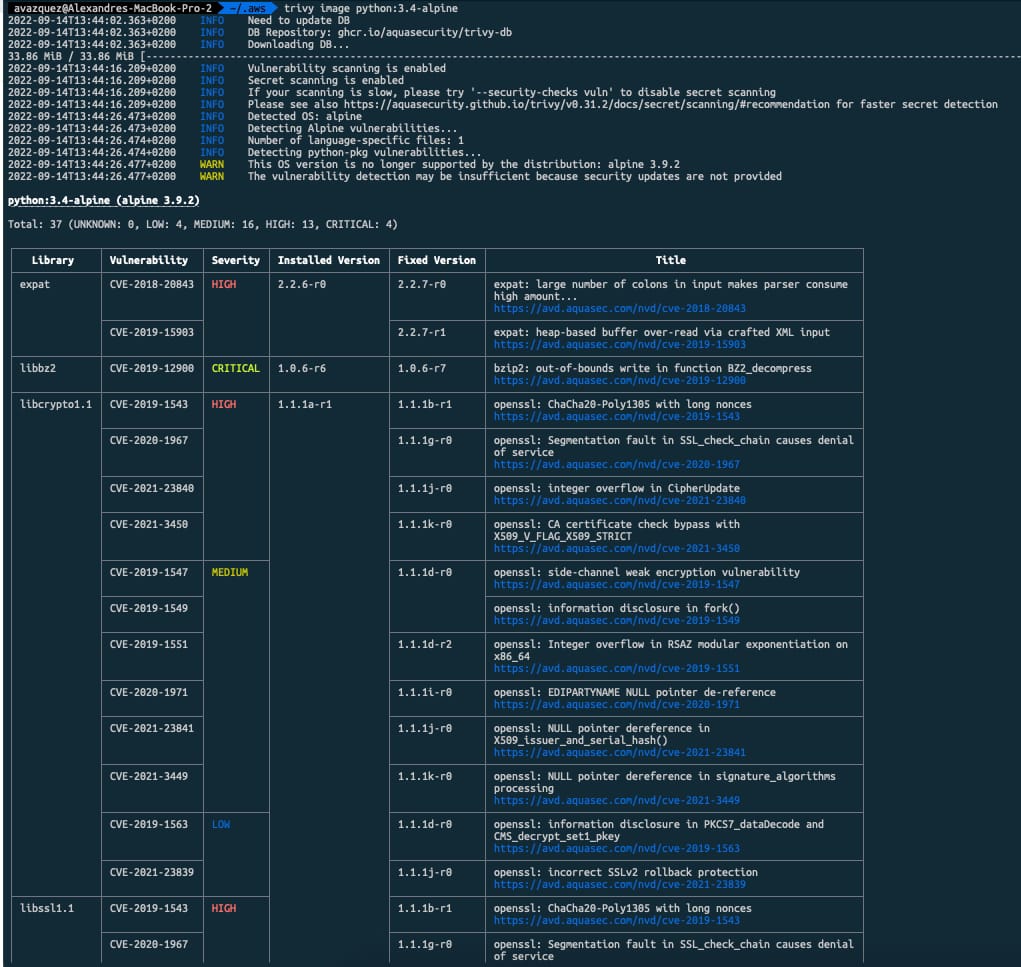
As a sample, this is the output for the python:3.4-alpine as of Today:
You will get a table with one row per library or component that has detected a vulnerability showing the Library name and the exposure related to it with the CVE code. CVE code is usually how vulnerabilities are referred to as they are present in a common repository with all their descriptions and details of them. In addition to that, it shows the severity of the vulnerability based on the existing report. It also provides the current version detected on the image and in case there is a different version that fixed that vulnerability, the initial version that has solved that vulnerability, and finally, a title to provide a little bit more context about the vulnerability:
If a Library is related to more than one vulnerability, it will split the cells on that row to access the different data for each vulnerability.
Helm Dependency is a critical part of understanding how Helm works as it is the way to establish relationships between different helm packages. We have talked a lot here about what Helm is, and some topics around that, and we even provided some tricks if you create your charts.
Understanding chart dependencies is crucial for building scalable Helm architectures. Explore more Helm patterns and best practices in our comprehensive Helm guide.
So, as commented, Helm Chart is nothing more than a package that you put around the different Kubernetes objects that need to be deployed for your application to work. The usual comparison is that it is similar to a Software Package. When you install an application that depends on several components, all of those components are packaged together, and here is the same thing.
What is a Helm Dependency?
A Helm Dependency is nothing more than the way you define that your Chart needs another chart to work. For sure, you can create a Helm Chart with everything you need to deploy your application, but something you would like to split that work into several charts just because they are easy to maintain or the most common use case because you want to leverage another Helm Chart that is already available.
One use case can be a web application that requires a database, so you can create on your Helm Chart all the YAML files to deploy your web application and your Database in Kubernetes, or you can have your YAML files for your web application (Deployment, Services, ConfigMaps,…) and then say: And I need a database and to provide it I’m going to use this chart.
This is similar to how it works with the software packages in UNIX systems; you have your package that does the job, like, for example, A, but for that job to be done, it requires the library L, and to ensure that when you are installing A, Library L is already there or if not it will be installed you declare that your application A depends on Library L, so here is the same thing. You declare that your Chart depends on another Chart to work. And that leaves us to the next point.
How do we declare a Helm Dependency?
This is the next point; now that we understand what a Helm Dependency is conceptually and we have a use case, how can we do that in our Helm Chart?
All the work is done in the Chart.yml file. If you remember, the Chart.yml file is the file where you declare all the metadata of your Helm Chart, such as the name, the version of the chart, the application version, location URL, icon, and much more. And usually has a structure like this one:
So here we can add a section dependencies and, in that section is where we are going to define the charts that we depend on. As you can see in the snippet below:
Here we are declaring Dependency as our Helm Dependency. We specify the version that we would like to use (similar to the version we say in our chart), and that will help us to ensure that we will provide the same version that has been tested as part of the resolution of the dependency and also the location using an URL that can be an external URL is this is pointing to a Helm Chart that is available on the internet or outside your computer or using a File Path in case you are pointing to a local resource in your machine.
That will do the job of defining the helm dependency, and this way, when you install your chart using the command helm install, it will also provide the dependence.
How do I declare a Helm Conditional Dependency?
Until now, we learned how to declare a dependency, and each time I provision my application, it will also provide the dependence. But usually, we would like to have a fine-grained approach to that. Imagine the same scenario as above: We have our Web Application that depends on the Database, and we have two options, we can provision the database as part of the installation of the web application, or we can point to an external database and in that case, it makes no sense to provision the Helm Dependency. How can we do that?
So, easy, because one of the optional parameters you can add to your dependency is condition and do exactly that, condition allow you to specify a flag in your values.yml that in the case is equal to true, it will provide the dependency but in the case is equal to false it will skip that part similar to the snippet shown below:
And with that, we will set the enabled parameter under database in our values.yml to true if we would like to provision it.
How do I declare a Helm Dependency With a Different version?
As shown in the snippets above, we offer that when we declare a Helm Dependency, we specify the version; that is a safe way to do it because it ensures that any change done to the helm chart will not affect your package. Still, at the same time, you cannot be aware of security fixes or patches to the chart that you would like to leverage in your deployment.
To simplify that, you have the option to define the version in a more flexible way using the operator ~ in the definition of the version, as you can see in the snippet below:
This means that any patch done to the chart will be accepted, so this is similar that this chart will use the latest version of 1.0.X. Still, it will not use the 1.1.0 version, so that allows to have more flexibility, but at the same time keeping things safe and secured in case of a breaking change on the Chart you depend on. This is just one way to define that, but the flexibility is enormous as the Chart versions use “Semantic Versions,” You can learn and read more about that here: https://github.com/Masterminds/semver.