Learn what Amazon Managed Service for Prometheus provides and how you can benefit from it.
Monitoring is one of the hot topics when we talk about cloud-native architectures. Prometheus is a graduated Cloud Native Computing Foundation (CNCF) open-source project and one of the industry-standard solutions when it comes to monitoring your cloud-native deployment, especially when Kubernetes is involved.
Following its own philosophy of providing a managed service for some of the most used open-source projects but fully integrated with the AWS ecosystem, AWS releases a general preview (at the time of writing this article): Amazon Managed Service for Prometheus (AMP).
The first thing is to define what Amazon Managed Service for Prometheus is and what features provide. So, this is the Amazon definition of the service:
A fully managed Prometheus-compatible monitoring service that makes it easy to monitor containerized applications securely and at scale.
And I would like to spend some time on some parts of this sentence.
Fully managed service: So, this will be hosted and handle by Amazon, and we are just going to interact with it using API as we do with other Amazon services like EKS, RDS, MSK, SQS/SNS, and so on.
Prometheus-compatible: So, that means that even if this is not a pure-Prometheus installation, the API is going to be compatible. So the Prometheus clients who can use Grafana or others to get the information from Prometheus will work without changing their interfaces.
Service at-scale: Amazon, as part of the managed service, will take care of the solution’s scalability. You don’t need to define an instance-type or how much RAM or CPU you do need. This is going to be handled by AWS.
So, that sounds perfect. So you can think that you are going to delete your Prometheus server, and it will start using this service. Maybe you are even typing something like helm delete prom… WAIT WAIT!!
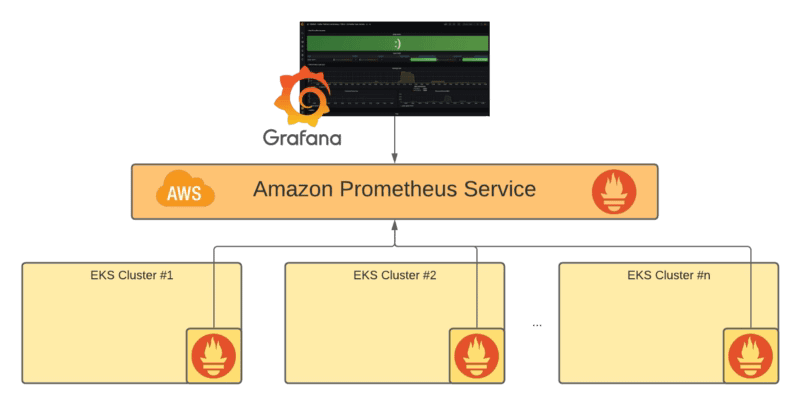
Because at this point, this is not going to replace your local Prometheus server, but it will allow the integration with it. So, that means that your Prometheus server is going to act like a scraper for the whole monitoring scalable solution that AMP is providing, something as you can see in the picture below:
Reference Architecture for Amazon Prometheus Service
So, you are still going to need a Prometheus server, that is right, but all the complexity are going to be avoided and leverage to the managed service: Storage configuration, High availability, API optimization, and so on is going to be just provided to you out of the box.
Ingesting information into Amazon Managed Service for Prometheus
At this moment, there is two way to ingest data into the Amazon Prometheus Service:
From an existing Prometheus server using the remote_write capability and configuration, so that means that each series that is scraped by the local Prometheus is going to be sent to the Amazon Prometheus Service.
Using AWS Distro for OpenTelemetry to integrate with this service using the Prometheus Receiver and the AWS Prometheus Remote Write Exporter components to get that.
Summary
So this is a way to provide an enterprise-grade installation leveraging on all the knowledge that AWS has hosting and managing this solution at scale and optimized in terms of performance. You can focus on the components you need to get the metrics ingested into the service.
I am sure this will not be the last movement from AWS in observability and metrics management topics. I am sure they will continue to provide more tools to the developer’s and architects’ hands to define optimized solutions as easily as possible.
In the previous post of these series regarding how to set up a Hybrid EKS cluster making use of both traditional EC2 machines but also serverless options using Fargate, we were able to create the EKS cluster with both deployment fashion available. If you didn’t take a look at it yet, do it now!
At that point, we have an empty cluster with everything ready to deploy new workloads, but we still need to configure a few things before doing the deployment. First thing is to decide which workloads are going to be deployed using the serverless option and which ones will use the traditional EC2 option.
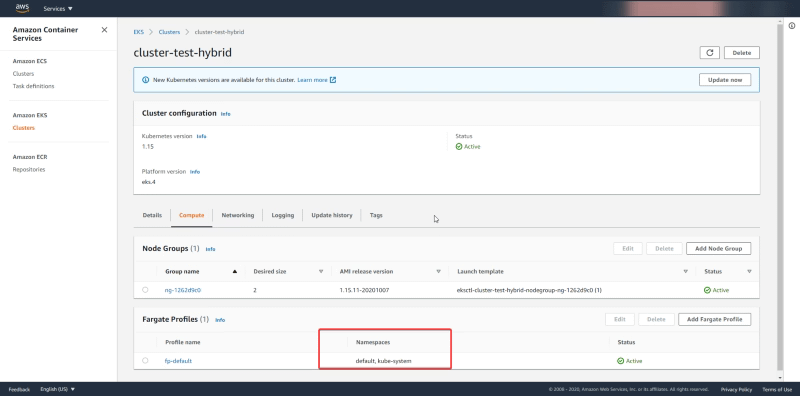
By default, all the workloads deployed on the namespaces default and kube-system as you can see in the picture below form the AWS Console:
So that means that all workloads from the default namespace and the kube-system namespace will be deployed in a serverless fashion. If that’s what you’d like perfect. But sometimes you’d like to start with a delimited set of namespaces where you’d like to use the serverless option and rely on the traditional deployment.
We can check that same information using eksctl and to do that we need to type the following command:
eksctl get fargateprofile --cluster cluster-test-hybrid -o yaml
The output of that command should be something similar of the information that we can see in the AWS Console:
NOTE: If you don’t remember the name of your cluster you just need to type the command eksctl get clusters
So, this is what we’re going to do and to do that the first thing we need to do is to create a new namespace named “serverless” that is going to hold our serverless deployment and to do that we use a kubectl command as follows:
kubectl create namespace serverless
And now, we just need to create a new fargate profile that is going to replace the one that we have at the moment and to do that we need to make use again of eksctl to handle that job:
NOTE: We also can use not only namespace to limit the scope of our serverless deployment but also tags, so we can have in the same namespace workloads that are deployed using traditional deployment and others using serverless fashion. That will give us all the posibilities to design your cluster as you wish. To do that we will append the argument labels in a key=value fashion.
And we will get an output similar to this:
[ℹ] creating Fargate profile “fp-serverless-profile” on EKS cluster “cluster-test-hybrid”
[ℹ] created Fargate profile “fp-serverless-profile” on EKS cluster “cluster-test-hybrid”
If now we check the number of profiles that we have available we should get two profiles handling three namespaces (the ones that are managed by the default profile — default and kube-system — and the one — serverless — handled by the one we just created now)
We just will use the following command to delete the default profile:
And the output of that command should be similar to this one:
[ℹ] deleted Fargate profile “fp-default” on EKS cluster “cluster-test-hybrid”
And after that, we have now ready our cluster with limited scope for serverless deployments. In the next post of the series, we will just deploy workloads on both fashions to see the difference between them. So, don’t miss the updates regarding this series making sure that you follow my posts, and if you’d like the article, or you have some doubts or comments, please leave your feedback using the comments below!
EKS Fargate AWS Kubernetes Cluster: Learn how to create a Kubernetes cluster that can use also all the power of serverless computing using AWS Fargate
We know that there are several movements and paradigms that are pushing us hard to change our architectures trying to leverage much more managed services and taking care of the operational level so we can focus on what’s really important for our own business: creating applications and deliver value through them.
AWS from Amazon has been a critical partner during that journey, especially in the container world. With the release of EKS some time ago were able to provide a managed Kubernetes service that everyone can use, but also introducing the CaaS solution Fargate also gives us the power to run a container workload in a serverless fashion, without needing to worry about anything else.
But you could be thinking about if those services can work together. And the short answer is yes. But even more important than that we’re seeing that also they can work in a mixed mode:
So you can have an EKS cluster that has some nodes that are Fargate services and some nodes that are normal EC2 machines for workloads that are working in a state-full fashion or fits better in a traditional EC2 approach. And everything works by the same rules and is managed by the same EKS Cluster.
So, that sounds amazing but, How we can do that? Let’s see.
eksctl
To get to that point there is a tool that we need to introduce first, and that tool is named eksctl and it is a command-line utility that helps us to do any action to interact with the EKS service and simplifies a lot the work to do and also be able to automate most of the tasks in a non-human required mode. So, the first thing we need to is to get eksctl in our platforms ready. Let’s see how we can get that.
We have here all the detailed from Amazon itself about how to install eksctl in different platforms, no matter if you’re using Windows, Linux, or MacOS X:
Installing or updating eksctl – Amazon EKS
Learn how to install or update the eksctl command line tool. This tool is used to create and work with an Amazon EKS cluster.
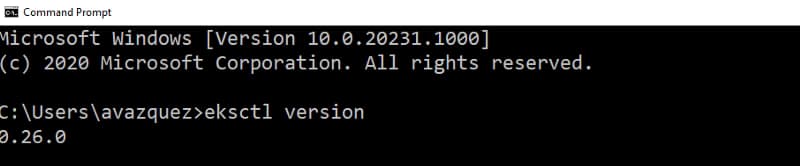
After doing that we can check that we have installed the eksctl software running the command:
eksctl version
And we should get an output similar to this one:
eksctl version output command
So after doing that we can see that we have access to all the power behind the EKS service just typing these simple commands into our console window.
Creating the EKS Hybrid Cluster
Now, we’re going to create a mixed environment with some EC2 machines and enable the Fargate support for EKS. To do that, we will start with the following command:
eksctl create cluster --version=1.15 --name=cluster-test-hybrid --region=eu-west-1 --max-pods-per-node=1000 --fargate
[ℹ]  eksctl version 0.26.0
[ℹ]  using region eu-west-1
[ℹ]  setting availability zones to [eu-west-1c eu-west-1a eu-west-1b]
[ℹ]  subnets for eu-west-1c - public:192.168.0.0/19 private:192.168.96.0/19
[ℹ]  subnets for eu-west-1a - public:192.168.32.0/19 private:192.168.128.0/19
[ℹ]  subnets for eu-west-1b - public:192.168.64.0/19 private:192.168.160.0/19
[ℹ]  using Kubernetes version 1.15
[ℹ]  creating EKS cluster "cluster-test-hybrid" in "eu-west-1" region with Fargate profile
[ℹ]  if you encounter any issues, check CloudFormation console or try 'eksctl utils describe-stacks --region=eu-west-1 --cluster=cluster-test-hybrid'
[ℹ]  CloudWatch logging will not be enabled for cluster "cluster-test-hybrid" in "eu-west-1"
[ℹ]  you can enable it with 'eksctl utils update-cluster-logging --region=eu-west-1 --cluster=cluster-test-hybrid'
[ℹ]  Kubernetes API endpoint access will use default of {publicAccess=true, privateAccess=false} for cluster "cluster-test-hybrid" in "eu-west-1"
[ℹ]  2 sequential tasks: { create cluster control plane "cluster-test-hybrid", create fargate profiles }
[ℹ]  building cluster stack "eksctl-cluster-test-hybrid-cluster"
[ℹ]  deploying stack "eksctl-cluster-test-hybrid-cluster"
[ℹ]  creating Fargate profile "fp-default" on EKS cluster "cluster-test-hybrid"
[ℹ]  created Fargate profile "fp-default" on EKS cluster "cluster-test-hybrid"
[ℹ]  "coredns" is now schedulable onto Fargate
[ℹ]  "coredns" is now scheduled onto Fargate
[ℹ]  "coredns" pods are now scheduled onto Fargate
[ℹ]  waiting for the control plane availability...
[✔]  saved kubeconfig as "C:\\Users\\avazquez/.kube/config"
[ℹ]  no tasks
[✔]  all EKS cluster resources for "cluster-test-hybrid" have been created
[ℹ]  kubectl command should work with "C:\\Users\\avazquez/.kube/config", try 'kubectl get nodes'
[✔]  EKS cluster "cluster-test-hybrid" in "eu-west-1" region is ready
This command will setup the EKS cluster enabling the Fargate support.
NOTE: The first thing that we should notice is that the Fargate support for EKS is not yet available in all the AWS regions. So, depending on the region that you’re using you could get an error. At this moment this is just enabled in US East (N. Virginia), US East (Ohio), US West (Oregon), Europe (Ireland), Europe (Frankfurt), Asia Pacific (Singapore), Asia Pacific (Sydney), Asia Pacific (Tokyo) based on the information from AWS Announcements: https://aws.amazon.com/about-aws/whats-new/2020/04/eks-adds-fargate-support-in-frankfurt-oregon-singapore-and-sydney-aws-regions/
So, now, we should add to that cluster a Node Group. a Node Group is a set of EC2 instances that are going to be managed as part of it. And to do that we will use the following command:
eksctl create nodegroup --cluster cluster-test-hybrid --managed
[ℹ]  eksctl version 0.26.0
[ℹ]  using region eu-west-1
[ℹ]  will use version 1.15 for new nodegroup(s) based on control plane version
[ℹ]  nodegroup "ng-1262d9c0" present in the given config, but missing in the cluster
[ℹ]  1 nodegroup (ng-1262d9c0) was included (based on the include/exclude rules)
[ℹ]  will create a CloudFormation stack for each of 1 managed nodegroups in cluster "cluster-test-hybrid"
[ℹ]  2 sequential tasks: { fix cluster compatibility, 1 task: { 1 task: { create managed nodegroup "ng-1262d9c0" } } }
[ℹ]  checking cluster stack for missing resources
[ℹ]  cluster stack has all required resources
[ℹ]  building managed nodegroup stack "eksctl-cluster-test-hybrid-nodegroup-ng-1262d9c0"
[ℹ]  deploying stack "eksctl-cluster-test-hybrid-nodegroup-ng-1262d9c0"
[ℹ]  no tasks
[✔]  created 0 nodegroup(s) in cluster "cluster-test-hybrid"
[ℹ]  nodegroup "ng-1262d9c0" has 2 node(s)
[ℹ]  node "ip-192-168-69-215.eu-west-1.compute.internal" is ready
[ℹ]  node "ip-192-168-9-111.eu-west-1.compute.internal" is ready
[ℹ]  waiting for at least 2 node(s) to become ready in "ng-1262d9c0"
[ℹ]  nodegroup "ng-1262d9c0" has 2 node(s)
[ℹ]  node "ip-192-168-69-215.eu-west-1.compute.internal" is ready
[ℹ]  node "ip-192-168-9-111.eu-west-1.compute.internal" is ready
[✔]  created 1 managed nodegroup(s) in cluster "cluster-test-hybrid"
[ℹ]  checking security group configuration for all nodegroups
[ℹ]  all nodegroups have up-to-date configuration
So now we should be able to use kubectl to manage this new cluster. If you don’t have installed kubectl or you haven’t heard about it. This is the command line tool that allow us to manage your Kubernetes Cluster and you can install it based on the documentation shown here:
Installing or updating eksctl – Amazon EKS
Learn how to install or update the eksctl command line tool. This tool is used to create and work with an Amazon EKS cluster.
So, now, we should start taking a look at the infrastructure that we have. So if we type the following command to see the nodes at our disposal:
kubectl get nodes
We see an output similar to this:
NAME                                                    STATUS   ROLES    AGE   VERSION
fargate-ip-192-168-102-22.eu-west-1.compute.internal    Ready    <none>   10m   v1.15.10-eks-094994
fargate-ip-192-168-112-125.eu-west-1.compute.internal   Ready    <none>   10m   v1.15.10-eks-094994
ip-192-168-69-215.eu-west-1.compute.internal            Ready    <none>   85s   v1.15.11-eks-bf8eea
ip-192-168-9-111.eu-west-1.compute.internal             Ready    <none>   87s   v1.15.11-eks-bf8eea
As you can see we have 4 “nodes” two that start with the fargate name that are fargate nodes and two that just start with ip-… and those are the traditional EC2 instances. And after that moment that’s it, we have our mixed environment ready to use.
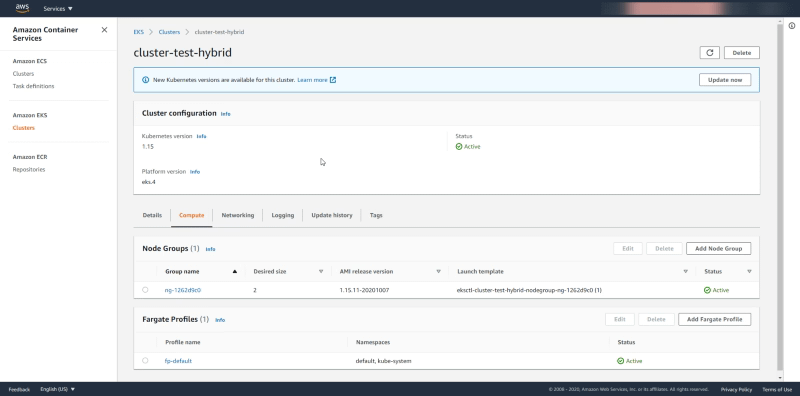
We can check the same cluster using the AWS EKS page to see that configuration more in detail. If we enter in the EKS page for this cluster we see in the Compute tab the following information:
We see under Node Groups the data around the EC2 machines that are managed as part of this cluster and as you can see we saw 2 as the Desired Capacity and that’s why we have 2 EC2 instances in our cluster. And regarding the Fargate profile, we see the namespaces set to default and kube-system and that means that all the deployments to those namespaces are going to be deployed using Fargate Tasks.
Summary
In the following articles in these series, we will see how to progress on our Hybrid cluster, deploy workloads scale it based on the demand that we’re getting, enabling integration with other services like AWS CloudWatch, and so on. So, stay tuned, and don’t forget to follow my articles to not miss any new updates as soon as it’s available to you!