
Kubernetes API changes quite a lot, and we know that in every new version, they are adding new capabilities at the same time that they are deprecating the old ones, so it is a constant evolution, as we already stated in previous articles, as you can see, here regarding Autoscaling v2 and Vertical Autoscaling.
Some of these changes are related to the shift in the apiVersion of some objects, and you have probably already suffered from that v1/alpha going to v1/beta or just moving to a final v1 and deprecating the previous one. So, in the end, it is crucial to ensure that your manifest is in sync with the target version you’re deploying, and some tools can help us with that, including Kubeconform.
What is Kubeconform?
Kubeconform is a powerful utility designed to assist in Kubernetes configuration management and validation. As Kubernetes continues to gain popularity as the go-to container orchestration platform, ensuring the correctness and consistency of configuration files becomes crucial. Kubeconform addresses this need by providing a comprehensive toolset to validate Kubernetes configuration files against predefined standards or custom rules.
Kubeconform supports multiple versions of Kubernetes, allowing you to validate configuration files against different API versions. This flexibility is beneficial when working with clusters running different Kubernetes versions or migrating applications across sets with varying configurations.
Another great feature of Kubeconform is its ability to enforce best practices and standards across Kubernetes configurations. It allows you to define rules, such as enforcing proper labels, resource limits, or security policies, and then validates your configuration files against these rules. This helps catch potential issues early on and ensures that your deployments comply with established guidelines.
How to install Kubeconform?
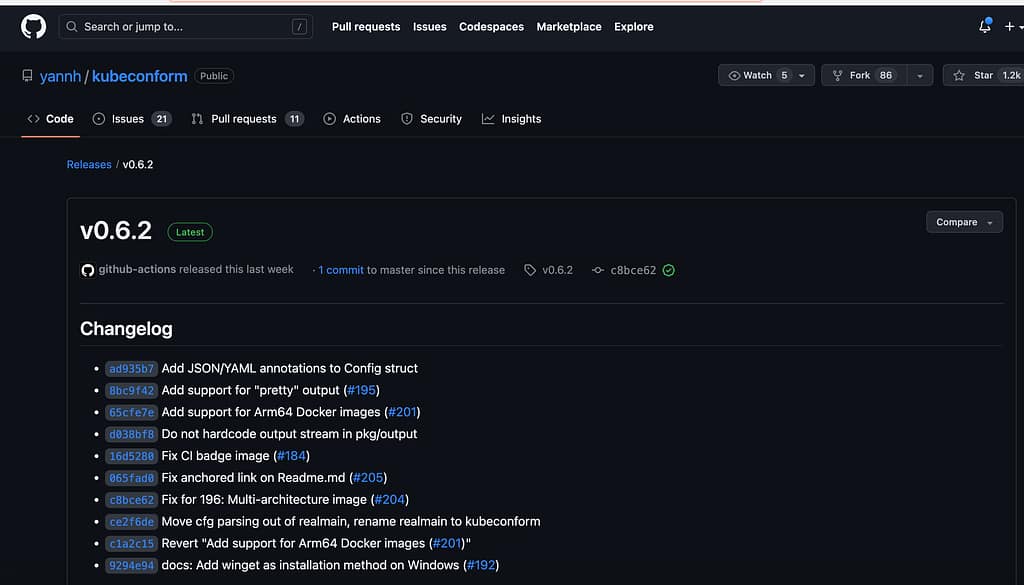
Kubeconform can be installed from different sources, the most usual ones the standard for your environment using package managers such as brew, apt or similar ones or just getting the binaries from its GitHub page: https://github.com/yannh/kubeconform/releases.
How to launch Kubeconform from the Command Line?
Kubeconform is shipped as a small binary targeted to be executed in the CLI interface and tries to keep its interface minimal to ensure compatibility. Hence, it receives an argument with the file or folder with the manifest files that you want to check, as you can see here:

Then you have several options to do other things, such as the ones shown below:
-ignore-filename-pattern value
regular expression specifying paths to ignore (can be specified multiple times)
-ignore-missing-schemas
skip files with missing schemas instead of failing
-Kubernetes-version string
version of Kubernetes to validate against, e.g.: 1.18.0 (default “master”)
-output string
output format – json, junit, pretty, tap, text (default “text”)
-reject string
comma-separated list of kinds or GVKs to reject
-skip string
comma-separated list of kinds or GVKs to ignore
-strict
disallow additional properties not in schema or duplicated keys
-summary
print a summary at the end (ignored for junit output)
Use-cases of Kuberconform
There are different use cases where Kubeconfrom can play a good role. One is regarding Kubernetes upgrades, sometimes you need to ensure that your current manifest is still going to work in the new release that the cluster will be upgraded to, and with this tool, we can ensure that our YAML is still compatible with the latest version directly getting it from the environment and validate it properly.
Another notable aspect of Kubeconform is its seamless integration into existing CI/CD pipelines. You can easily incorporate kubeconform as a step in your pipeline to automatically validate Kubernetes configuration files before deploying them. By doing so, you can catch configuration errors early in the development process, reduce the risk of deployment failures, and maintain high configuration consistency.
In addition to its validation capabilities, kubeconform provides helpful feedback and suggestions for improving your Kubernetes configuration files. It highlights specific issues or deviations from the defined rules and offers guidance on addressing them. This simplifies the troubleshooting process and helps developers and administrators become more familiar with best practices and Kubernetes configuration standards.
Conclusion
Kubeconform is an invaluable utility for Kubernetes users who strive for reliable and consistent deployments. It empowers teams to maintain a high standard of configuration quality, reduces the likelihood of misconfigurations, and improves the overall stability and security of Kubernetes-based applications.
📚 Want to dive deeper into Kubernetes? This article is part of our comprehensive Kubernetes Architecture Patterns guide, where you’ll find all fundamental and advanced concepts explained step by step.
Kubeconform in GitHub Actions
The pattern that catches broken manifests before they reach a cluster — render, then validate:
jobs:
  validate:
    runs-on: ubuntu-latest
    steps:
      - uses: actions/checkout@v4
      - name: Install kubeconform
        run: |
          curl -sL https://github.com/yannh/kubeconform/releases/latest/download/kubeconform-linux-amd64.tar.gz             | tar xz && sudo mv kubeconform /usr/local/bin/
      - name: Validate rendered chart
        run: |
          helm template ./chart -f values-prod.yaml             | kubeconform -strict -summary                 -kubernetes-version 1.33.0                 -schema-location default                 -schema-location 'https://raw.githubusercontent.com/datreeio/CRDs-catalog/main/{{.Group}}/{{.ResourceKind}}_{{.ResourceAPIVersion}}.json'
The second -schema-location points at the community CRDs catalog, which covers the popular operators (cert-manager, Prometheus Operator, Istio, Argo). For in-house CRDs, generate schemas once with openapi2jsonschema from your CRD YAML and commit them to the repo — validation then works fully offline. Pin -kubernetes-version to what you actually run: it is the difference between “valid YAML” and “valid on your cluster”.
Frequently Asked Questions
What is the difference between kubeconform and kubeval?
Kubeconform is the maintained successor to kubeval: same idea (validate manifests against the Kubernetes OpenAPI schemas) but with up-to-date schemas, CRD support via -schema-location, parallel validation and active development. Kubeval has been archived; new pipelines should use kubeconform.
Can kubeconform validate CRDs (Custom Resource Definitions)?
Yes, with an extra step: custom resources need their schemas available. Point -schema-location at the CRDs-catalog project or generate JSON schemas from your CRDs with openapi2jsonschema, and kubeconform validates custom resources like any core object. Unknown kinds can be skipped with -ignore-missing-schemas while you build the catalog.
How do I run kubeconform against Helm charts?
Render first, validate after: helm template mychart | kubeconform -strict -summary. In CI this is the standard pattern — template with production-like values, pipe to kubeconform, and fail the pipeline on error before anything reaches a cluster.
Does kubeconform check that my manifests match my cluster version?
Yes — -kubernetes-version 1.33.0 validates against that version’s schemas, which catches fields added in newer APIs or removed in the version you actually run. Run it once per supported cluster version if you maintain a range.