
Helm Dependencies Explained: How Chart Dependencies Work in Helm

Helm Dependencies Explained: How Chart Dependencies Work in Helm

Helm Dependency is a critical part of understanding how Helm works as it is the way to establish relationships between different helm packages. We have talked a lot here about what Helm is, and some topics around that, and we even provided some tricks if you create your charts.

Understanding chart dependencies is crucial for building scalable Helm architectures. Explore more Helm patterns and best practices in our comprehensive Helm guide.

So, as commented, Helm Chart is nothing more than a package that you put around the different Kubernetes objects that need to be deployed for your application to work. The usual comparison is that it is similar to a Software Package. When you install an application that depends on several components, all of those components are packaged together, and here is the same thing.

What is a Helm Dependency?

A Helm Dependency is nothing more than the way you define that your Chart needs another chart to work. For sure, you can create a Helm Chart with everything you need to deploy your application, but something you would like to split that work into several charts just because they are easy to maintain or the most common use case because you want to leverage another Helm Chart that is already available.

One use case can be a web application that requires a database, so you can create on your Helm Chart all the YAML files to deploy your web application and your Database in Kubernetes, or you can have your YAML files for your web application (Deployment, Services, ConfigMaps,…) and then say: And I need a database and to provide it I’m going to use this chart.

This is similar to how it works with the software packages in UNIX systems; you have your package that does the job, like, for example, A, but for that job to be done, it requires the library L, and to ensure that when you are installing A, Library L is already there or if not it will be installed you declare that your application A depends on Library L, so here is the same thing. You declare that your Chart depends on another Chart to work. And that leaves us to the next point.

How do we declare a Helm Dependency?

This is the next point; now that we understand what a Helm Dependency is conceptually and we have a use case, how can we do that in our Helm Chart?

All the work is done in the Chart.yml file. If you remember, the Chart.yml file is the file where you declare all the metadata of your Helm Chart, such as the name, the version of the chart, the application version, location URL, icon, and much more. And usually has a structure like this one:

apiVersion: v2
name: MyChart
description: My Chart Description
type: application
version: 0.2.0
appVersion: "1.16.0"

So here we can add a section dependencies and, in that section is where we are going to define the charts that we depend on. As you can see in the snippet below:

apiVersion: v2
name: MyChart
description: My Chart Description
type: application
version: 0.2.0
appVersion: "1.16.0"
dependencies:
- name: Dependency
  version: 1.0.0
  repository: "file:///location_of_my_chart"

Here we are declaring Dependency as our Helm Dependency. We specify the version that we would like to use (similar to the version we say in our chart), and that will help us to ensure that we will provide the same version that has been tested as part of the resolution of the dependency and also the location using an URL that can be an external URL is this is pointing to a Helm Chart that is available on the internet or outside your computer or using a File Path in case you are pointing to a local resource in your machine.

That will do the job of defining the helm dependency, and this way, when you install your chart using the command helm install, it will also provide the dependence.

How do I declare a Helm Conditional Dependency?

Until now, we learned how to declare a dependency, and each time I provision my application, it will also provide the dependence. But usually, we would like to have a fine-grained approach to that. Imagine the same scenario as above: We have our Web Application that depends on the Database, and we have two options, we can provision the database as part of the installation of the web application, or we can point to an external database and in that case, it makes no sense to provision the Helm Dependency. How can we do that?

So, easy, because one of the optional parameters you can add to your dependency is condition and do exactly that, condition allow you to specify a flag in your values.yml that in the case is equal to true, it will provide the dependency but in the case is equal to false it will skip that part similar to the snippet shown below:

 apiVersion: v2
name: MyChart
description: My Chart Description
type: application
version: 0.2.0
appVersion: "1.16.0"
dependencies:
- name: Dependency
  version: 1.0.0
  repository: "file:///location_of_my_chart"
  condition: database.enabled 

And with that, we will set the enabled parameter under database in our values.yml to true if we would like to provision it.

How do I declare a Helm Dependency With a Different version?

As shown in the snippets above, we offer that when we declare a Helm Dependency, we specify the version; that is a safe way to do it because it ensures that any change done to the helm chart will not affect your package. Still, at the same time, you cannot be aware of security fixes or patches to the chart that you would like to leverage in your deployment.

To simplify that, you have the option to define the version in a more flexible way using the operator ~ in the definition of the version, as you can see in the snippet below:

apiVersion: v2
name: MyChart
description: My Chart Description
type: application
version: 0.2.0
appVersion: "1.16.0"
dependencies:
- name: Dependency
  version: ~1.0.0
  repository: "file:///location_of_my_chart"
  condition: database.enabled 

This means that any patch done to the chart will be accepted, so this is similar that this chart will use the latest version of 1.0.X. Still, it will not use the 1.1.0 version, so that allows to have more flexibility, but at the same time keeping things safe and secured in case of a breaking change on the Chart you depend on. This is just one way to define that, but the flexibility is enormous as the Chart versions use “Semantic Versions,” You can learn and read more about that here: https://github.com/Masterminds/semver.

Multi-Stage Dockerfiles Explained: Reduce Docker Image Size the Right Way

Multi-Stage Dockerfiles Explained: Reduce Docker Image Size the Right Way

Multi-Stage Dockerfile is the pattern you can use to ensure that your docker image is at an optimized size. We already have covered the importance of keeping the size of your docker image at a minimum level and what tools you could use, such as dive, to understand the size of each of your layers. But today, we are going to follow a different approach and that approach is a multi-stage build for our docker containers.

What is a Multi-Stage Dockerfile Pattern?

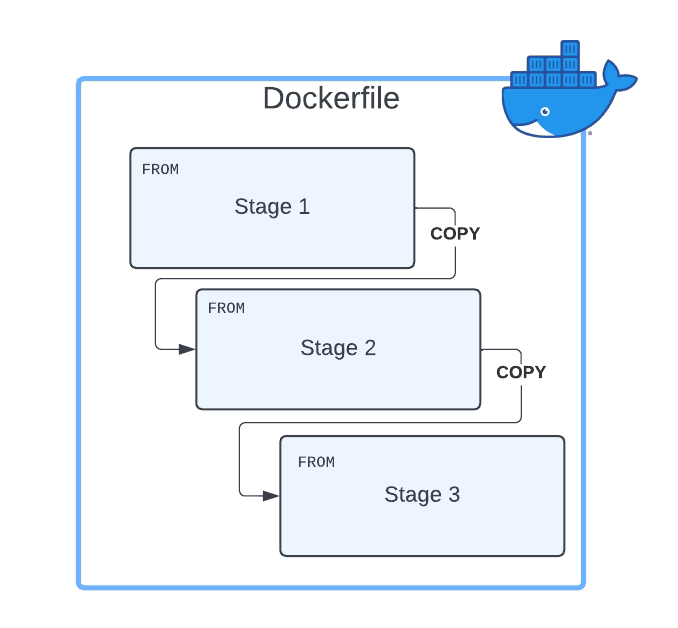
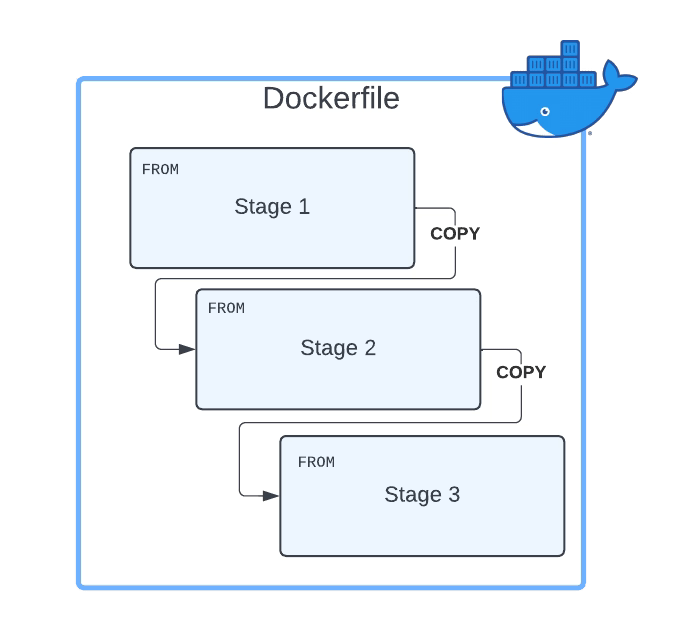
The multi-Stage Dockerfile is based on the principle that the same Dockerfile can have different FROM sentences and each of the FROM sentences starts a new stage of the build.

Multi-Stage Dockerfile Pattern

Why Multi-Stage Build Pattern Helps Reducing The Size of Container Images?

The main reason the usage of multi-stage build patterns helps reduce the size of the containers is that you can copy any artifact or set of artifacts from one stage to the other. And that is the most important reason. Why? Because that means that everything you do not copy is discarded and you are not carrying all these not required components from layer to layer and generating a bigger unneeded size of the final Docker image.

How do you define a Multi-Stage Dockerfile

First, you need to have a Dockerfile with more than one FROM. As commented, each of the FROM will indicate the start of one stage of the multi-stage dockerfile. To differentiate them or reference them, you can name each of the stages of the Dockerfile by using the clause AS alongside the FROM command, as shown below:

 FROM eclipse-temurin:11-jre-alpine AS builder

As a best practice, you can also add a new label stage with the same name you provided before, but that is not required. So, in a nutshell, a Multi-Stage Dockerfile will be something like this:

FROM eclipse-temurin:11-jre-alpine AS builder
LABEL stage=builder
COPY . /
RUN apk add  --no-cache unzip zip && zip -qq -d /resources/bwce-runtime/bwce-runtime-2.7.2.zip "tibco.home/tibcojre64/*"
RUN unzip -qq /resources/bwce-runtime/bwce*.zip -d /tmp && rm -rf /resources/bwce-runtime/bwce*.zip 2> /dev/null


FROM  eclipse-temurin:11-jre-alpine 
RUN addgroup -S bwcegroup && adduser -S bwce -G bwcegroup

How do you copy resources from one stage to another?

This is the other important part here. Once we have defined all the stages we need, and each is doing its part of the job, we need to move data from one stage to the next. So, how can we do that?

The answer is by using the command COPY. COPY is the same command you use to move data from your local storage to the container image, so you will need a way to differentiate that this time you are not copying it from your local storage but another stage, and here is where we are going to use the argument --from. The value will be the name of the stage we learned in the previous section to declare. So a complete COPYcommand will be something like the snippet shown below:

 COPY --from=builder /resources/ /resources/

What is the Improvement you can get?

That is the essential part and will depend on how your Dockerfiles and images are created, but the primary factor you can consider is the number of layers your current image has. The bigger the number of layers, the more significant that you can probably save on the amount of the final container image in a multi-stage dockerfile.

The main reason is that each layer will duplicate part of the data, and I am sure you will not need all of the layer’s data in the next one. And using the approach comments in this article, you will get a way to optimize it.

 Where can I read more about this?

If you want to read more, you would need to know that the multi-stage dockerfile is documented as one of the best practices on the Docker official web page, and they have a great article about this by Alex Ellis that you can read here.

📚 Want to dive deeper into Kubernetes? This article is part of our comprehensive Kubernetes Architecture Patterns guide, where you’ll find all fundamental and advanced concepts explained step by step.

Inject Secrets into Kubernetes Pods Using HashiCorp Vault (Agent Injector Guide)

Inject Secrets into Kubernetes Pods Using HashiCorp Vault (Agent Injector Guide)

Introduction

This article will cover how to inject secrets in Pods using Hashicorp Vault. In previous articles, we covered how to install Hashicorp Vault in Kubernetes, configure and create secrets in Hashicorp, and how tools such as TIBCO BW can retrieve them. Still, today, we are going to go one step ahead.

The reason why Inject secrets in pods is very important is that it allows the application inside the pod to be transparent around any communication to Hashicorp. After all, for the applications, the secret will be just a regular file located in a specific path inside the container. It doesn’t need to worry if this file came from a Hashicorp Secret or a total of different resources.

This injection approach facilitates the Kubernetes ecosystem’s polyglot approach because it frees any responsibility for the underlying application. The same happens with injector approaches such as Istio or much more.

But, let’s explain how this approach works to inject secrets in Pods using Hashicorp Vault. As part of the installation alongside the vault server we have installed (or several ones if you have done a distributed installation), we have seen another pod under the name of value-agent-injector, as you can see in the picture below:

Inject Secrets In Pods: Vault Injector Pod

This agent will be responsible for listening to the new deployments you do and, based on the annotations this deployment has, will launch a sidecar alongside your application and send the configuration to be able to connect to the vault and download the secrets required and mount it as files inside your pod as shown in the picture below:

To do that, we need to do several steps as part of the configuration as we are going to include in the upcoming sections of the article

Enabling Kubernetes Authentication in Hashicorp

The first thing we need to do at this stage is to enable the Kubernetes Authentication in Hashicorp. This method allows clients to authenticate with a Kubernetes Service Account Token. We do that with the following command:

 Vault auth enable kubernetes

Vault accepts a service token from any client in the Kubernetes cluster. During authentication, Vault verifies that the service account token is valid by querying a token review Kubernetes endpoint. Now, we need to configure this authentication method providing the location our the Kubernetes API, and to do that, we need to run the following command:

 vault write auth/kubernetes/config \
    kubernetes_host="https://$KUBERNETES_PORT_443_TCP_ADDR:443"

Defining a Kubernetes Services Account and Defining a Policy

Now, we will create a Kubernetes Service Account that will run our pods, and this service account will be allowed to retrieve the secret we generated in the previous post.

To do that, we will start with the creation of the service account by running this command from outside the pod:

kubectl create sa internal-app

This will create a new service account under the name of internal-app, and now we are going to generate a policy inside the Hashicorp Vault server by using this command inside the vault server pod:

 vault policy write internal-app - <<EOF
path "internal/data/database/config" {
  capabilities = ["read"]
}
EOF

And now, we associated this policy with the service account by running this command also inside the vault server pod:

  vault write auth/kubernetes/role/internal-app \
    bound_service_account_names=internal-app \
    bound_service_account_namespaces=default \
    policies=internal-app \
    ttl=24h

And that’s pretty much all the configuration we need to do at the Vault side to be able to inject secrets in pods using Hashicorp Vault. Now, we need to configure our application accordingly by doing the following modifications:

  • Specify the ServiceAccountName to the deployment to be the one we created previously: internal-app
  • Specify the specific annotations to inject the vault secrets and the configuration of those secrets.

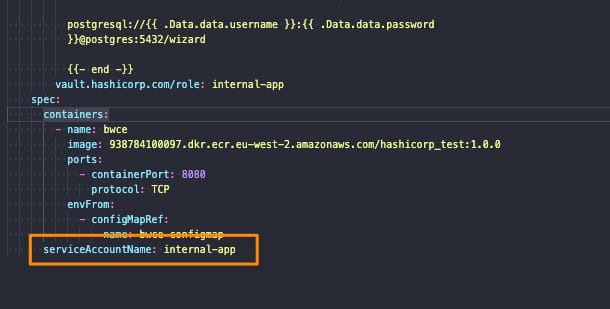
Let’s start with the first point. We need to add the serviceAccountName to our Kubernetes Manifest YAML file as shown below:

Inject Secrets In Pods: Service Account Name definition

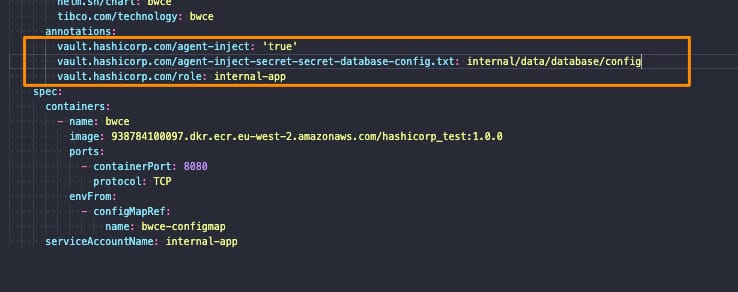
And regarding the second point, we would solve it by adding several annotations to our deployment, as shown below:

Inject Secrets In Pods: Annotations

The annotations used to inject secrets in pods are the following ones:

  • vault.hashicorp.com/agent-inject: ‘true’: This tells the vault injector that we would like to inject the sidecar agent in this deployment and have the Vault configuration. This is required to do any further configuration
  • vault.hashicorp.com/role: internal-app: This is the vault role we are going to use when we’re asking for secrets and information to the vault to be sure that we only access the secrets we have allowed based on the policy we created in the previous section
  • vault.hashicorp.com/agent-inject-secret-secret-database-config.txt: internal/data/database/config: This will be one annotation per secret we plan to add, and it is composed of three parts:
    • vault.hashicorp.com/agent-inject-secret- this part is fixed
    • secret-database-config.txt this part will be the filename that is created under /vault/secrets inside our pod
    • internal/data/database/config This is the path inside the vault of our secret to being linked to that file.

And that’s it! If we deploy now our deployment we will see the following things:

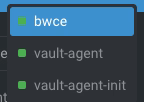
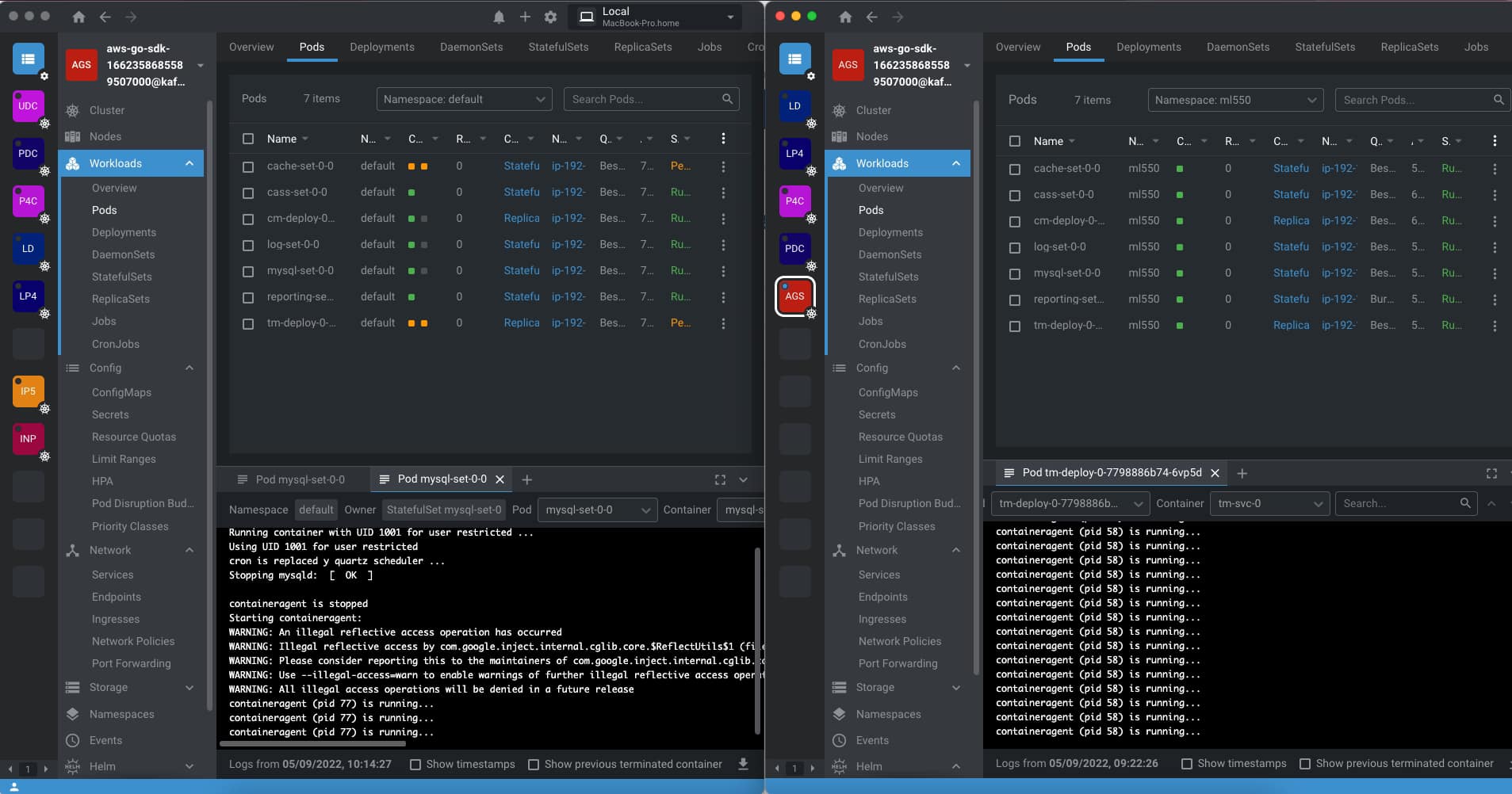
  • Our deployment application has been launched with three containers instead of one because two of them are Hashicorp Vault related, as you can see in the picture below:
Inject Secrets into Kubernetes Pods Using HashiCorp Vault (Agent Injector Guide)
  • vault-agent-init will be the container that establishes the connection to the vault-server because any container starts and does the first download and injecting secrets in the pod based on the configuration provided.
  • vault-agent will be the container running as a watcher to detect any modification on the related secrets and update them.
Inject Secrets into Kubernetes Pods Using HashiCorp Vault (Agent Injector Guide)

And now, if we go to the main container, we will see in the /vault/secrets path the secret has been finally injected as expected:

Inject Secrets into Kubernetes Pods Using HashiCorp Vault (Agent Injector Guide)

And this is how easily and without any knowledge about the underlying app we can inject secrets in pods using Hashicorp Vault.

📚 Want to dive deeper into Kubernetes? This article is part of our comprehensive Kubernetes Architecture Patterns guide, where you’ll find all fundamental and advanced concepts explained step by step.

OpenLens vs Lens: Key Differences, Licensing Changes, and Which One to Use

OpenLens vs Lens: A New Battle Starting in January 2023

Introduction

We already talked about Lens several times in different articles but today I am bringing it here OpenLens because after the release of Lens 6 in late July a lot of questions have arrises, especially regarding its change and the relationship with the OpenLens project, so I thought it could be very interesting to bring some of this data all together in the same place so any of you is quite confused. So I would try to explain and answer the main questions you can have at the moment.

What is OpenLens?

OpenLens is the open source project that is behind the code that supports the main functionality of Lens, the software to help you manage and run your Kubernetes Clusters. It is available on GitHub here (https://github.com/lensapp/lens) and it is totally open-source and distributed over an MIT License. In its own words this is the definition:

This repository ("OpenLens") is where Team Lens develops the Lens IDE product together with the community. It is backed by a number of Kubernetes and cloud-native ecosystem pioneers. This source code is available to everyone under the MIT license

OpenLens vs Lens?

So the main question you could have at the moment is what is the difference between Lens and OpenLens. The main difference is that Lens is built on top of OpenLens including some additional software and libraries with different licenses. It is developed by the Mirantis team (the same company that owns the Docker Enterprise) and it is distributed under a traditional EULA.

Is Lens going to be private?

We need to start by saying that since the beginning Lens has been released under a traditional EULA, so on that front there is not much difference, we can say that OpenLens is Open Source but Lens is Freeware or at least was freeware at that point. But on 28th July we had the release of Lens 6 where the difference between projects started to arise.

As commented on the Mirantis Blog Post a lot of changes and new capabilities have been included but on top of that also the vision has been revealed. As the Mirantis team says they don’t stop at the current level Lens has today to manage the Kubernetes cluster they want to go beyond providing also a Web version of Lens to simplify even more the access, also extend its reach beyond Kubernetes, and so on.

So, you can admit that this is a very compelling vision and very ambitious at the same time and that’s why also they are doing some changes to the license and model, which we are going to talk about below.

Is Lens still free?

We already commented that Lens was always released under a traditional EULA so it was not Open Source like other projects such as its core in OpenLens, but was free to use. With the release on July 28th, this is changing a bit to support their new vision.

They are releasing a new subscription model depending on the usage you are doing of the tool and the approach is very similar to the one they did at the time with Docker Desktop if you remember that we handle that on an article too.

  • Lens Personal subscriptions are for personal use, education, and startups (less than $10 million in annual revenue or funding). They are free of charge.
  • Lens Pro subscriptions are required for professional use in larger businesses. The pricing is $19.90 per user/month or $199 per user/year.

The new license applied with the release of Lens 6 on 28th July but they have provided a Grace Period until January 2023 so you can adapt to this new model.

Should I stop using Lens now?

This is, as always, up to you, but things are going to be the same until January 2023 and at that point, you need to formalize your situation with Lens and Mirantis. If you are under the situation of a Lens Personal license because you are working for a startup or open-source, you can continue to do so without any problem. If that’s not the case, it is up to the company if the additional features they are providing now and also the vision to the future justify the investment you need to do on the Lens Pro license.

You will always have the option to switch from Lens to OpenLens it will not be 100% the same but the core functionalities and approach at this moment will continue to be the same and the project for sure will be very very active. And also as Mirantis already confirmed in the same blog post: “There are no changes to OpenLens licensing or any other upstream open source projects used by Lens Desktop.” So you cannot expect the same situation happens if you are switching to OpenLens or already using OpenLens.

How can I install OpenLens?

Installation of OpenLens is a little bit tricky because you need to generate your build from the source, but to ease that path has been several awesome people that are doing that on their GitHub repositories such as Muhammed Kalkan that is providing a repo with the latest versions with only Open Source components for the major platforms (Windows, macOS X (Intel and Silicon) or Linux) available here:

What Features I am Losing if I switch to OpenLens?

For sure there will be some features that you will be losing if you switch from Lens to OpenLens which are the ones that are provided using the licensed pieces of software. Here we include a non-exclusive list of our experiences using both products:

  • Account Synchronization: All the capabilities of having all your Kubernetes Cluster under your Lens Account and sync will not be available on OpenLens. You will rely on the content of the kubeconfig file
  • Spaces: The option to have your configuration shared between different users that belongs to the same team is not available on OpenLens.
  • Scan Image: One of the new capabilities of the Lens 6 is the option to scan the image of the containers deployed on the cluster, but this is not available on OpenLens.

📚 Want to dive deeper into Kubernetes? This article is part of our comprehensive Kubernetes Architecture Patterns guide, where you’ll find all fundamental and advanced concepts explained step by step.

TIBCO BusinessWorks HashiCorp Vault Integration: Secure Secrets in 3 Steps

TIBCO BusinessWorks HashiCorp Vault Integration: Secure Secrets in 3 Steps

Introduction

This article aims to show the TIBCO BW Hashicorp Vault Configuration to integrate your TIBCO BW application with the secrets stored in Hashicorp Vault, mainly for the externalization and management of password and credentials resources.

This article is part of my comprehensive TIBCO Integration Platform Guide where you can find more patterns and best practices for TIBCO integration platforms.

As you probably know, in the TIBCO BW application, the configuration is stored in Properties at different levels (Module or Application properties). You can read more about them here. And the primary purpose of that properties is to provide flexibility to the application configuration.

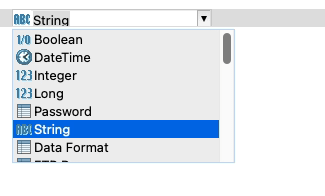
These properties can be of different types, such as String, Integer, Long, Double, Boolean, and DateTime, among other technical resources inside TIBCO BW, as shown in the picture below:

TIBCO BW Hashicorp Vault Configuration: BW Property Types

The TIBCO BW Hashicorp Vault integration will affect only those properties of Password type (at least up to 2.7.2/6.8.1 BW version). The reason behind that is that those properties are the kind of data relevant to the information that is sensitive and needs to be secure. Other concepts can be managed through standard Kubernetes components such as ConfigMaps.

BW Application Definition

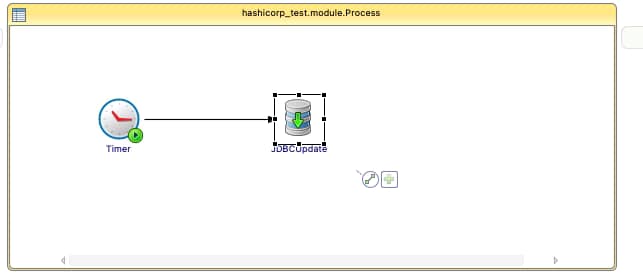
We are going to start with a straightforward application, as you can see in the picture below:

TIBCO BW Hashicorp Vault Configuration: Property sample

Just a simple timer that will be executed once and insert the current time into the PostgreSQL database. We will use Hashicorp Vault to store the password of the database user to be able to connect to it. The username and the connection string will reside on a ConfigMap.

We will skip the part of the configuration regarding the deployment of the TIBCO BW application Containers and link to a ConfigMap you have an article covering that in detail in case you need to follow it, and we will focus just on the topic regarding TIBCO BW Hashicorp Vault integration.

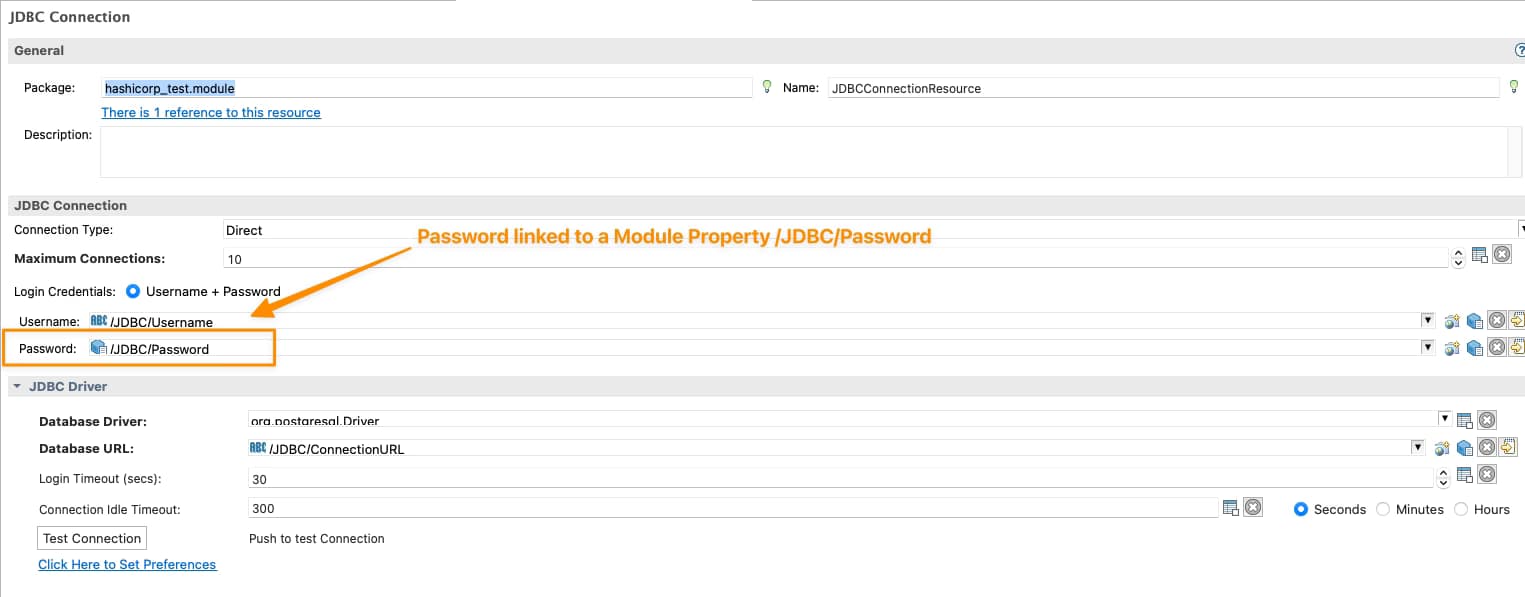
So we will need to tell TIBCO BW that the password of the JDBC Shared Resource will be linked to Hashicorp Vault configuration, and to do that, the first thing is to have tied the Password of the Shared Resources to a Module Property as shown in the picture below:

TIBCO BW Hashicorp Vault Configuration: Password linked to Module Property

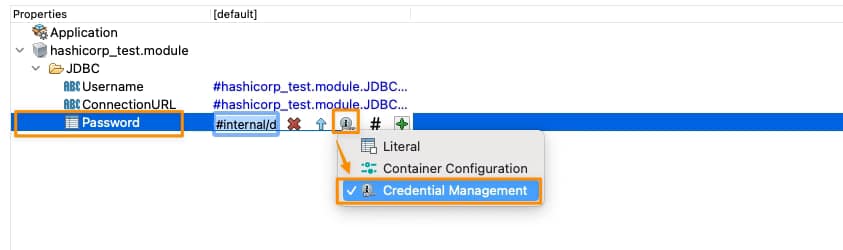
Now, we need to tell this Module Property that is Linked to Hashicorp Vault, and we will do that on the Application Property View, selecting that this property is linked to a Credential Management Solution as shown in the picture below:

TIBCO BW Hashicorp Vault Configuration: Credential Management Configuration for Property

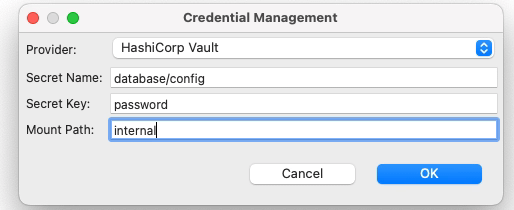
And it is now when we establish the TIBCO BW Hashicorp Vault relationship. We need to click directly on the green plus sign, and we will have a modal window asking for the technology of credentials management that we’re going to use and the data needed for each of them, as you can see in the following picture:

TIBCO BW Hashicorp Vault Configuration: Credential Management Configuration for Property

We will select Hashicorp Vault as the provided. Then we will need to provide three attributes that we already commented on in the previous article when we start creating secrets in Hashicorp Vault:

  • Secret Name: this is the secret name path after the root path of the element.
  • Secret Key: This is the key inside the secret itself
  • Mount Path: This is the root path of the secret

To get more details about these three concepts, please look at our article about how to create secrets in Hashicorp Vault.

So with all this, we have pretty much everything we need to connect to Hashicorp Vault and grab the secret, and from the TIBCO BW BusinessStudio side, everything is done; we can generate the EAR file and deploy it into Kubernetes because here it is the last part of our configuration.

 Kubernetes Deployment

Until this moment, we have the following information already provided:

  • BW Process that has the login to connect to the Database and insert information
  • Link between the password property used to connect and the Hashicorp Secret definition

So, pretty much everything is there, but one concept is missing. How will the Kubernetes Pod connect to Hashicorp once the pod is deployed? Until this point, we didn’t provide the Hashicorp Vault server location of the authentication method to connect to it. This is the missing part of the TIBCO BW Hashicorp Vault integration and will be part of the Kubernetes Deployment YAML file.

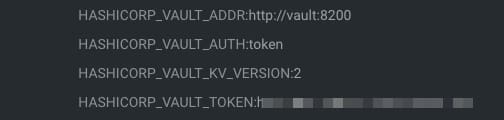
We will do that using the following environment properties in this sample:

TIBCO BW Hashicorp Vault Configuration: Hashicorp Environment Variables
  • HASHICORP_VAULT_ADDR: This variable will point to where the Hashicorp Vault server is located
  • HASHICORP_VAULT_AUTH: This variable will indicate which authentication options will be used. In our case, we will use the token one as we used in the previous article
  • HASHICORP_VAULT_KV_VERSION: This variable indicates which version of the KV storage solution we are using and will be two by default.
  • HASHICORP_VAULT_TOKEN: This will be just the token value to be able to authentication against the Hashicorp Vault server

If you are using other authentication methods or just want to know more about those properties please take a look at this documentation from TIBCO.

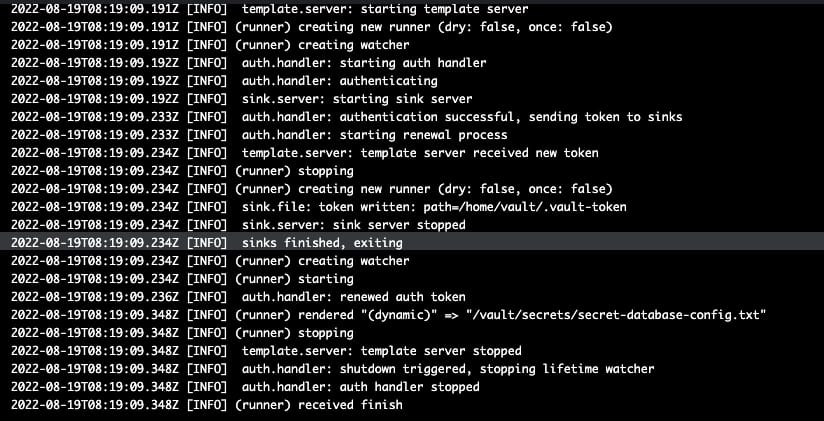
With all that added to the environment properties of our TIBCO BW application, we can run it, and we will get an output similar to this one, and that shows that the TIBCO BW Hashicorp Vault integration has been done and the application was able to start without any issue

TIBCO BW Hashicorp Vault Configuration: Running sample

Grafana Loki with MinIO: Scalable Log Storage for Kubernetes without S3

Grafana Loki with MinIO: Scalable Log Storage for Kubernetes without S3

Grafana Loki is becoming one of the de-facto standards for log aggregation in Kubernetes workloads nowadays, and today, we are going to show how we can use together Grafana Loki and MinIO. We already have covered on several occasions the capabilities of Grafana Loki that have emerged as the main alternative to the Elasticsearch leadership in the last 5-10 years for log aggregation.

With a different approach, more lightweight, more cloud-native, more focus on the good things that Prometheus has provided but for logs and with the sponsorship of a great company such as Grafana Labs with the dashboard tools as the leader of each day more enormous stack of tools around the observability world.

And also, we already have covered MinIO as an object store that can be deployed anywhere. It’s like having your S3 service on whatever cloud you like or on-prem. So today, we are going to see how both can work together.

Grafana Loki mainly supports three deployment models: monolith, simple-scalable, and distributed. Pretty much everything but monolith has the requirement to have an Object Storage solution to be able to work on a distributed scalable mode. So, if you have your deployment in AWS, you already have covered with S3. Also, Grafana Loki supports most of the Object Storage solutions for the cloud ecosystem of the leading vendors. Still, the problem comes when you would like to rely on Grafana Loki for a private cloud or on-premises installation.

In that case, is where we can rely on MinIO. To be honest, you can use MinIO also in the cloud world to have a more flexible and transparent solution and avoid any lock-in with a cloud vendor. Still, for on-premises, its uses have become mandatory. One of the great features of MinIO is that it implements the S3 API, so pretty much anything that supports S3 will work with MinIO.

In this case, I just need to adapt some values on the helm chart from Loki in the simple-distributed mode as shown below:

 loki:
  storage:
    s3:
      s3: null
      endpoint: http://minio.minio:9000
      region: null
      secretAccessKey: XXXXXXXXXXX
      accessKeyId: XXXXXXXXXX
      s3ForcePathStyle: true
      insecure: true

We’re just pointing to the endpoint from our MinIO tenant, in our case, also deployed on Kubernetes on port 9000. We’re also providing the credentials to connect and finally just showing that needs s3ForcePathSyle: true is required for the endpoint to be transformed to minio.minio:9000/bucket instead to bucket.minio.minio:9000, so it will work better on a Kubernetes ecosystem.

And that’s pretty much it; as soon as you start it, you will begin to see that the buckets are starting to be populated as they will do in case you were using S3, as you can see in the picture below:

MinIO showing buckets and objects from Loki configuration

We already covered the deployment models from MinIO. As shown here, you can use its helm chart or the MinIO operator. But, the integration with Loki it’s even better because the helm charts from Loki already included MinIO as a sub-chart so you can deploy MinIO as part of your Loki deployment based on the configuration you will find on the values.yml as shown below:

 # -------------------------------------
# Configuration for `minio` child chart
# -------------------------------------
minio:
  enabled: false
  accessKey: enterprise-logs
  secretKey: supersecret
  buckets:
    - name: chunks
      policy: none
      purge: false
    - name: ruler
      policy: none
      purge: false
    - name: admin
      policy: none
      purge: false
  persistence:
    size: 5Gi
  resources:
    requests:
      cpu: 100m
      memory: 128Mi

So with a single command, you can have both platforms deployed and configured automatically! I hope this is as useful for you as it was for me when I discovered and did this process.

📚 Want to dive deeper into Kubernetes? This article is part of our comprehensive Kubernetes Architecture Patterns guide, where you’ll find all fundamental and advanced concepts explained step by step.

Write Kubernetes YAML Manifests More Efficiently: Tools, Templates, and Best Practices

Write Kubernetes YAML Manifests More Efficiently: Tools, Templates, and Best Practices

When we are all in this new cloud-native environment where Kubernetes is the uncontestable king, you need to learn how to deal with Kubernetes YAML manifest all the time. You will become an expert on indent sections to make sure this can be processed and so on. But we need to admit that it is tedious. All the benefits from the Kubernetes deployment make an effort worth it, but even with that, it is pretty complex to be able to handle it.

It is true that, to simplify this situation, there are a lot of projects that have been launched, such as Helm to manage templates of related Kubernetes YAML manifest or Kustomize different approaches to get to the sample place or even solutions that are specific to a Kubernetes distribution such as the Openshift Templates. But in the end, none of this can solve the problem at the primary level. So you need to write those files manually yourself.

And what is the process now? You are probably following a different one, but I will tell you my approach. Depending on what I’m trying to create, I try to find a template available for the Kubernetes YAML Manifest that I want to make. This template can be some previous resource that I have already created. Hence, I use that as a base, it could be something generated for some workload that is already deployed (so great that Lens has existed to simplify the management of Running Kubernetes workloads! If you don’t know Lens, please take a look at this article) or if you don’t have anything at hand, you search on google about something similar probably in the Kubernetes documentation, stack overflow or the first reasonable resource that Google provides to you.

And after that, the approach is the same. You go to your Text Editor, VS Code in my case. I have a lot of different plugins to make this process less painful. A lot of different linters validate the structure of the Kubernetes YAML Manifest to make sure everything is indented property, that there are no repeated tags or no missing mandatory tags in the latest version of the resource, and so on.

Things got a bit tricky if you are creating a Helm Chart because in that case the linters for YAML don’t work that well and detect some false positives because they don’t truly understand the Helm syntax. You also complete your setup with a few more linters for Helm, and that’s it. You fight error and error and change by change to have your desired Kubernetes YAML Manifest.

But, it should be a better way to do that? Yes, it should, and this is what tools such as Monokle try to provide a better experience of that process. Let’s see how that works. Starting from their contributor words:

Monokle is your friendly desktop UI for managing Kubernetes manifests. Monokle helps you quickly get a high-level view of your manifests and their contained resources, easily edit resources without having to learn yaml syntax, diff resources against your cluster, preview and debug resources generated with kustomize or Helm, and more.

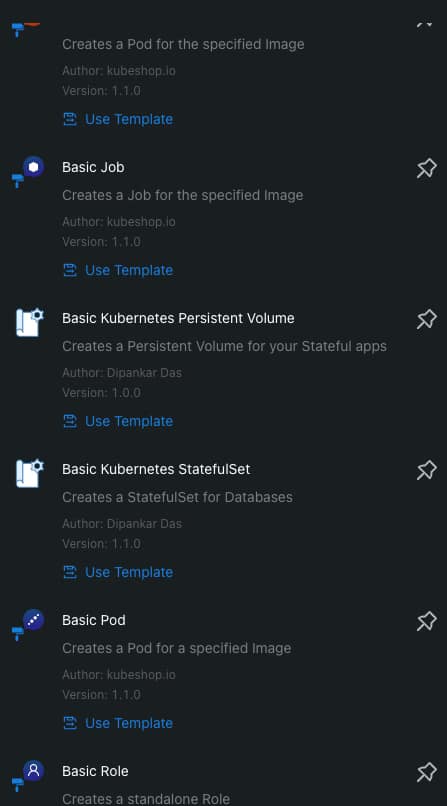
Monokle helps you in the following ways. First of all, present at the beginning of your work with a set of templates to create your Kubernetes YAML Manifests, as you can see in the picture below:

Write Kubernetes YAML Manifests More Efficiently: Tools, Templates, and Best Practices
Monokle Template Selection Dialog

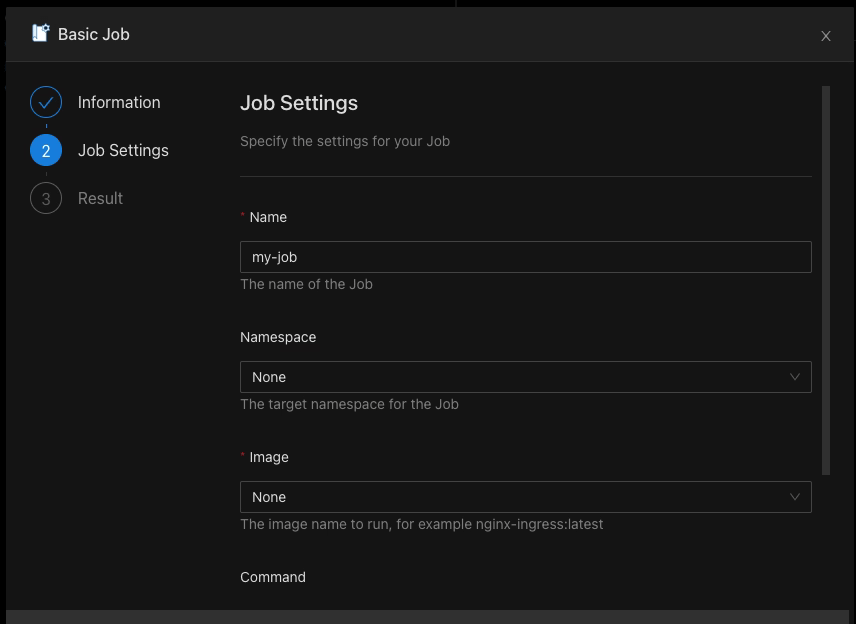
When you select a template, you can populate the required values graphically without needing to type YAML code yourself, as you can see in the picture below:

Write Kubernetes YAML Manifests More Efficiently: Tools, Templates, and Best Practices
Monokle Template Value Population Process

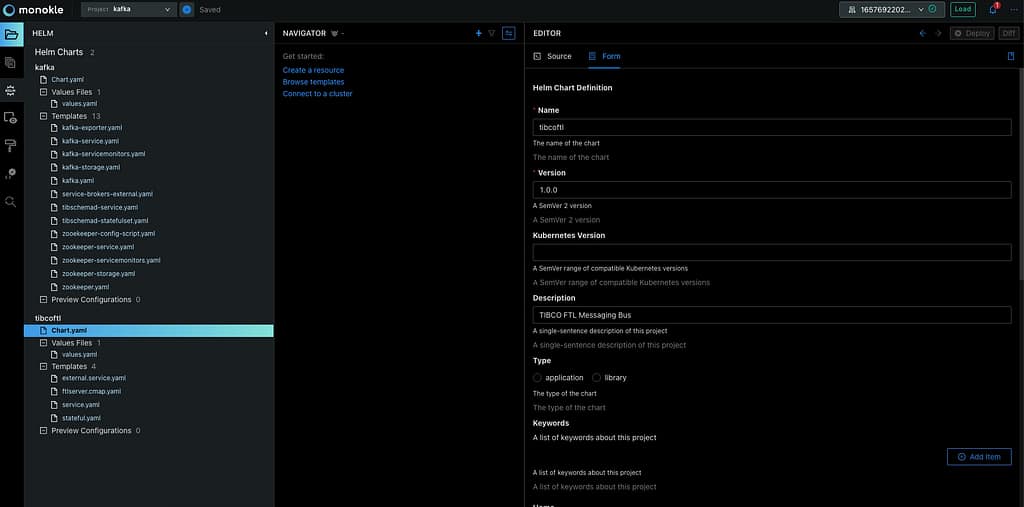
It also supports Helm Chart and Kustomize resource recognition so you will quickly see your charts, and you can edit them in a more fashion mode even graphically for some of the resources as well:

Write Kubernetes YAML Manifests More Efficiently: Tools, Templates, and Best Practices
Helm Chart Modification using Monokle

If allows good integration in several ways, first of all with OPA so it can validate all the rules and best-practice that you have defined and also you can connect to a running cluster to see the resources from there and also see the difference between them if exists to simplify the process and provide more agility on the Kubernetes YAML Manifest creation process

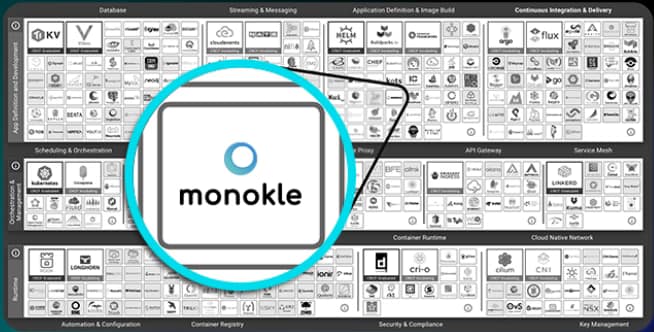
On top of all of that, Monokle is a certified component from the CNCF foundation, so you will be using a project that is backup from the same foundation is that takes care of Kubernetes itself, among other tasks:

Write Kubernetes YAML Manifests More Efficiently: Tools, Templates, and Best Practices
Monokle is part of the CNCF Foundation Landscape

If you want to download Monokle, give it a try and you can do it from its web page: https://monokle.kubeshop.io/ and I’m sure your performance writing Kubernetes YAML Manifest will thank you shortly!

📚 Want to dive deeper into Kubernetes? This article is part of our comprehensive Kubernetes Architecture Patterns guide, where you’ll find all fundamental and advanced concepts explained step by step.

Top kubectl Commands and Tips to Boost Kubernetes Productivity

Top kubectl Commands and Tips to Boost Kubernetes Productivity

Kubectl command can be the most used command you can type when working with the Kubernetes ecosystem. As you know, kubectl is the open the door to all the Kubernetes world as pretty much all of our interactions go through that part, unless you are using a CLI approach.

So, based on the productivity principles, if you can improve just 1% in the task that you perform the most, the global improvement will be massive. So, let’s see how we can do that here.

kubectl is a command with many different options that could help boost your productivity a lot. But at the same time, as it has so many options, it is pretty complex to know all of them or be aware that there is a faster way to do the job, and that’s why I would like to add some options here to try to help you with this set of kubectl tips.

Kubectl Commands Tips

Let’s start with the first kubectl commands that help a lot to improve your productivity:

kubectl explain <resource-object>

This command will show the API reference for any Kubernetes Object, so it would help you know the exact spelling of the option that you always miswrite.

kubectl get <resource-object> —watch-output

The —watch-output option added to any kubectl command will work in the same way as the watch command itself, so it will refresh the same command every 2.0 seconds to see the real-time version of that command and avoid that you need to type it again or rely on an external command such as watch

kubectl get events --sort-by=".lastTimestamp"

This command will help you when you want to see the events in your current context, but the main difference is that it will sort the output by the timestamp from more recent to older, so you will avoid needing to scroll to find the latest events.

kubectl logs --previous

We always talk about one of the needs for a Log Aggregation Architecture because the logs are disposable, but what about if you want to get the logs in a killed container? You can use the --previous flag to access the logs for a recently terminated container. This will not remove the need for a logging aggregation technique, but it will help troubleshoot when Kubernetes start killing things and you need to know what happened.

kubectl create <object> <options> -o=yaml --dry-run=client

kubectl create allows us to create an object of our preference by providing the required arguments imperatively, but if we add the -o=yaml --dry-run=client option, we will not get our object created. Instead, we will have a YAML file defining that object. So we can easily modify it to our needs without needing to make it from scratch by searching Google for a sample to start with.

kubectl top pods --all-namespaces --sort-by='memory'

This command will alter the standard top pods order to show the pods and the resources they are consuming, and at the same time, it will sort that output by the memory usage. So, in environments with many pods, it will provide just at the top the ones you should focus on first to optimize the resources for your whole cluster.

Kubectl Alias

One step beyond that is to simplify those commands by adding an alias to this. As you can see, most of these commands are pretty long as they have many options, so writing each of these options will take a while.

So, if you want to go one step further on this optimization, you can always add an alias to that command to simplify it a lot. And if you want to learn more about those aliases, I strongly recommend the GitHub repo from Ahmet Alp Balkan:

📚 Want to dive deeper into Kubernetes? This article is part of our comprehensive Kubernetes Architecture Patterns guide, where you’ll find all fundamental and advanced concepts explained step by step.

MinIO Multi-Cloud Object Storage: S3-Compatible Storage for Kubernetes

MinIO Multi-Cloud Object Storage: S3-Compatible Storage for Kubernetes

All The Power of Object Storage In Your Kubernetes Environment

In this post, I would like to bring to you MinIO, a real cloud object storage solution with all the features you can imagine and even some more. You are probably aware of Object Storage from the AWS S3 service raised some years ago and most of the alternatives in the leading public cloud providers such as Google or Azure.

But what about private clouds? Is it something available that can provide all the benefits of object storage, but you don’t need to rely on a single cloud provider. And even more important than that, in the present and future, that all companies are going to be multi cloud do we have at our disposal a tool that provides all these features but doesn’t force us to have a vendor lock-in. Even some software, such as Loki, encourages you to use an object storage solution

The answer is yes! And this is what MinIO is all about, and I just want to use their own words:

“MinIO offers high-performance, S3 compatible object storage. Native to Kubernetes, MinIO is the only object storage suite available on every public cloud, Kubernetes distribution, the private cloud, and the edge. MinIO is software-defined and is 100% open source under GNU AGPL v3.”

So, as I said, everything you can imagine and even more. Let’s focus on some points:

  • Native to Kubernetes: You can deploy it in any Kubernetes distribution of choice, whether this is public or private (or even edge).
  • 100% open source under GNU AGPL v3, so no vendor lock-in.
  • S3 compatible object storage, so it even simplifies the transition for customers with a strong tie with the AWS service.
  • High-Performance is the essential feature.

Sounds great. Let’s try it in our environment! So I’m going to install MinIO in my rancher-desktop environment, and doing that, I am going to use the operator that they have available here:

To be able to install, the recommended option is to use krew, the plugin manager we already talked about it in another article. The first thing we need to do is run the following command.

 kubectl minio init

This command will deploy the operator on the cluster as you can see in the picture below:

MinIO Multi-Cloud Object Storage: S3-Compatible Storage for Kubernetes

Once done and all the components are running we can launch the Graphical interfaces that will help us create the storage tenant. To do so we need to run the following command:

 kubectl minio proxy -n minio-operator

This will expose the internal interface that will help us during that process. We will be provided a JWT token to be able to log into the platform as you can see in the picture below:

MinIO Multi-Cloud Object Storage: S3-Compatible Storage for Kubernetes

Now we need to click on the button that says “Create Tenant” which will provide us a Wizard menu to create our MinIO object storage tenant:

MinIO Multi-Cloud Object Storage: S3-Compatible Storage for Kubernetes

On that wizard we can select several properties depending on our needs, as this is for my rancher desktop, I’ll try to keep the settings at the minimum as you can see here:

MinIO Multi-Cloud Object Storage: S3-Compatible Storage for Kubernetes

It would help if you had the namespace created in advance to be retrieved here. Also, you need to be aware that there can be only one tenant per namespace, so you will need additional namespaces to create other tenants.

As soon as you hit create, you will be provided with an API Key and Secret that you need to store (or download) to be able to use later, and after that, the tenant will start its deployment. After a few minutes, you will have all your components running, as you can see in the picture below:

MinIO Multi-Cloud Object Storage: S3-Compatible Storage for Kubernetes

If we go to our console-svc, you will find the following GUI available:

MinIO Multi-Cloud Object Storage: S3-Compatible Storage for Kubernetes

After the credentials are download in the previous step, we will enter the console for our cloud object store and be able to start creating our buckets as you can see in the picture below:

MinIO Multi-Cloud Object Storage: S3-Compatible Storage for Kubernetes

On the screen of creating a bucket, you can see several options, such as Versioning, Quota, and Object Locking, that give a view of the features and capability this solution has

MinIO Multi-Cloud Object Storage: S3-Compatible Storage for Kubernetes

And we can start uploading and downloading objects to this new bucket created:

MinIO Multi-Cloud Object Storage: S3-Compatible Storage for Kubernetes

I hope you can see this as an option for your deployments, especially when you need an Object Storage solution option for private deployments or just as an AWS S3 alternative.

📚 Want to dive deeper into Kubernetes? This article is part of our comprehensive Kubernetes Architecture Patterns guide, where you’ll find all fundamental and advanced concepts explained step by step.

Top 3 Ways to Deploy Grafana Loki on Kubernetes for Scalable Logging

Top 3 Ways to Deploy Grafana Loki on Kubernetes for Scalable Logging

Deployment Models for a Scalable Log Aggregation Architecture using Loki

Deploy a scalable Loki is not an straightforward task. We already have talked about Loki in previous posts on the site, and it is becoming more and more popular, and usage becomes much more regular each day. That is why I think it makes sense to include another post regarding Loki Architecture.

Loki has several advantages that promote it as a default choice to deploy a Log Aggregation Stack. One of them is its scalability because you can see across different deployment models how many components you like to deploy and their responsibilities. So the target of the topic is to show you how to deploy an scalable Loki solution and this is based on two concepts: components available and how you group them.

So we will start with the different components:

  • ingester: responsible for writing log data to long-term storage backends (DynamoDB, S3, Cassandra, etc.) on the write path and returning log data for in-memory queries on the read path.
  • distributor: responsible for handling incoming streams by clients. It’s the first step in the write path for log data.
  • query-frontend: optional service providing the querier’s API endpoints and can be used to accelerate the read path
  • querier: service handles queries using the LogQL query language, fetching logs from the ingesters and long-term storage.
  • ruler: responsible for continually evaluating a set of configurable queries and performing an action based on the result.

Then you can join them into different groups, and depending on the size of these groups, you have a different deployment topology, as shown below:

Top 3 Ways to Deploy Grafana Loki on Kubernetes for Scalable Logging
Loki Monolith Deployment Mode
  • Monolith: As you can imagine, all components are running together in a single instance. This is the simplest option and is recommended as a 100 GB / day starting point. You can even scale this deployment, but it will scale all components simultaneously, and it should have a shared object state.
Top 3 Ways to Deploy Grafana Loki on Kubernetes for Scalable Logging
Loki Simple Scalable Deployment Mode
  • Simple Scalable Deployment Model: This is the second level, and it can scale up at several TB of logs per day. It consists of splitting the components into two different profiles: read and write.
Top 3 Ways to Deploy Grafana Loki on Kubernetes for Scalable Logging
Loki Microservice Deployment Mode
  • Microservices: That means that each component will be managed independently, giving you all the power at your hand to scale each of these components alone.

Defining the deployment model of each instance is very easy, and it is based on a single parameter named target. So depending on the value of the target it will follow one of the previous deployment models:

  • all (default): It will deploy as in monolith mode.
  • write: It will be the write path on the simple scalable deployment model
  • read: It will be the reading group on the simple, scalable deployment model
  • ingester, distributor, query-frontend, query-scheduler, querier, index-gateway, ruler, compactor: Individual values to deploy a single component for the microservice deployment model.

The target argument will help for an on-premises kind of deployment. Still, if you are using Helm for the installation, Loki already provides different helm charts for the other deployment models:

But all those helm charts are based on the same principle commented above on defining the role of each instance using the argument target, as you can see in the picture below:

Top 3 Ways to Deploy Grafana Loki on Kubernetes for Scalable Logging

📚 Want to dive deeper into Kubernetes? This article is part of our comprehensive Kubernetes Architecture Patterns guide, where you’ll find all fundamental and advanced concepts explained step by step.