
Kubernetes Security is one of the most critical aspects today in IT world. Kubernetes has become the backbone of modern infrastructure management, allowing organizations to scale and deploy containerized applications with ease. However, the power of Kubernetes also brings forth the responsibility of ensuring robust security measures are in place. This responsibility cannot rest solely on the shoulders of developers or operators alone. It demands a collaborative effort where both parties work together to mitigate potential risks and vulnerabilities.
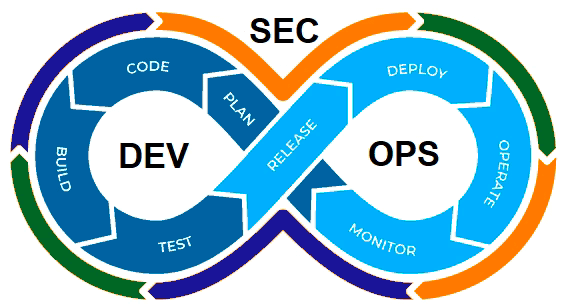
Even though DevOps and Platform Engineering approaches are pretty standard, there are still tasks responsible for different teams, even though nowadays you have platform and project teams.
Here you will see three easy ways to improve your Kubernetes security from both dev and ops perspectives:
No Vulnerabilities in Container Images
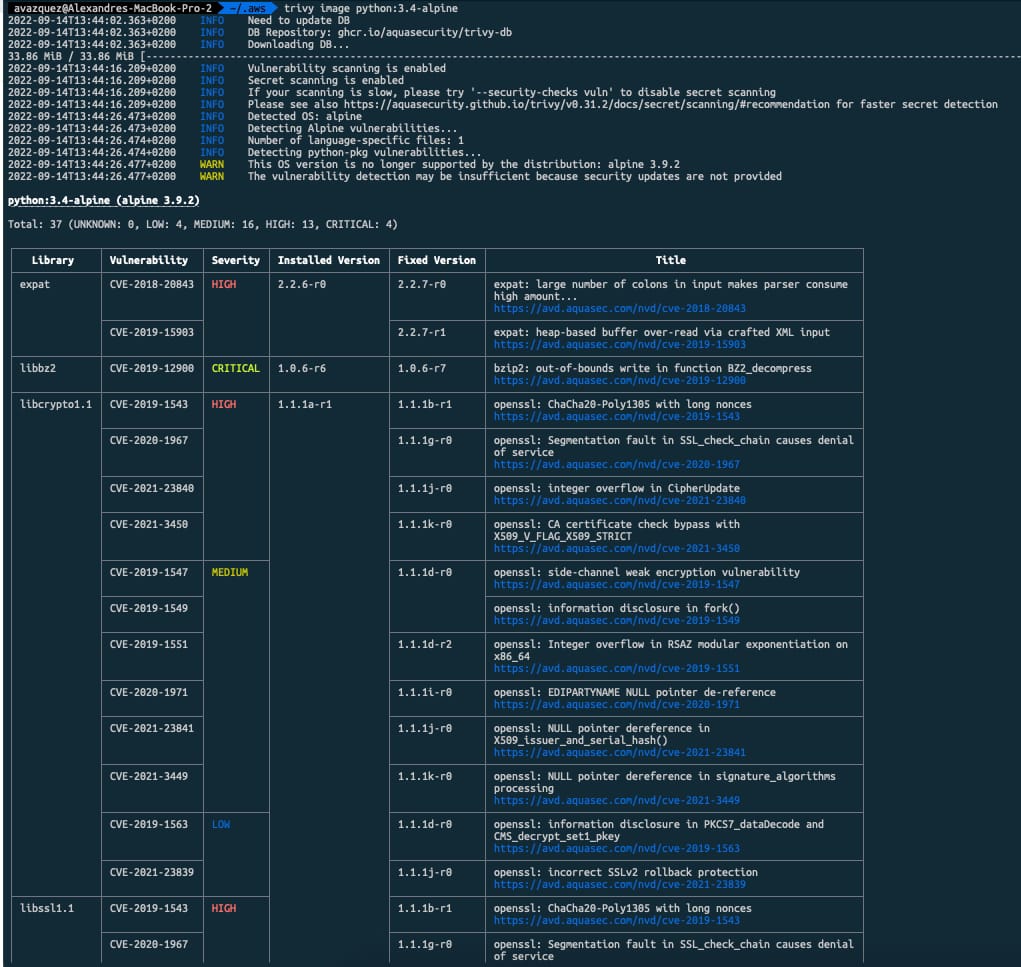
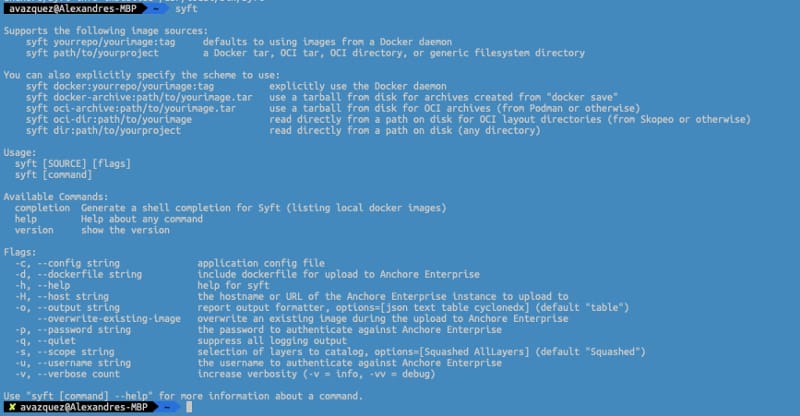
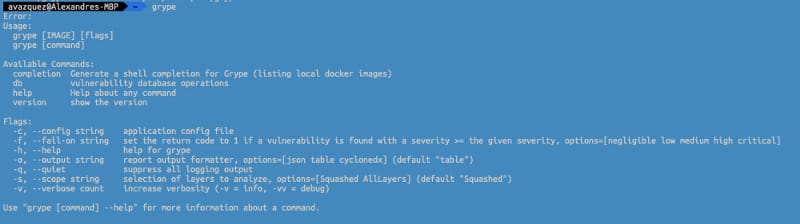
Vulnerability Scan on Container Images is something crucial in nowadays developments because the number of components deployed on the system has grown exponentially, and also the opacity of them as well. Vulnerabilities Scan using tools such as Trivy or the integrated options in our local docker environments such as Docker Desktop or Rancher Desktop is mandatory, but how can you use it to make your application more secure?
- Developer’s responsibility:
- Use only allowed standard base images, well-known
- Reduce, at minimum, the number of components and packages to be installed with your application (better Alpine than Debian)
- Use a Multi-Stage approach to only include what you will need in your images.
- Run a vulnerability scan locally before pushing
- Operator’s responsibility:
- Force to download all base images for the corporate container registry
- Enforce vulnerability scan on push, generating alerts and avoiding deployment if the quality criteria are unmet.
- Perform regular vulnerability scans for runtime images and generate incidents for the development teams based on the issues discovered.
No Additional Privileges in Container Images
Now that our application doesn’t include any vulnerability, we need to ensure the image is not allowed to do what it should, such as elevating privileges. See what you can do depending on your role:
- Developer responsibility:
- Never create images with root user and use security context options in your Kubernetes Manifest files
- Test your images with all the possible capabilities dropped unless needed for some specific reason
- Make your filesystem read-only and use volumes for the required folders on your application.
- Operator’s responsibility:
- Create a policy using OPA/Gatekeeper or the deprecated Pod Security Policy to forbid deployment if applications run with root user or privileged mode.
- Create a policy using OPA/Gatekeeper or the deprecated Pod Security Policy to forbid deployment if applications run with root user or privileged mode.
Restrict visibility between components
When we design applications nowadays, it is expected that they require to connect to other applications and components, and the service discovery capabilities in Kubernetes are excellent in how we can interact. Still, also this allows other apps to connect to services that maybe they shouldn’t. See what you can do to help on that aspect depending on your role and responsibility:
- Developer responsibility:
- Ensure your application has proper authentication and authorization policies in place to avoid any unauthorized use of your application.
- Operation responsibility:
- Manage at the platform level the network visibility of the components but deny all traffic by default and allow the connections required by design by using Network Policies.
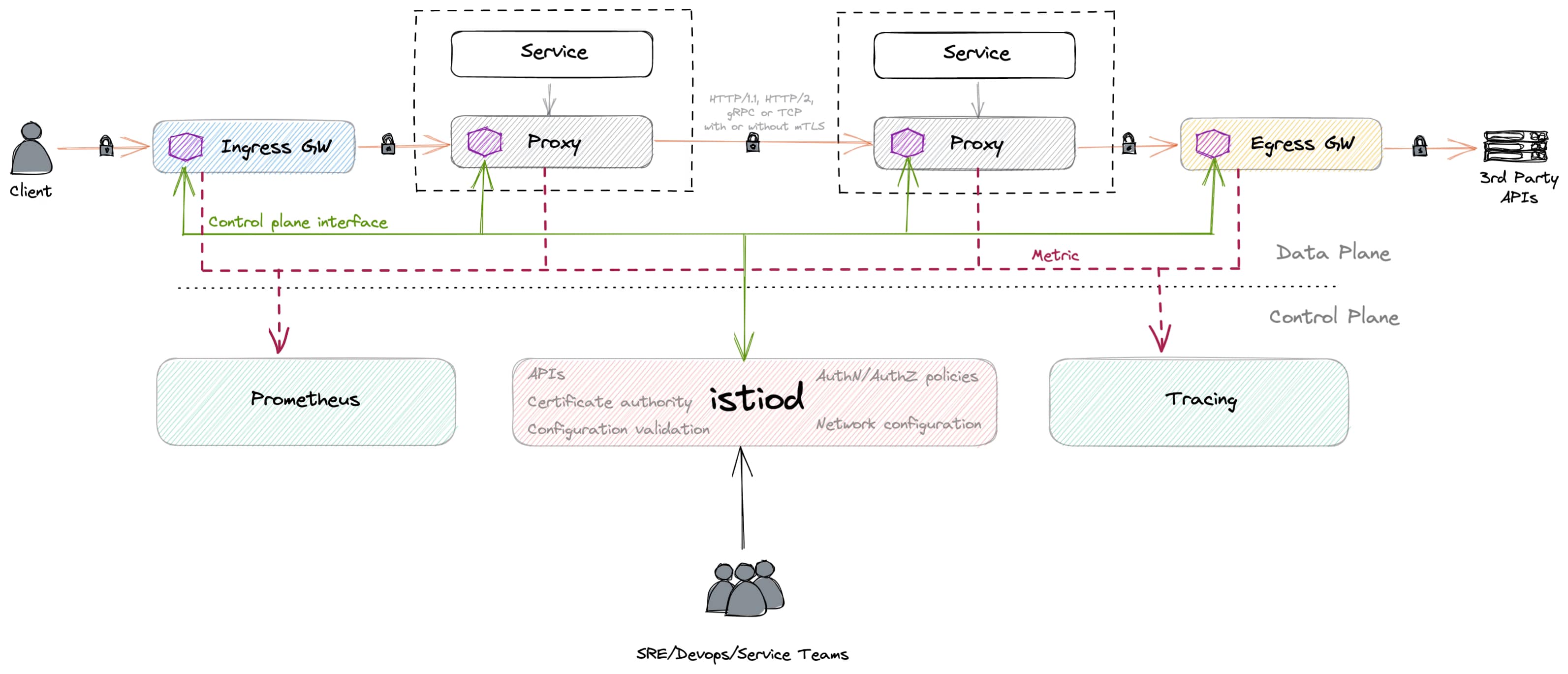
- Use Service Mesh tools to have a central approach for authentication and authorization.
- Use tools like Kiali to monitor the network traffic and detect unreasonable traffic patterns.
Conclusion
In conclusion, the importance of Kubernetes security cannot be overstated. It requires collaboration and shared responsibility between developers and operators. By focusing on practices such as vulnerability scanning, restricting additional privileges, and restricting visibility between components, organizations can create a more secure Kubernetes environment. By working together, developers and operators can fortify the container ecosystem, safeguarding applications, data, and critical business assets from potential security breaches. With a collaborative approach to Kubernetes security, organizations can confidently leverage the full potential of this powerful orchestration platform while maintaining the highest standards of security. By adopting these practices, organizations can create a more secure Kubernetes environment, protecting their applications and data from potential threats.
📚 Want to dive deeper into Kubernetes? This article is part of our comprehensive Kubernetes Architecture Patterns guide, where you’ll find all fundamental and advanced concepts explained step by step.