Top 3 WebApps That I Use Daily as Software Architect to do my job in a better, more efficient way.
WebApps are part of our life and part of our creation and work process. Especially the ones that are working in the software industry pretty much each task that we need to accomplish you need to use a tool (if not more than one) as part of this process and there are tools that will help you to make this process smooth or easier.
I have a preference for the native/desktop apps probably because I am old enough to suffer the first age of the web apps that were a nightmare but things have changed a lot after all these years and now I have to admit that there are some that I use pretty much in my daily activities:
Go from imagining the future to building it. Log in to access Lucidchart for intelligent diagramming or Lucidspark for virtual whiteboarding. Teams can collaborate, ideate, and build projects in real time.
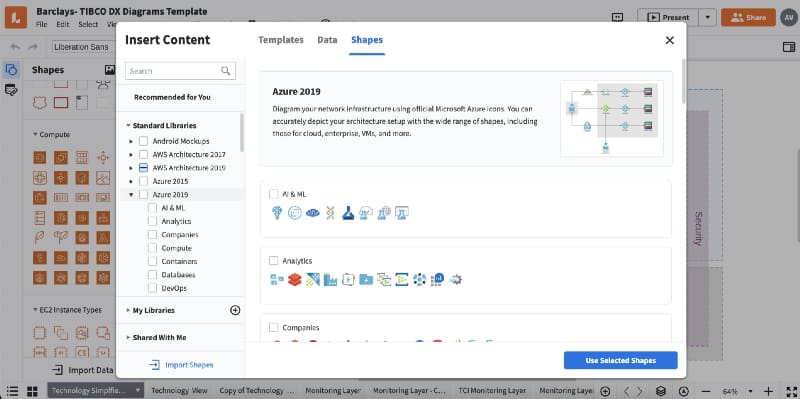
This is pretty much the only tool that I use to cover all my sketch needs as a Software Architect that are a lot. It compares to other native alternatives like Microsoft Visio but I like their focus on the software industry with a lot of shapes focus for modern architectures including the shapes for main cloud providers such as Microsoft Azure, Amazon Web Services, or Google Cloud.
Lucidchart with the Shapes available for Microsoft Azure and also other listed such as AWS Architecture and Google Cloud
In an easy way, you can create design diagrams, UML ones, or architecture diagrams with the look and feel of a professional. It has a free license for personal use but I encourage to jump into one of the pro plans especially if you are a software company. This is a very innovative company and not stopping at the diagram sector but also including things like Lucidspark to bring the visual thinking approach to the digital world in such an excellent manner. I have used other alternatives like draw.io or Google Shapes but Lucidchart works better for my creative process.
2.- regex101.com: Your RegExp Jedi Master Online
regex101: build, test, and debug regex
Regular expression tester with syntax highlighting, explanation, cheat sheet for PHP/PCRE, Python, GO, JavaScript, Java. Features a regex quiz & library.
No matter what you do for a living, if you are a System Administrator or a Software Developer, if you are a Software Architect working at the high-level definition of architectures or just a pre-sales engineering you will need to provide some Regular Expression and for sure it will not be an easy one. So you need tools that help you in this process and this is what regexp101.com will provide to you.
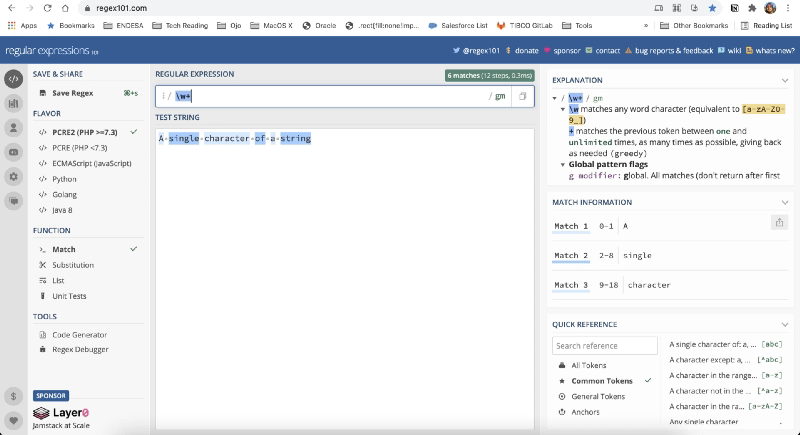
regex101.com main interface dialog
A clean interface will provide an easy way to test your RE or fix it if needed at also a way to improve your theoretical knowledge of the ER providing you the way to express some of your ER in the most efficient way. For sure a must tool that you need to have in your bookmarks to optimize the time you need to create your tested RE and become an RE master
3.- fastthread.io: Your Java Wise Advisor
fastthread.io
Free online thread dump analyzer to troubleshoot Java, android applications. Kotlin, Clojure, Scala, Jruby, Jython, all JVM language thread dumps are supported. hs_err_pid, core dump files are analyzed.
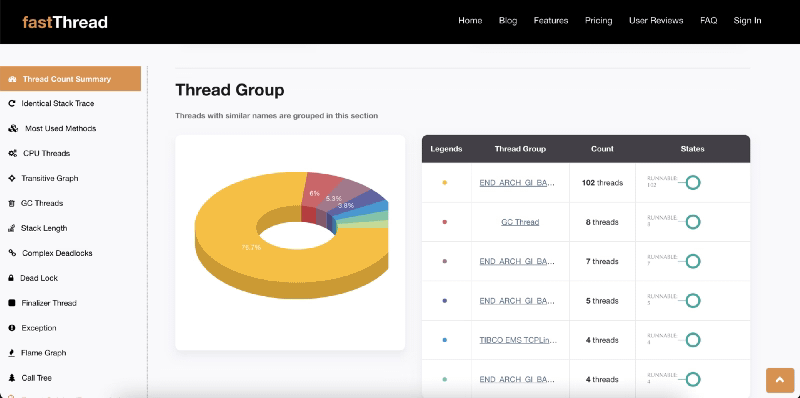
If you need to deal with any Java program in your daily activities for sure you have been in the process of analyzing thread dumps to understand an. unexpected behavior of a Java program. That implies having a stack trace for each of the hundreds of threads that you can get and extract some insights into that data. To help on that process you have fastthread.io that provides an initial analysis focus on the usual key factors such as thread status (blocked, timed_waiting, runnable..) depending on blocking situation, similar stack trace, pool management, CPU consumptions.
fastthread.io analysis result after uploading a thread dump through the page
It is clearly a must if you need to deal with any Java-based app, at least to have the first analysis to help you focus on anything relevant and apply your wisdom to the preliminary analysis already done in an automated, graph-riched way.
Bonus Track: ilovepdf
iLovePDF | Online PDF tools for PDF lovers
iLovePDF is an online service to work with PDF files completely free and easy to use. Merge PDF, split PDF, compress PDF, office to PDF, PDF to JPG and more!
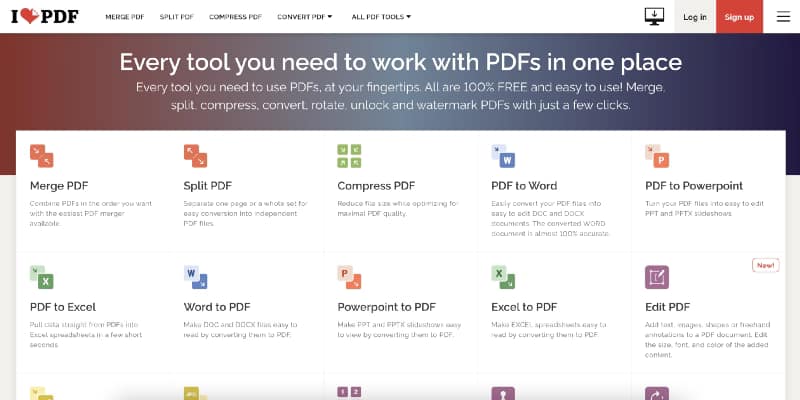
As a final addition to this list I could not forget about one app. This is not a geek web app but the app that I used the most, because ilovepdf is a set of webapps covering all your needs regarding the usage of PDF and everything so easy to use and just directly on your browser. ilovepdf provides way to transform your PDF to more editable formats such as Word or Excel but also to be able to split or merge different PDF documents in one, rotate PDF, add watermark, unlock them… and the one that I use the most compress PDF to be able to reduce their size without losing visible quality to send it as an attachment using email.
ilovepdf.com main page with all the options at your disposal
Summary
I hope these tools will help you to improve your daily process to be more efficient or at least to open your known web apps for some of these tasks if you already have another one and maybe give it a try to see if can be of any benefit for you. If you also have other web apps that you use a lot in your daily process please let me know with your responses to this article.
Maid provides the best of both worlds: Ease of use and flexibility that comes with a code-based interface.
One of the main problems that I have because of my routine practices using computers is the lack of organizational discipline. To me is quite complex to have all the different files organized in the right place all the time, and I finally decided to stop fighting against it.
This is something that had happened to me since the beginning of my use of computers but got worse when I started working in the industry more than ten years ago.
I have colleagues with a solid organization process from mail received (using the well-known Louts or Outlook folders) to the documents they received or produced for the different topics and accounts using specific folder organization.
To me, everything is dropped in some folder, such as Downloads, Desktop, or a similar folder, and I hope to find everything around there. For emails, I have solved this problem because the search capabilities from Gmail are so powerful that they can recover any email in seconds, but finding and arranging my files is much more complex.
Because of that, I have been looking for a tool to do all this work for me because I know I cannot do it. I can try it… I can do it one day or maybe two, but this is a habit I cannot hold for a long period of time.
So, in this search of options, I have tried a lot of things because, in this time, I also have changed a lot from operating systems, so I managed to try Hazel, FileJuggle, Drop, and so on. But no one of them provided the flexibility and the simplicity that I needed at the same time. And over and over I come back to my old friend maid
Maid is a project created by Ben Oakes that he defines in its own words like a Hazel for Hackers, and that’s true. So it provides the same capabilities as Hazel but in a way that is much more flexible for people that have a programming background.
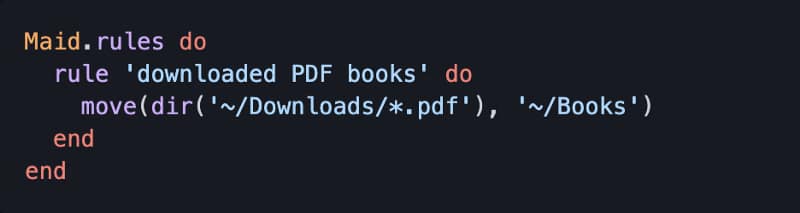
Sample rule from maid to move pdf files from Downloads to the Books folder
Based on Ruby On Rails, in the end, your duty is as easy as defining the rules you want to apply using this language. But to make it easier and because it is not needed to be a Ruby expert to be able to use the tools, Ben has already developed a lot of helper functions to simplify the creation of these rules.
Helper functions like weeks.accessed, downloaded_from, image_px, and at the same time the common actions like move, trash, or copy.
So, in the end, it is like you code your rules using a very high-level language, like when you are using a GUI in other programs like Hazel. Still, at the same time as this is code, you also have all the flexibility and power at your disposal to be used when you need it.
To install the tools is as easy as just typing the following commands:
gem install maid
maid sample
And after that, you will have a sample rules file in your .maid folder to help you create the initial set of rules. And after that point, you are only limited by your needs and your imagination to finally handle this file madness that, at least, myself, I have been for a long time into.
Maximizing the productivity of working with Kubernetes Environment with a tool for each persona
We all know that Kubernetes is the default environment for all our new applications we developed we will build. The flavor of that Kubernetes platform can be of different ways and forms, but one thing is clear, it is complex.
The reasons behind this complexity is being able to provide all the flexibility but it is also true that the k8s project never has put much effort to provide a simple way to manage your clusters and kubectl is the point of access to send commands leaving this door open to the community to provide its own solution and these are the things that we are going to discuss today.
Kubernetes Dashboard: The Default Option
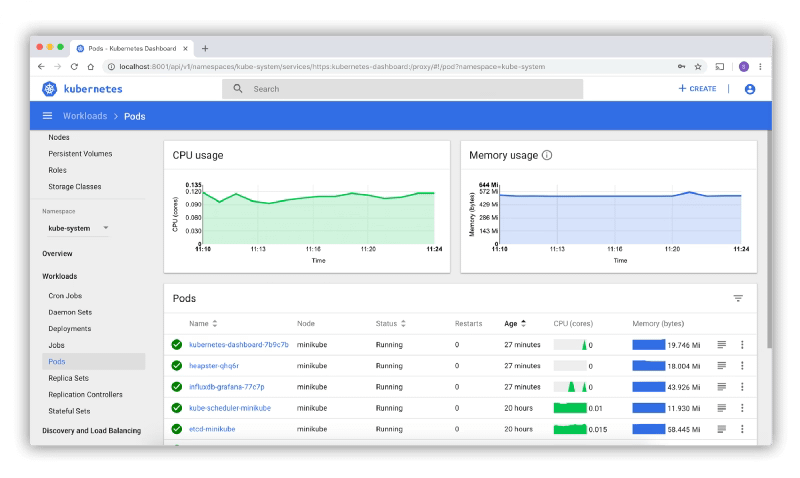
Kubernetes Dashboard is the default option for most of the installations. It is a web-based interface that is part of the K8s project but not deployed by default when you install the cluster
K9S: The CLI option
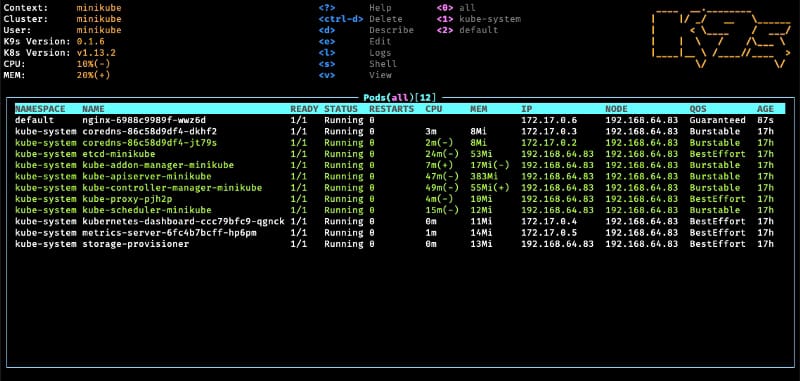
K9S is one of the most common options for the ones that love a very powerful command-line interface with a lot of options at your disposal
It is a mix between all the power of a command-line interface with all the keyboard options at your disposals with a very fancy graphical view to have a quick overview of the status of your cluster at glance.
Lens — The Graphical Option
The lens is a very vitaminized GUI option that goes beyond that just showing the status of the K8S cluster or allowing modifications on the components. With integration with other projects such as Helm or support for the CRD. It provides a very pleasant experience of managing clusters with multi-cluster support as well. To know more about Lens you can take a look at this article that we cover its main features:
Lens Could Be the Tool That You Were Missing to Master Kubernetes-Based Development and Management
Find the greatest way to manage your Kubernetes development cluster Photo by Agence Olloweb on Unsplash. I need to start this article by admitting that I am an advocate of Graphical User Interfaces and everything that provides a way to speed up the way we do things and be more productive. So when we talk […]
Octant — The Web Option
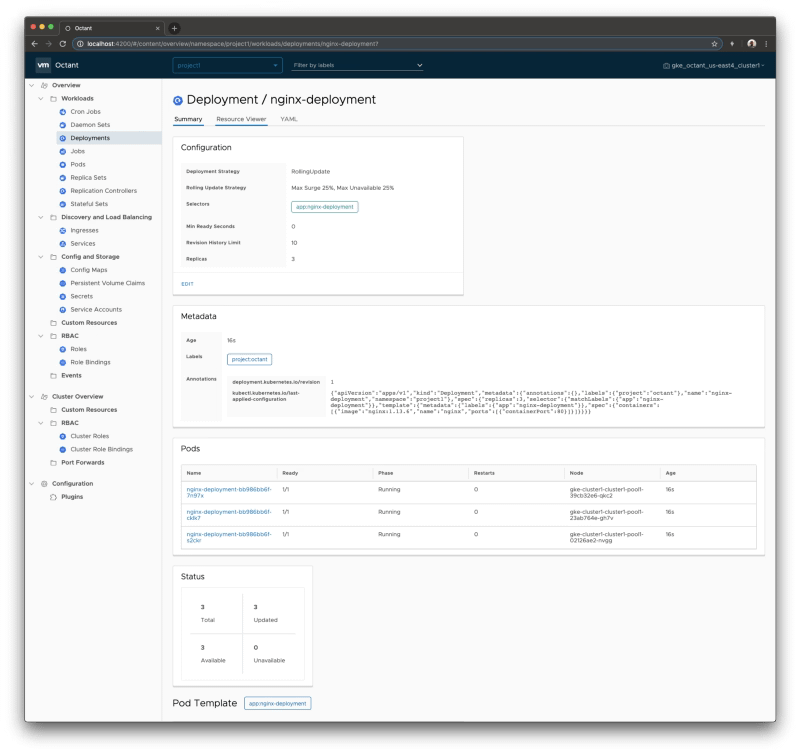
Octant provides an improved experience compared with the default web option discussed in this article using the Kubernetes dashboard. Built for extension with a plug-in system that allows you to extend or customize the behavior of octant to maximize your productivity managing K8S clusters. Including CRD support and graphical visualization of dependencies provides an awesome experience.
Summary
The have provided in this article different tools that will help you during the important task to manage or inspect your Kubernetes cluster. Each of them with its own characteristics and each of them focuses on different ways to provide the information (CLI, GUI and Web) so you can always find one that works best for your situation and preferences.
Development Security is one of the big topics of today’s development practice. All the improvements that we got following the DevOps practices have generated many issues and concerns from the security perspective.
The explosion of components that the security teams need to deal with, container approaches, and polyglot environments gave us many benefits from the development and the operational perspective. Still, it made the security side of it more complex.
This is why there have been many movements regarding the “Shift left” approach and including security as part of the DevOps process creating the new term for DevSecOps that is becoming the new normal.
DevOps tech: Shifting left on security | Google Cloud
Security is everyone’s responsibility. The 2016 State of DevOps Report (PDF) research shows that high-performing teams spend 50 percent less time remediating security issues than low-performing teams. By better integrating information security (InfoSec) objectives into daily work, teams can achieve…
So, today what I would like to bring to you is a set of tools that I have just discovered that are created with the approach of making your life easier from the development security perspective because also developers need to be part of this and not leave all the responsibility to a different team.
This set of tools is name Anchore Toolbox, and they are open source and free to use, as you can see on the official webpage (https://anchore.com/opensource/)
So, what Anchore can provide to us? At the moment, we are talking about two different applications: Syft and Grype.
Syft
GitHub – anchore/syft: CLI tool and library for generating a Software Bill of Materials from container images and filesystems
CLI tool and library for generating a Software Bill of Materials from container images and filesystems – GitHub – anchore/syft: CLI tool and library for generating a Software Bill of Materials from…
Syft is a CLI tool and go library for generating a Software Bill of Materials (SBOM) from container images and filesystems. Installation is as easy as just executing the following command:
curl -sSfL https://raw.githubusercontent.com/anchore/syft/main/install.sh | sh -s -- -b /usr/local/bin
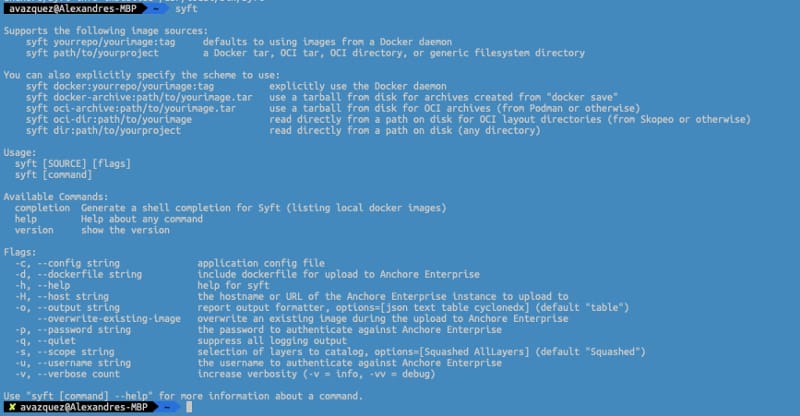
And after doing that, we need to type syft to see all the options at our disposal:
Syft help menu with all the options available
So, in our case, I will use to generate a bill of materials from an existing Docker image from bitnami/kafka to show how this works. I need to type the following command:
syft bitnami/kafka
And after a few seconds to have the image loaded and analyzed, I get as the output the list of all and each of the packages that this image has installed and the version of each of them as shown in the picture below. One great thing is that it shows not only the operating system packages like what we have installed using apk or apt but also other components like java libraries as well so we can have a complete bill of materials for this container image.
[0019] WARN unexpectedly empty matches for archive ‘/opt/bitnami/kafka/libs/kafka_2.12–2.7.0-javadoc.jar’
[0019] WARN unexpectedly empty matches for archive ‘/opt/bitnami/kafka/libs/kafka_2.12–2.7.0-javadoc.jar’
[0019] WARN unexpectedly empty matches for archive ‘/opt/bitnami/kafka/libs/scala-java8-compat_2.12–0.9.1.jar’
[0019] WARN unexpectedly empty matches for archive ‘/opt/bitnami/kafka/libs/scala-java8-compat_2.12–0.9.1.jar’
[0019] WARN unexpectedly empty matches for archive ‘/opt/bitnami/kafka/libs/kafka_2.12–2.7.0-test-sources.jar’
[0019] WARN unexpectedly empty matches for archive ‘/opt/bitnami/kafka/libs/kafka_2.12–2.7.0-test-sources.jar’
[0019] WARN unexpectedly empty matches for archive ‘/opt/bitnami/kafka/libs/jackson-module-scala_2.12–2.10.5.jar’
[0019] WARN unexpectedly empty matches for archive ‘/opt/bitnami/kafka/libs/jackson-module-scala_2.12–2.10.5.jar’
[0019] WARN unexpectedly empty matches for archive ‘/opt/bitnami/kafka/libs/kafka-streams-scala_2.12–2.7.0.jar’
[0019] WARN unexpectedly empty matches for archive ‘/opt/bitnami/kafka/libs/kafka-streams-scala_2.12–2.7.0.jar’
[0019] WARN unexpectedly empty matches for archive ‘/opt/bitnami/kafka/libs/kafka_2.12–2.7.0-test.jar’
[0019] WARN unexpectedly empty matches for archive ‘/opt/bitnami/kafka/libs/kafka_2.12–2.7.0-test.jar’
[0019] WARN unexpectedly empty matches for archive ‘/opt/bitnami/kafka/libs/scala-collection-compat_2.12–2.2.0.jar’
[0019] WARN unexpectedly empty matches for archive ‘/opt/bitnami/kafka/libs/scala-collection-compat_2.12–2.2.0.jar’
[0020] WARN unexpectedly empty matches for archive ‘/opt/bitnami/kafka/libs/kafka_2.12–2.7.0.jar’
[0020] WARN unexpectedly empty matches for archive ‘/opt/bitnami/kafka/libs/kafka_2.12–2.7.0.jar’
[0020] WARN unexpectedly empty matches for archive ‘/opt/bitnami/kafka/libs/kafka_2.12–2.7.0-sources.jar’
[0020] WARN unexpectedly empty matches for archive ‘/opt/bitnami/kafka/libs/kafka_2.12–2.7.0-sources.jar’
[0020] WARN unexpectedly empty matches for archive ‘/opt/bitnami/kafka/libs/scala-logging_2.12–3.9.2.jar’
[0020] WARN unexpectedly empty matches for archive ‘/opt/bitnami/kafka/libs/scala-logging_2.12–3.9.2.jar’
NAME VERSION TYPE
 java-archive
acl 2.2.53–4 deb
activation 1.1.1 java-archive
adduser 3.118 deb
aopalliance-repackaged 2.6.1 java-archive
apt 1.8.2.2 deb
argparse4j 0.7.0 java-archive
audience-annotations 0.5.0 java-archive
base-files 10.3+deb10u8 deb
base-passwd 3.5.46 deb
bash 5.0–4 deb
bsdutils 1:2.33.1–0.1 deb
ca-certificates 20200601~deb10u2 deb
com.fasterxml.jackson.module.jackson.module.scala java-archive
commons-cli 1.4 java-archive
commons-lang3 3.8.1 java-archive
...
Grype
GitHub – anchore/grype: A vulnerability scanner for container images and filesystems
A vulnerability scanner for container images and filesystems – GitHub – anchore/grype: A vulnerability scanner for container images and filesystems
Grype is a vulnerability scanner for container images and filesystems. It is the next step because it checks the image’s components and checks if there is any known vulnerability.
To install this component again is as easy as type the following command:
curl -sSfL https://raw.githubusercontent.com/anchore/grype/main/install.sh | sh -s -- -b /usr/local/bin
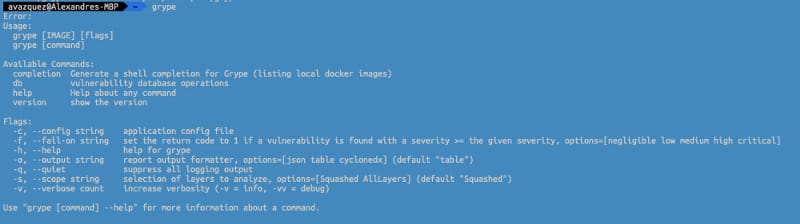
After doing that, we need to type grype to have the help menu with all the options at our disposal:
Grype help menu with all the options available
Grype works in the following one. The first thing it does is load the vulnerability DB to check the different packages against this database to search for any known vulnerability. After doing that, follow the same pattern as syft and generate the bill of materials and check each of the components into the vulnerability database, and if there is a match. It just provides the ID of the vulnerability, the severity, and, if this is fixed into a higher version, provides the version where this vulnerability has been fixed.
Here you can see the output regarding the same image from bitnami/kafka with all the vulnerabilities detected
[0018] ERROR matcher failed for pkg=Pkg(type=java-archive, name=, version=): matcher failed to fetch by CPE pkg=’’: product name is required
[0018] ERROR matcher failed for pkg=Pkg(type=java-archive, name=, version=): matcher failed to fetch by CPE pkg=’’: product name is required
[0018] ERROR matcher failed for pkg=Pkg(type=java-archive, name=, version=): matcher failed to fetch by CPE pkg=’’: product name is required
[0018] ERROR matcher failed for pkg=Pkg(type=java-archive, name=, version=): matcher failed to fetch by CPE pkg=’’: product name is required
[0018] ERROR matcher failed for pkg=Pkg(type=java-archive, name=, version=): matcher failed to fetch by CPE pkg=’’: product name is required
[0018] ERROR matcher failed for pkg=Pkg(type=java-archive, name=, version=): matcher failed to fetch by CPE pkg=’’: product name is required
NAME INSTALLED FIXED-IN VULNERABILITY SEVERITY
apt 1.8.2.2 CVE-2011–3374 Negligible
bash 5.0–4 CVE-2019–18276 Negligible
commons-lang3 3.8.1 CVE-2013–1907 Medium
commons-lang3 3.8.1 CVE-2013–1908 Medium
coreutils 8.30–3 CVE-2016–2781 Low
coreutils 8.30–3 CVE-2017–18018 Negligible
curl 7.64.0–4+deb10u1 CVE-2020–8169 Medium
..
Summary
These simple CLI tools help us a lot in the needed journey to keep our software current and free of known vulnerabilities and improve our development security. Also, as these are CLI apps and also can run on containers, it is effortless to include those as part of your CICD pipeline so vulnerabilities can check in an automated way.
They also provided a plugin to be included in the most used CI/CD systems such as Jenkins, Cloudbees, CircleCI, GitHub Actions, Bitbucket, Azure DevOps, and so on.
Discover SARChart and kSAR as critical utilities to be part of your toolbelt for administration or troubleshooting
There was a time when we didn’t have public cloud providers providing us with a bunch of kinds of services and a whole platform and experience unified, covering all the aspects of our technical needs when we talked about an IT environment and sysstat metrics were key there.
There was a time when AWS Cloud Watch, Azure Monitor, Prometheus were not a thing, and we need to deal with Linux servers without a complete portal providing all the metrics that we could need.
There was a time… that it is still the present for so many customers and organizations all over the world and they still need to deal with this situation, and probably you face this situation now or even in the future. So, let’s see what we can do regarding that.
Introducing sysstat
For several decades the standard way to extract the usage metrics from a Linux server was sysstat. Based on the words on its official web page, this is what sysstat is:
The sysstat utilities are a collection of performance monitoring tools for Linux. These include sar, sadf, mpstat, iostat, tapestat, pidstat, cifsiostat and sa tools
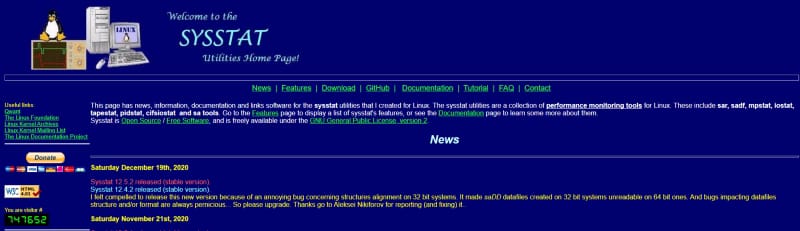
Sysstat is an ancient but reliable piece of software that its owner continue to update even today.. but keeping the same webpage since the beginning 🙂
Sysstat is old but powerful, and it has so many options that have to save my life in a lot of customers and provide a lot of handy information that I needed at that time. But today, I am going to talk about a specific utility from the whole lot, that is sar.
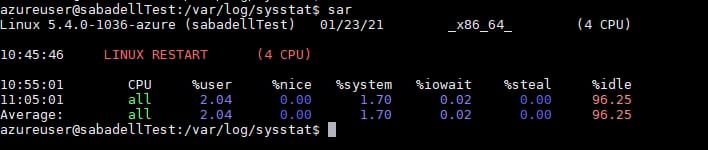
sar is the command to be able to query the performance metrics for an existing machine. Just typing the command sar is enough to start seeing awesome things. That will give you the CPU metrics for the whole day for each of the CPUs that your machine has and also split depending on the kind of usage (user, system, idle, all).
Execution of command sar in a local machine
But these metrics are not only the things that you can get. Other options available
sar -r: Provide memory metrics
sar -q: Provide the load metrics.
sar -n: Provide the network metrics.
sar -A: Provides ALL the metrics.
sar -f /var/log/sysstat/sa[day-of-the-month]: It will provide metrics for the day of the month instead of the current day.
There are a lot of options more that you can use on your daily basis, so if you need something concrete, take a look at the man page for the sar command:
sar(1) – Linux man page
The sar command writes to standard output the contents of selected cumulative activity counters in the operating system. The accounting system, based on …
But we are all visual people, right? It is true that seeing trends and evolutions is more complex in text mode and also seeing only daily data at a time. So take a look at the options to handle that challenge:
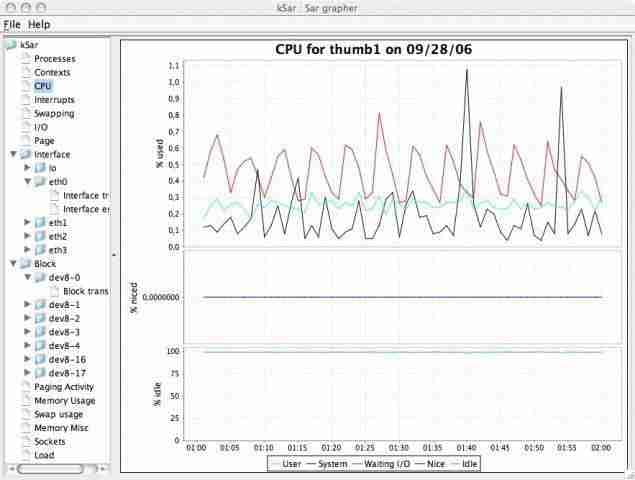
Java-based developed frontend using Swing library to represents the data from sar visually. It is a portable one, so you need the JAR file to execute it. And you can invoke it in several ways:
Providing the file you got from a machine that you executed the sar command.
Connecting using SSH to a remote machine and running the command that you need.
Graphical visualization of the sar metrics using kSAR
SARChart
What about when you are on a machine that you don’t have the rights to install any application, even a portable one as kSAR is, or maybe you only have your tablet available? In that case, we have SARChart.
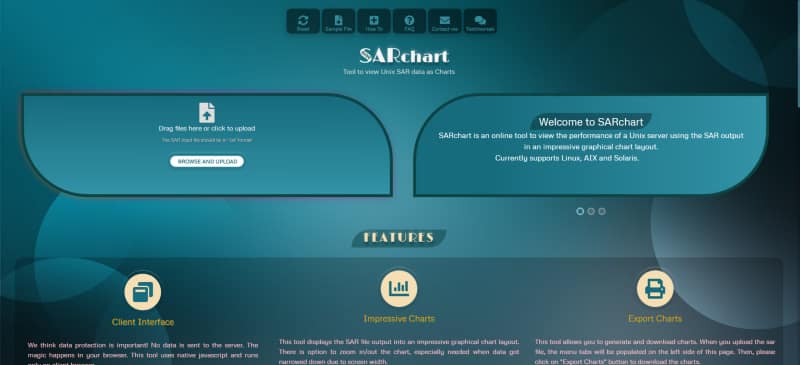
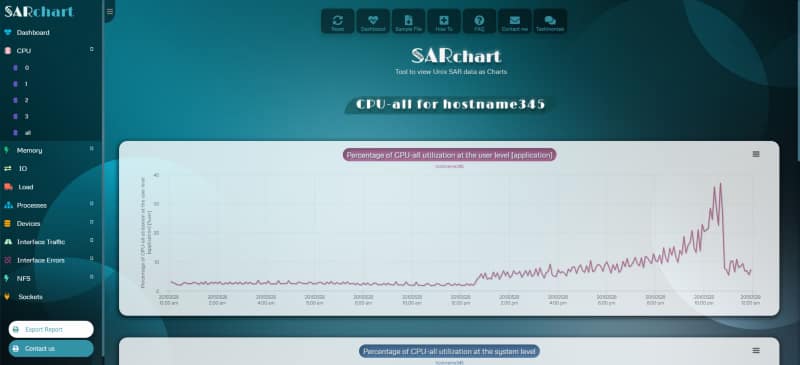
SARChart is a web application that provides a graphical analysis of the sar files. So you only need to upload the file to get a complete graphical and well-looked analysis of your data covering all its aspects. Additionally, all the work is done at the client level without sending any of your data to any server.
CPU usage analysis provided by SARChart
Summary
I hope you find these tools interesting if you didn’t know about them, and I also hope that they can help you with your daily work or at least be part of your toolset to be at your disposal when you need them.
SetApp provides a fantastic set of tools that can boost your productivity as a Software Developer.
I just switched the PC laptop that I used extensively for the last years for a new Macbook Pro last week, and I have entered into a new world. I have used OS X environments in the past. I had my first Macbook in 2008 and my second one in 2016, so I am not new to the OS X ecosystem, but even with that, things change quickly in the App industry, especially in the last four years.
So, when I face the login screen of Big Sur in front of me, I just wondered about how I can equip myself, and I remember SetApp. I discovered SetApp a long time ago because one of the main podcasters I listen to, Emilio Cano, is a very supportive fan of SetApp and uses any chance he has to talk about its benefits.
So I decided to give it a try, and I could not be happier for doing so. But before I start talking about the apps, I would like to give a summary of what SetApp is, and I will use their own words from their official website:
Setapp is a cross-platform suite of apps, solving your daily tasks. Stay in your flow, anywhere.
So, It is like a Netflix for Apps, you pay a monthly subscription, and you have access to paid apps automatically, and they keep adding new ones to their repository so you can use them.
As a Software Developer, I try to focus this post on the apps that help me in my daily job, and here are the three (3) ones that help me more:
1.- Shimo — An Awesome VPN Client
On these days of remote work, we will need to connect to several VPN each day to access your company environment or even customer environment. If you are like me that you work daily for several customers switching from one customer VPN to another is your daily task, and if you can do it fast, you optimize your time.
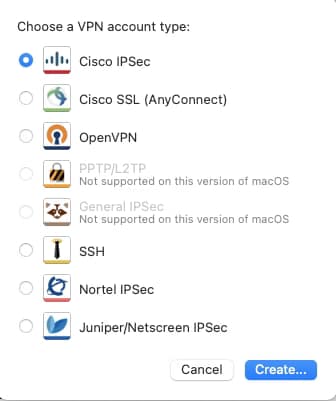
Shimo is a VPN client who supports all the main protocols that companies used: Cisco, Juniper, OpenVPN … all you can need.
VPN options that Shimo provides to you (screenshot by the author)
You can connect to more than one VPN if they are not overlapping, and you can also access a quick way to connect or disconnect to any VPN from the MenuBar.
2.- Paste — The Ultimate Clipboard
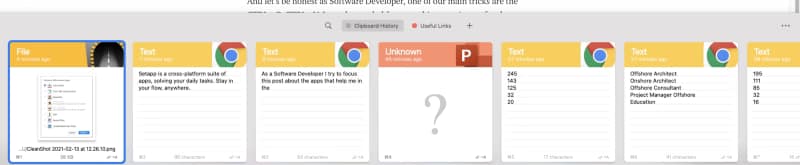
This is an app that is key for any developer and for any person who uses a computer. Paste is just how the clipboard should be. It is an enhanced clipboard with a history, so you can go back and select something that you copied yesterday and you need to recover.
And let’s be honest, as Software Developer, one of our main tricks is the CTRL+C, CTRL+V. It can be needed for everything: a snippet of code a colleague shared with you or the UNIX command that you always forget about it or recover the username that somebody shared with you using an email or Slack.
Screenshot from Paste taken by the author
3.- DevUtils
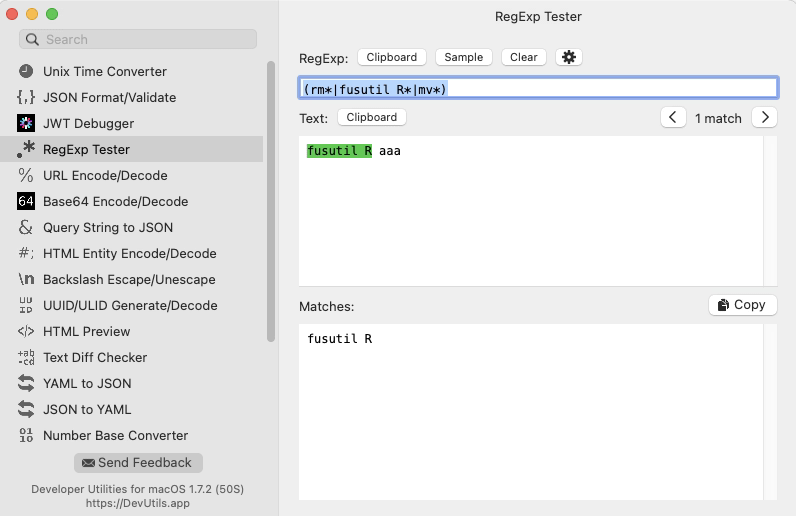
This is a clear choice. A tool that is named DevUtils should be on this list. But, what DevUtils is? It is a collection of all these tools you always look on the internet to do simple but usual tasks.
Tasks like encode or decode from base64, a regular expression tester, UNIX time converter, JSON formatter, JWT debugger, and much more… How many times do you google to do one of these tasks? How much time can you save just having that in your dock all the time? The answer is simple a lot!!
Screenshot from DevUtils taken by the Author
Summary
There are a lot more apps in the catalog from SetApp. When writing this article, the number goes up to 210 apps that cover all the aspects of your life, including one of the best-selling apps in the App Store. But I would like to focus on the ones that I use most in my life as a Software Developer, and if you are like me, you will find it awesome!
This is not going to be one of those articles about tools that can help you develop code faster. If you’re interested in that, you can check out my previous articles regarding VS Code extensions, linters, and other tools that make your life as a developer easier.
My job is not only about software development but also about solving issues that my customers have. While their issues can be code-related, they can be an operation error or even a design problem.
I usually tend to define my role as a lone ranger. I go out there without knowing what I will face, and I need to be ready to adapt, solve the problem, and make customers happy. This experience has helped me to develop a toolchain that is important for doing that job.
Let’s dive in!
1. MobaXterm
MobaXterm free Xserver and tabbed SSH client for Windows
The ultimate toolbox for remote computing – includes X server, enhanced SSH client and much more!
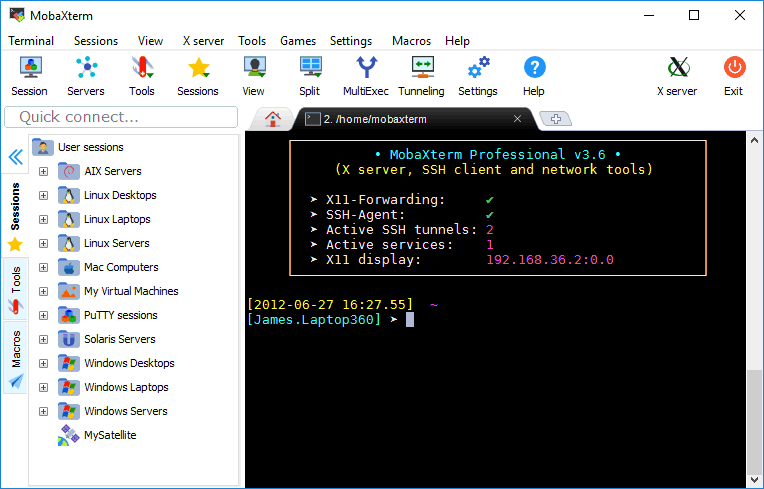
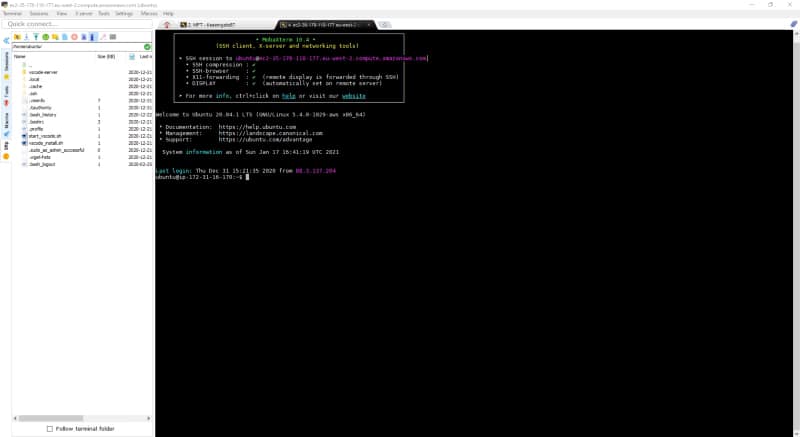
This is the best tool to manage different connections to different servers (SSH access for a Linux server, RDP for a Windows server, etc.). Here are some of its key features:
Graphical SSH port-forwarding for those cases when you need to connect to a server you don’t have direct access to.
Easy identity management to save the passwords for the different servers. You can organize them hierarchically for ease of access, especially when you need to access so many servers for different environments and even different customers.
SFTP automatic connection when you connect to an SSH server. It lets you download and upload files as easily as dropping files there.
Automatical X11 forwarding so you can launch graphical applications from your Linux servers without needing to configure anything or use other XServers like XMing.
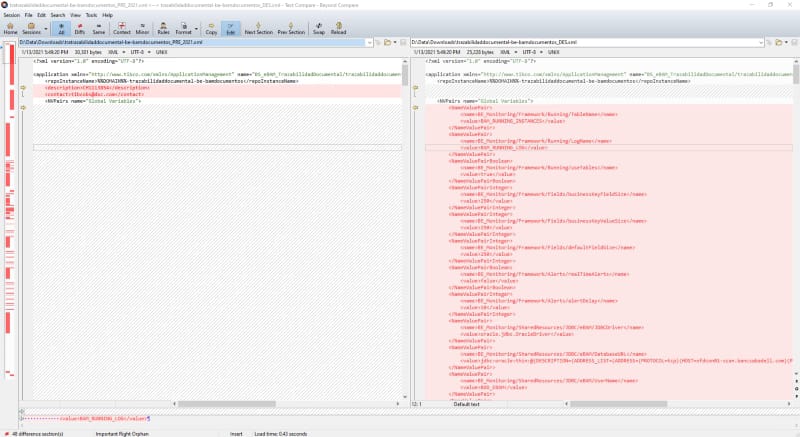
MobaXterm in action
2. Beyond Compare
Scooter Software: Home of Beyond Compare
Beyond Compare is a multi-platform utility that combines directory compare and file compare functions in one package. Use it to manage source code, keep directories in sync, compare program output, etc.
There are so many tools to compare files, and I think I have used all of them — from standalone applications like WinMerge, Meld, Araxis, KDiff, and others to extensions for text editors like VS Code and Notepad++.
However, none of those can compare to the one and only Beyond Compare.
I covered Beyond Compare when I started working on software engineering in 2010, and it is a tool that comes with me on each project I have. I use it every day. So, what makes this tool different from the rest?
It is simply the best tool to make any comparison because it does not just compare text and folders. It does that perfectly, but at the same time, it also compares ZIP files while browsing the content, JAR files, and so on. This is very important when we’d like to check if two JAR files that are uploaded in DEV and PROD are the same version of the tool or to know if a ZIP file has the right content when it is uploaded.
Beyond Compare 4
3. Vi Editor
welcome home : vim online
Vim is rock stable and is continuously being developed to become even better. Among its features are:
This is the most important one — the best text editor of all time — and it is available pretty much on every server.
It is a command-line text editor with a huge number of shortcuts that allows you to be very productive when you are inside a server checking logs and configuration files to see where the problem is.
For a long time, I have had a Vi cheat sheet printed out to make sure I can master the most important shortcuts and thus increase my productivity while fighting inside the enemy lines (the customer’s servers).
Find the greatest way to manage your Kubernetes development cluster
I need to start this article by admitting that I am an advocate of Graphical User Interfaces and everything that provides a way to speed up the way we do things and be more productive.
So when we talk about how to manage our Kubernetes cluster mainly for development purposes, you can imagine that I am one of those people who tries any available tool to make that journey easier. The ones who’ve started using Portainer to manage their local Docker engine or are a fan of the new dashboard in Docker for Windows/Mac. But that is far from reality.
In terms of Kubernetes management, I got used to typing all the commands to check the pods, the logs, the status of the cluster to do the port-forwards, etc. Any task I did was with a terminal, and I felt that it was the right thing to do. I did not even use a Kubernetes dashboard to have a web page for my Kubernetes environment. All of that changed last week when I met with a colleague who showed me what Lens could do.
Lens is a totally different story. I am not praising it because I am being paid to do so. This is an open source project that you can find on GitHub. But the way that it does the job is just awesome!
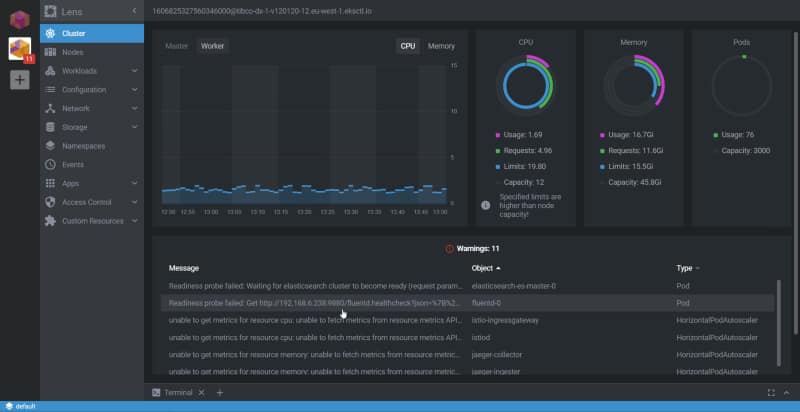
Image of Len showing the status of a Kubernetes cluster — Screenshot by the author.
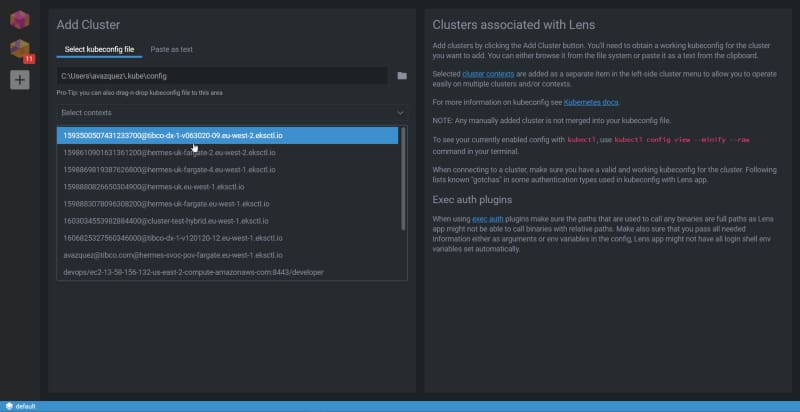
The first thing I would like to mention regarding Lens is that it has multi-context support, so you can have all the different Kubernetes contexts available to switch following a Slack approach when we switch from different workspaces. It just reads your .kube/config file and makes all those contexts available to you to connect to the one you would like.
Kubernetes context selection in Lens
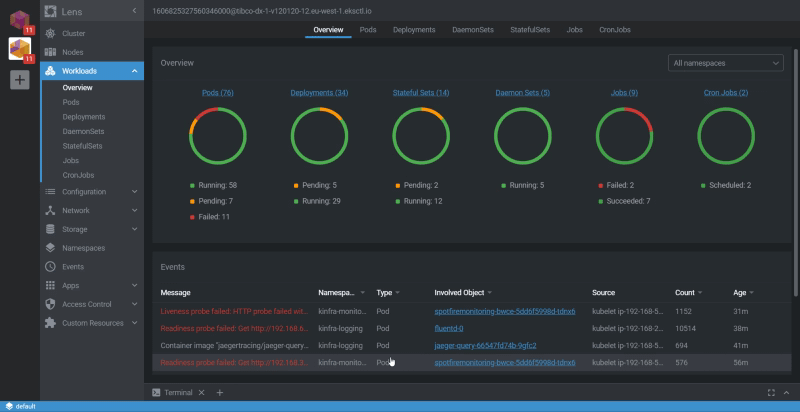
Once we have connected to one of these clusters, we have different options to see the status of it, but the first one is to check the Workloads using the Overview option:
Workloads Overview in Lens
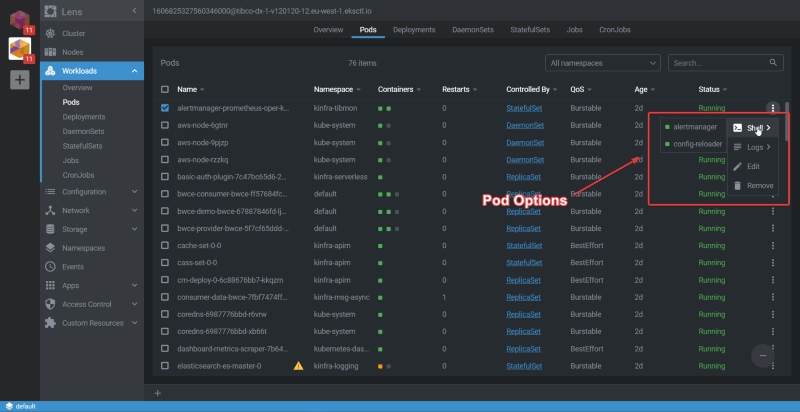
Then, you can drill down to any pod or different object inside Kubernetes to check its status and at the same time do the main actions you usually do when you deal with a pod, such as check the logs, execute a terminal to one of the containers that belong to that pod, or even edit the YAML for that pod.
Pod options inside Lens
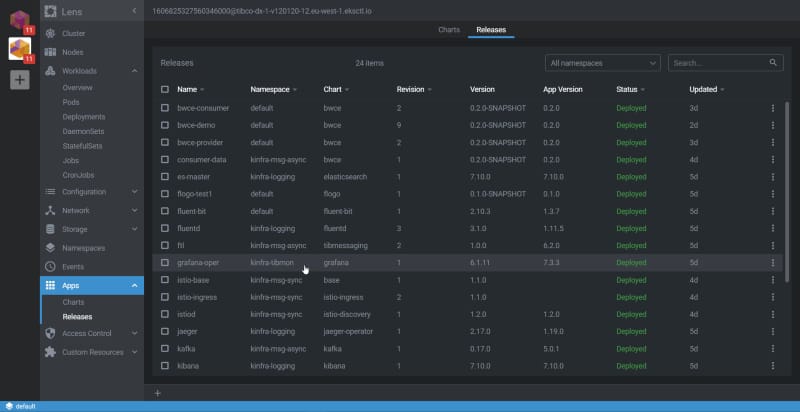
But Lens goes beyond the usual Kubernetes tasks because it also has a Helm integration, so you can check the releases that you have there, the version of the status, and so on:
Helm integration option in Lens
The experience of managing everything feels perfect. You are more productive as well. Even those who love the CLI and terminals need to admit that to do regular tasks, the Graphical approach and the mouse are faster than the keyboard — even for the defenders of the mechanical keyboard like myself.
So, I encourage you to download Lens and start using it right now. To do so, go to their main web page and download it:
Learn how to use xmlstarlet to update value in XML file and handle complex XML payloads efficiently in your shell scripts
If you work in IT or even if you think about IT as one of your main hobbies, you have been written a shell script at some point. If you also work on the business’s operation side, this can be your daily task. To create, maintain, or to upgrade the existing process.
Nowadays, it is more usual to interact with external systems that use payload in XML files or even configuration files written using this format.
Native shell script does not provide an easy way to do that or support libraries to handle that as we can in modern programming languages like Python, Java, or Go. So, probably you have found yourself writing code to parse this kind of payload. But this is not the only way to do that, and we can (and we should!) leverage existing utilities to do this job for us.
xmlstarlet
I could not find a better way to explain what xmlstarlet does than the definition the owners do in their source code repository:
XMLStarlet is a command line XML toolkit which can be used to transform, query, validate, and edit XML documents and files using simple set of shell commands in similar way it is done for plain text files using grep/sed/awk/ tr/diff/patch.
So, xmlstarlet provides all the power to do anything you can imagine when dealing with XML similarly, as this was plain text files.
XMLStarlet Command Line XML Toolkit: News
XMLStarlet Command Line XML Toolkit
Installation
The installation process for this utility is quite easy and depends on the operating system you are using. I will assume that most of the shell scripts are with a Unix machine target in mind. Installing this is quite easy as most of the package repositories have a version of this tool.
So, if you are using an apt-based system, you need to execute the command:
sudo apt-get install xmlstarlet
If you are using another platform, do not worry because they have available versions for all the most used operating systems and platforms, as you can see in the link below:
XMLStarlet Command Line XML Toolkit: Download
XMLStarlet Command Line XML Toolkit
Usage
As soon as we have this software installed, the first thing we will do is launch it to see the options available.
XMLStarlet Toolkit: Command line utilities for XML
Usage: D:\Data\Downloads\xmlstarlet-1.6.1-win32\xmlstarlet-1.6.1\xmlstarlet.exe [<options>] <command> [<cmd-options>]
where <command> is one of:
  ed    (or edit)      - Edit/Update XML document(s)
  sel   (or select)    - Select data or query XML document(s) (XPATH, etc)
  tr    (or transform) - Transform XML document(s) using XSLT
  val   (or validate)  - Validate XML document(s) (well-formed/DTD/XSD/RelaxNG)
  fo    (or format)    - Format XML document(s)
  el    (or elements)  - Display element structure of XML document
  c14n  (or canonic)   - XML canonicalization
  ls    (or list)      - List directory as XML
  esc   (or escape)    - Escape special XML characters
  unesc (or unescape)  - Unescape special XML characters
  pyx   (or xmln)      - Convert XML into PYX format (based on ESIS - ISO 8879)
  p2x   (or depyx)     - Convert PYX into XML
<options> are:
  -q or --quiet        - no error output
  --doc-namespace      - extract namespace bindings from input doc (default)
  --no-doc-namespace   - don't extract namespace bindings from input doc
  --version            - show version
  --help               - show help
Wherever file name mentioned in command help it is assumed
that URL can be used instead as well.

Type: xmlstarlet <command> --help <ENTER> for command help
So the first thing we need to decide is which command we need to use, and these commands are one-to-one related to the action that we like to perform. I will focus on the main commands in this post, but as you can see, this covers from select values an XML, update it or even validate it.
Use case 1: Selecting a value.
We are going to start with the most simple use case try to select a value from an XML (file.xml) like this:
<root>
<object1 name="attribute_name">value in XML</object1>
</root>
So, we are going to start with the most simple command:
./xmlstarlet sel -t -v "/root/object1" ./file.xml
value in XML
This provides the value inside the object1 element, using -t to define a new template and -v to specify the value-of sentence. If now, we would like to get the attribute value, we can do it pretty much similar to the previous command:
./xmlstarlet sel -t -v "/root/object1/@name" ./file.xml
attribute_name
Use case 2: Updating value.
Now, we will follow the other approach based on the same file. We will update the value of the object1 element to set the text “updated text”.
To do that, we execute the following command:
./xmlstarlet ed -u "/root/object1" -v "updated text" ./file.xml
xmlstarlet will provide us all the options to manage something complicated as there are XML and do all the tasks that you can imagine simply without needed to code yourself all the parsing logic. I hope you are a happier developer since now when you need to manage an XML inside a shell script.