
Reduce Docker Disk Usage Locally: Analyze and Clean Up Images, Containers, and Cache

Reduce Docker Disk Usage Locally: Analyze and Clean Up Images, Containers, and Cache

Discover new options that you have at your disposal to do efficient disk usage in your Docker installation

The rise of the container has been a game-changer for all of us, not only at the server-side where pretty much any new workload that we deploy is deployed in a container form but also in our local environments happens same change.

We embrace containers to easily manage the different dependencies that we need to handle as developers. Even if the task at hand was not a container-related thing. Do you need a Database up & running? You use a containerized version of it. Do you need a Messaging System to test some of your applications? You quickly start a container providing that functionality.

And as soon as you don’t need them, those are killed, and your system is still as clean as it was before starting this task. But there are always things that we need to handle even when we have a wonderful solution in front of us, and in the case of a local docker environment, Disk Usage is one of the most critical ones.

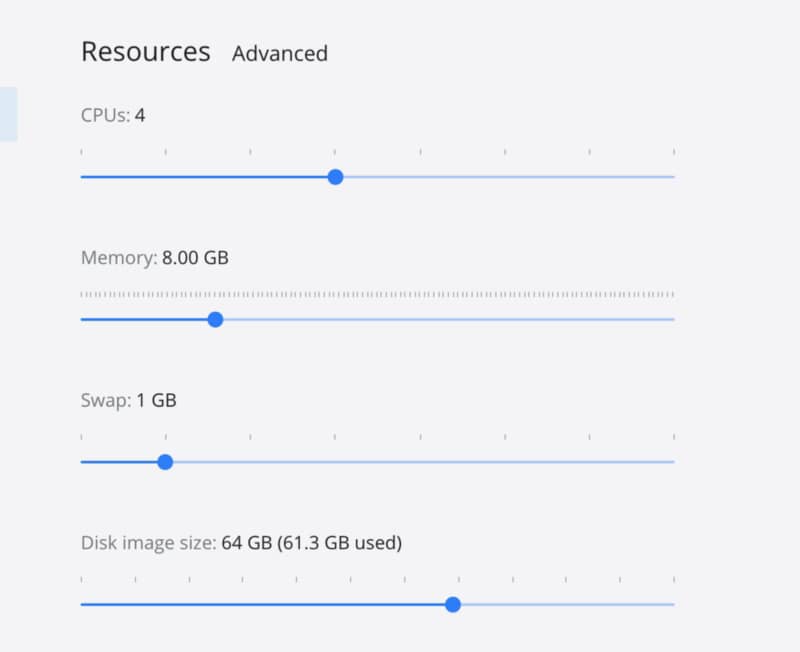
This process of launching new things over and over and then we get rid of them is true in some way because all these images that we have needed and all these containers we have launched are still there in our system waiting for a new round and during that time using our disk resources as you can see in a current picture of my local Docker environment with more than 60 GB used for that purpose.

Reduce Docker Disk Usage Locally: Analyze and Clean Up Images, Containers, and Cache
Docker dashboard settings page image showing the amount of disk Docker is using.

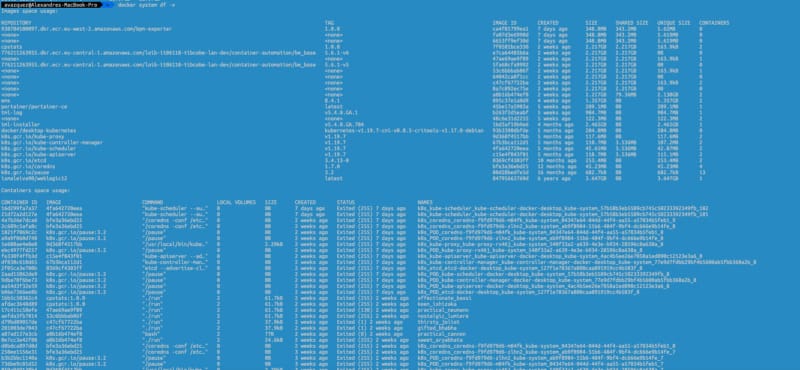
The first thing we need to do is to check what is using this amount of space to see if we can release some of them. To do that, we can leverage on the docker system df command the docker CLI provides to us:

Reduce Docker Disk Usage Locally: Analyze and Clean Up Images, Containers, and Cache
The output of the execution of the docker system df command

As you can see, the 61 GB that is in use are 20.88 GB per the images that I have in use, 21.03 MB just for the containers that I have defined, 1.25 GB for the local volumes 21.07 for the build cache. As I only have active 18 of the 26 images defined I can reclaim up to 9.3 GB that is an important amount.

If we would like to get more details about this data, we can always use the verbose option as an append to the command, as you can see in the picture below:

Reduce Docker Disk Usage Locally: Analyze and Clean Up Images, Containers, and Cache
Detailed verbose output of the docker system df -v command

So, after getting all this information, we can go ahead and execute a prune of your system. This activity will get rid of any unused container and image that you have in your system, and to execute that, you only need to type this:

docker system prune -af

It has several options to turn a little bit the execution that you can check on the Docker Oficial web page :

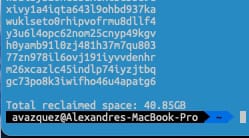
In my case, that help me to recover up to 40.8 GB of my system, as you can see in the picture below.

Reduce Docker Disk Usage Locally: Analyze and Clean Up Images, Containers, and Cache

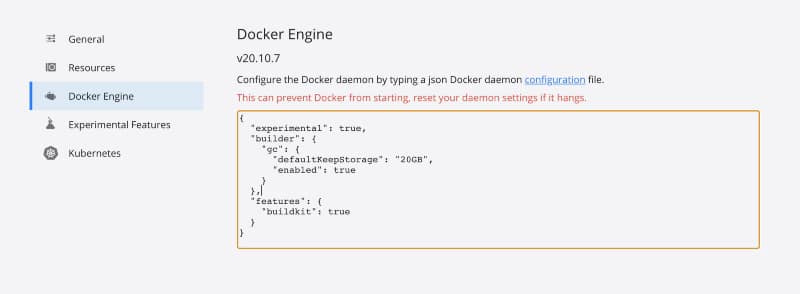
But if you would like to move one step ahead, you can also tune some properties to consider where you are executing this prune. For example, the defaultKeepStorage will help you define how much disk you want to use for this build-cache system to optimize the amount of network usage you do when building images with common layers.

To do that, you need to have the following snippet in your Docker Engine configuration section, as shown in the image below:

Reduce Docker Disk Usage Locally: Analyze and Clean Up Images, Containers, and Cache
Docker Engine configuration with the defaultKeepStorage up to 20GB

I hope that all this housekeeping process will help your location environments to shine again and get the most of it without needing to waste a lot of resources in the process

Why Apache NetBeans Is Still a Great Java IDE in 2025 (Despite IntelliJ’s Popularity)

Why Apache NetBeans Is Still a Great Java IDE in 2025 (Despite IntelliJ’s Popularity)

Discover what are the reasons why to me, Apache NetBeans is still the best Java IDE you can use

Let me start from the beginning. I always have been a Java Developer since my time at University. Even that I first learned another less-known programming (Modula-2), I quickly jump to Java to do all the different assignments and pretty much every task on my journey as a student and later as a software engineer.

I was always looking for the best IDE that I could find to speed up my programming tasks. The main choice was Eclipse at the university, but I have never been an Eclipse fan, and that has become a problem.

If you are in the Enterprise Software industry, you have noticed that pretty much every Developer-based tool is based on Eclipse because its licensing and its community behind make the best option. But I never thought that Eclipse was a great IDE, and it was too flexible but at the same time too complex.

So at that time is when I discover NetBeans. I think the first version I tried was in branch 3.x, and Sun Microsystem developed it at that time. It was quite much better than Eclipse. Indeed, the number of plugins available was not comparable with Eclipse, but the things that it did, it did it awesomely.

To me, if I need to declare why at that time Netbeans was better than Eclipse, probably the main things will be these:

  • Simplicity in the Run Configuration: Still, I think most Java IDE makes things too complex just to run the code. NetBeans simple Run without needed to create a Run Configuration and configure it (you can do it, but you are not mandated to do so)
  • Better Look & Feel: This is more based on a personal preference, but I prefer the default configuration from NetBeans compared with Eclipse.

So because of that, Netbeans become my default app to do my Java Programming, but Oracle came, and things change a little. With the acquisition of Sun Microsystems from Oracle, NetBeans was stalled like many other Open source projects. For years no many updates and progress.

It is not that they deprecated the product, but Oracle had a different IDE at the time JDeveloper, which was the main choice. This is easy to understand. I continued loyal to NetBeans even that we had another big guy in the competition: IntelliJ IDEA.

This is the fancy option, the one most developers used today for Java programming, and I can understand why. I’ve tried several times in my idea to try to feel the same feelings that others did, and I could read the different articles, and I acknowledge some of the advantages of the solution:

  • Better performance: It is clear that the response time from the IDE is better with IntelliJ IDEA than NetBeans because it doesn’t come from an almost 20-years journey, and it could start from scratch and use modern approaches for the GUI.
  • Fewer Memory Resources: Let’s be honest: All IDE consumes tons of memory. No one does great here (unless you are talking about text editors with Java compiler; that is a different story). NetBeans indeed requires more resources to run properly.

So, I did the switch and started using the solution from JetBrains, but it never stuck with me, because to me is still too complex. A lot of fancy things, but less focus on the ones that I need. Or, just because I was too used to how NetBeans do things, I could not do the mental switch that is required to adopt a new tool.

And then… when everything seems lost, something awesome happens: Netbeans was donated to the Apache Foundation and became Apache NetBeans. It seems like a new life for the tool providing simple things like Dark Mode and keeping the solution up-to-date to the progress in Java Development.

So, today, Apache NetBeans is still my preferred IDE, and I couldn’t voucher more for the usage of this awesome tool. And these are the main points I would like to raise here:

  • Better Maven Management: To me, the way and the simplicity you can manage your Maven project with NetBeans is out of this league. It is simple and focuses on performance, adding a new dependency without go to the pom.xml file, updating dependencies on the fly.
  • Run Configuration: Again, this still is a differentiator. When I’m coding something fast because of a new kind of utility, I don’t like to waste time creating run configuration or adding a maven exec plugin to my pom.xml to run the software I just coded. Instead, I need to click Run, a green button, and let the magic begins.
  • There is no need for everything else: Things evolve too fast in the Java programming world, but even today, I never feel that I was missing some capability or something in my NetBeans IDE that I could get if I move to a more modern alternative. So, no trade-offs here at this level.

So, I am aware that probably my choice is because I have a biased view of this situation. After all, this has been my main solution for more than a decade now, and I’m just used to it. But I consider myself an open person, and if I saw a clear difference, I wouldn’t have second thoughts of ditching NetBeans as I did with many other solutions in the past (Evernote, OneNote, Apple Mail, Gmail, KDE Basket, Things, Wunderstling.. )

So, if you have some curiosity about seeing how Apache NetBeans has progressed, please take a look at the latest version and give it a try. Or, if you feel that you don’t connect with the current tool, give it a try again. Maybe you have the same biased view as I have!!!

Portainer Explained: Evolution, Use Cases, and Why It Still Matters for Kubernetes

Portainer Explained: Evolution, Use Cases, and Why It Still Matters for Kubernetes

Discover the current state of the first graphical interfaces for docker containers and how it provides a solution for modern container platforms

I want to start this article with a story that I am not sure all of you, incredible readers, know. It was a time that there were no graphical interfaces to monitor your containers. It was a long time ago, understanding a long time as we can do in the container world. Maybe this was 2014-2015 when Kubernetes was in its initial stage, and also, Docker Swarm was just released and seemed the most reliable solution.

So most of us didn’t have a container platform as such. We just run our containers from our own laptops or small servers for cutting-edge companies using docker commands directly and without more help than the CLI tool. As you can see, things have changed a lot since then, and if you would like to refresh that view, you can check the article shared below:

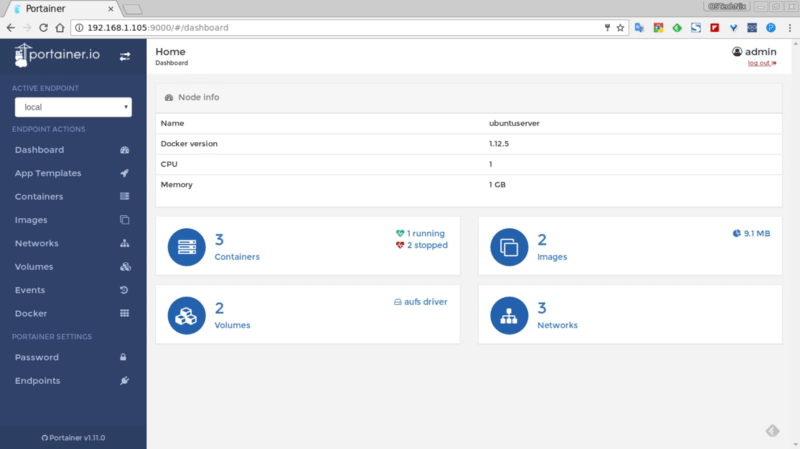
And at that time, an open-source project provides the most incredible solution because we didn’t know that we needed that until we use it, and that option was portainer. Portainer provides a very awesome web interface where you can see all the docker containers deployed on your docker host and deploy as another platform.

Portainer: A Visionary Software and an Evolution Journey
Web page of portainer in 2017 from https://ostechnix.com/portainer-an-easiest-way-to-manage-docker/

It was the first one and generated a tremendous impact, even generated a series of other projects that were named: the portainer of… like dodo the portainer of Kubernetes infrastructure at that time.

But maybe you can ask.. and how is portainer doing? is still portainer a thing? It is still alive and kicking, as you can see on their GitHub project page: https://github.com/portainer/portainer, with the last release in the last of May 2021.

Now they have a Business version but still as Comunity Edition one that is the one that I am going to be analyzing here in more detail in another article. Still, I would like to provide some initial highlights:

  • Installing process still follows the same approach as the initial releases to be another component of your cluster. The options to be used in Docker, Docker Swarm, or Kubernetes cover all the main solutions all enterprise uses.
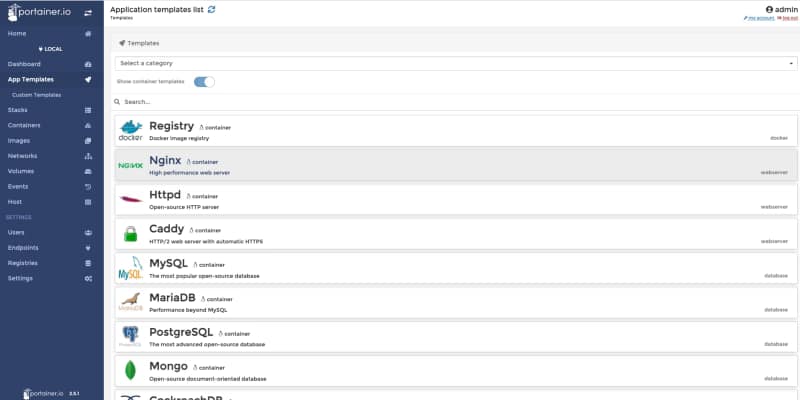
  • Provides now a list of application templates similar to the Openshift Catalog list, and also, you can create your own ones. This is very useful for companies that usually rely on these templates to allow developers to use a common deployment approach without needing to do all the work.
Portainer Explained: Evolution, Use Cases, and Why It Still Matters for Kubernetes
Portainer 2.5.1 Application Template view
  • Team Management capabilities can define users with access to the platform and group those users as part of the team to a more granular permission management.
  • Multi-registry support: By default, it will be integrated with Docker Hub, but you can add your own registries as well and be able to pull images directly from those directly from the GUI.

In summary, this is a great evolution of the portainer tool while keeping the same spirit that all the old users loved at that time: Simplicity and Focus on what an Administrator or Developer needs to know, but also adding more features and capabilities to keep the pace of the evolution in the container platform industry.

📚 Want to dive deeper into Kubernetes? This article is part of our comprehensive Kubernetes Architecture Patterns guide, where you’ll find all fundamental and advanced concepts explained step by step.

Promtail Explained: Turning Logs into Metrics for Prometheus and Loki

Promtail Explained: Turning Logs into Metrics for Prometheus and Loki

Promtail is the solution when you need to provide metrics that are only present on the log traces of the software you need to monitor to provide a consistent monitoring platform

It is a common understanding that three pillars in the observability world help us to get a complete view of the status of our own platforms and systems: Logs, Traces, and Metrics.

To provide a summary of the differences between each of them:

  • Metrics are the counters about the state of the different components from both a technical and a business view. So we can see here things like the CPU consumption, the number of requests, memory, or disk usage…
  • Logs are the different messages that each of the pieces of software in our platform provides to understand its current behavior and detect some non-expected situations.
  • Trace is the different data regarding the end-to-end request flow across the platform with the services and systems that have been part of that flow and data related to that concrete request.

We have solutions that claim to address all of them, mainly in the enterprise software with Dynatrace, AppDynamics, and similar. And on the other hand, we try to go with a specific solution for each of them that we can easily integrate together and we have discussed a lot about that options in previous articles.

But, some situations in that software don’t work following this path because we live in the most heterogeneous era. We all embrace, at some level, the polyglot approach on the new platforms. In some cases, we can see that software is using log traces to provide data related to metrics or other matters, and here is when we need to rely on pieces of software that help us “fix” that situation, and Promtail does specifically that.

Promtail is mainly a log forwarder similar to others like fluentd or fluent-bit from CNCF or logstash from the ELK stack. In this case, this is the solution from Grafana Labs, and as you can imagine, this is part of the Grafana stack with Loki to be the “master-mind” that we cover in this article that I recommend you to take a look at if you haven’t read it yet:

Promtail has two main ways of behaving as part of this architecture, and the first one is very similar to others in this space, as we commented before. It helps us ship our log traces from our containers to the central location that will mainly be Loki and can be a different one and provide the usual options to play and transform those traces as we can do in other solutions. You can look at all the options in the link below, but as you can imagine, this includes transformation, filtering, parsing, and so on.
But what makes promtail so different is just one of the actions that you can do, and that action is metrics. Metrics provides a specific way to, based on the data that we are reading from the logs, create Prometheus metrics that a Prometheus server can scrape. That means that you can use the log traces that you are processing that can something like this:

[2021–06–06 22:02.12] New request received for customer_id: 123
[2021–06–06 22:02.12] New request received for customer_id: 191
[2021–06–06 22:02.12] New request received for customer_id: 522

With this information apart to send those metrics to the central location to create a metric call, for example: `total_request_count` that will be generated by the promtail agent and also exposed by it and being able also to use a metrics approach even for systems or components that don’t provide a standard way to do that like a formal metrics API.

And the way to do this is very well integrated with the configuration. This is done with an additional stage (this is how we call the actions we can do in Promtail) that is namedmetrics.

The schema of that metric stage is straightforward, and if you are familiar with Prometheus, you will see how direct it is from a definition of Prometheus metrics to this snippet:

# A map where the key is the name of the metric and the value is a specific
# metric type.
metrics:
  [<string>: [ <metric_counter> | <metric_gauge> | <metric_histogram> ] ...]

So we start defining the kind of metrics that we would like to define, and we have the usual ones: counter, gauge, or histogram, and for each of them, we have a set of options to be able to declare our metrics as you can see here for a Counter Metrics

# The metric type. Must be Counter.
type: Counter

# Describes the metric.

[description: <string>]

# Defines custom prefix name for the metric. If undefined, default name “promtail_custom_” will be prefixed.

[prefix: <string>]

# Key from the extracted data map to use for the metric, # defaulting to the metric’s name if not present.

[source: <string>]

# Label values on metrics are dynamic which can cause exported metrics # to go stale (for example when a stream stops receiving logs). # To prevent unbounded growth of the /metrics endpoint any metrics which # have not been updated within this time will be removed. # Must be greater than or equal to ‘1s’, if undefined default is ‘5m’

[max_idle_duration: <string>]

config: # If present and true all log lines will be counted without # attempting to match the source to the extract map. # It is an error to specify `match_all: true` and also specify a `value`

[match_all: <bool>]

# If present and true all log line bytes will be counted. # It is an error to specify `count_entry_bytes: true` without specifying `match_all: true` # It is an error to specify `count_entry_bytes: true` without specifying `action: add`

[count_entry_bytes: <bool>]

# Filters down source data and only changes the metric # if the targeted value exactly matches the provided string. # If not present, all data will match.

[value: <string>]

# Must be either “inc” or “add” (case insensitive). If # inc is chosen, the metric value will increase by 1 for each # log line received that passed the filter. If add is chosen, # the extracted value most be convertible to a positive float # and its value will be added to the metric. action: <string>

And with that, you will have your metric created and exposed, just waiting for a Prometheus server to scrape it. If you would like to see all the options available, all this documentation is available in the Grafana Labs documentation that you can check in the link:

I hope you will find this interesting and a useful way to keep all your observability information managed correctly using the right solution and provide a solution for these pieces of software that don’t follow your paradigm.

📚 Want to dive deeper into Kubernetes? This article is part of our comprehensive Kubernetes Architecture Patterns guide, where you’ll find all fundamental and advanced concepts explained step by step.

Best Kubernetes Management Tools: Dashboard, CLI, and GUI Options Compared

Best Kubernetes Management Tools: Dashboard, CLI, and GUI Options Compared

Maximizing the productivity of working with Kubernetes Environment with a tool for each persona

We all know that Kubernetes is the default environment for all our new applications we developed we will build. The flavor of that Kubernetes platform can be of different ways and forms, but one thing is clear, it is complex.

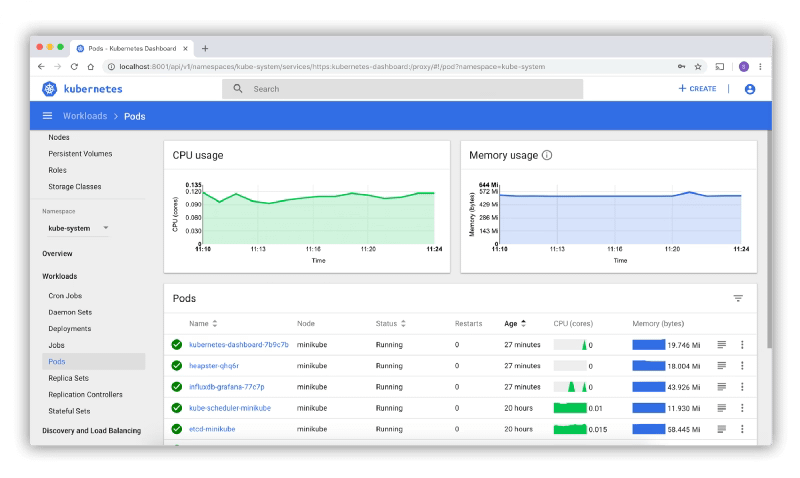
The reasons behind this complexity is being able to provide all the flexibility but it is also true that the k8s project never has put much effort to provide a simple way to manage your clusters and kubectl is the point of access to send commands leaving this door open to the community to provide its own solution and these are the things that we are going to discuss today.

Kubernetes Dashboard: The Default Option

Kubernetes Dashboard is the default option for most of the installations. It is a web-based interface that is part of the K8s project but not deployed by default when you install the cluster

Best Kubernetes Management Tools: Dashboard, CLI, and GUI Options Compared

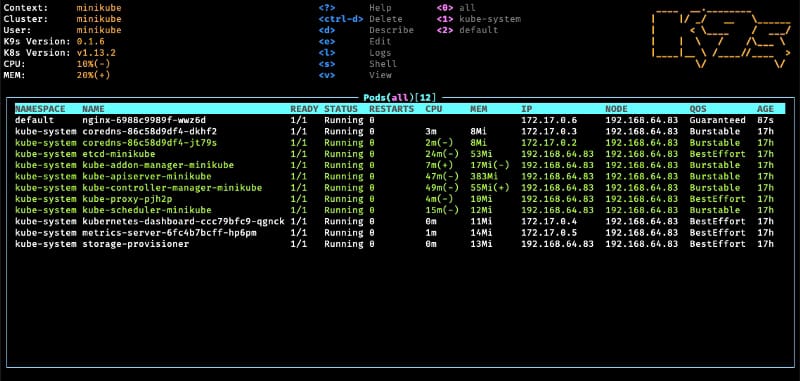
K9S: The CLI option

K9S is one of the most common options for the ones that love a very powerful command-line interface with a lot of options at your disposal

Best Kubernetes Management Tools: Dashboard, CLI, and GUI Options Compared

It is a mix between all the power of a command-line interface with all the keyboard options at your disposals with a very fancy graphical view to have a quick overview of the status of your cluster at glance.

Lens — The Graphical Option

The lens is a very vitaminized GUI option that goes beyond that just showing the status of the K8S cluster or allowing modifications on the components. With integration with other projects such as Helm or support for the CRD. It provides a very pleasant experience of managing clusters with multi-cluster support as well. To know more about Lens you can take a look at this article that we cover its main features:

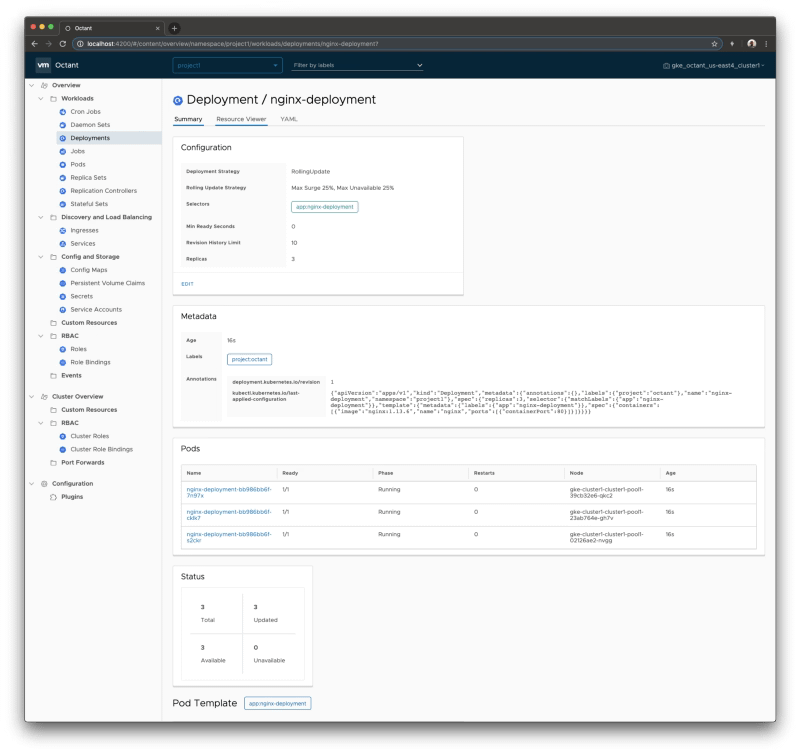
Octant — The Web Option

Octant provides an improved experience compared with the default web option discussed in this article using the Kubernetes dashboard. Built for extension with a plug-in system that allows you to extend or customize the behavior of octant to maximize your productivity managing K8S clusters. Including CRD support and graphical visualization of dependencies provides an awesome experience.

Best Kubernetes Management Tools: Dashboard, CLI, and GUI Options Compared

Summary

The have provided in this article different tools that will help you during the important task to manage or inspect your Kubernetes cluster. Each of them with its own characteristics and each of them focuses on different ways to provide the information (CLI, GUI and Web) so you can always find one that works best for your situation and preferences.

📚 Want to dive deeper into Kubernetes? This article is part of our comprehensive Kubernetes Architecture Patterns guide, where you’ll find all fundamental and advanced concepts explained step by step.

Event-Driven Autoscaling in Kubernetes with KEDA (Beyond CPU and Memory Metrics)

Event-Driven Autoscaling in Kubernetes with KEDA (Beyond CPU and Memory Metrics)

KEDA provides a rich environment to scale your application apart from the traditional HPA approach using CPU and Memory

Autoscaling is one of the great things of cloud-native environments and helps us to provide an optimized use of the operations. Kubernetes provides many options to do that being one of those the Horizontal Pod Autoscaler (HPA) approach.
HPA is the way Kubernetes has to detect if it is needed to scale any of the pods, and it is based on the metrics such as CPU usage or memory.

https://kubernetes.io/docs/tasks/run-application/horizontal-pod-autoscale/

Sometimes those metrics are not enough to decide if the number of replicas we have available is enough. Other metrics can provide a better perspective, such as the number of requests or the number of pending events.

Kubernetes Event-Driven Autoscaling (KEDA)

Here is where KEDA comes to help. KEDA stands for Kubernetes Event-Driven Autoscaling and provides a more flexible approach to scale our pods inside a Kubernetes cluster.

It is based on scalers that can implement different sources to measure the number of requests or events that we receive from different messaging systems such as Apache Kafka, AWS Kinesis, Azure EventHub, and other systems as InfluxDB or Prometheus.

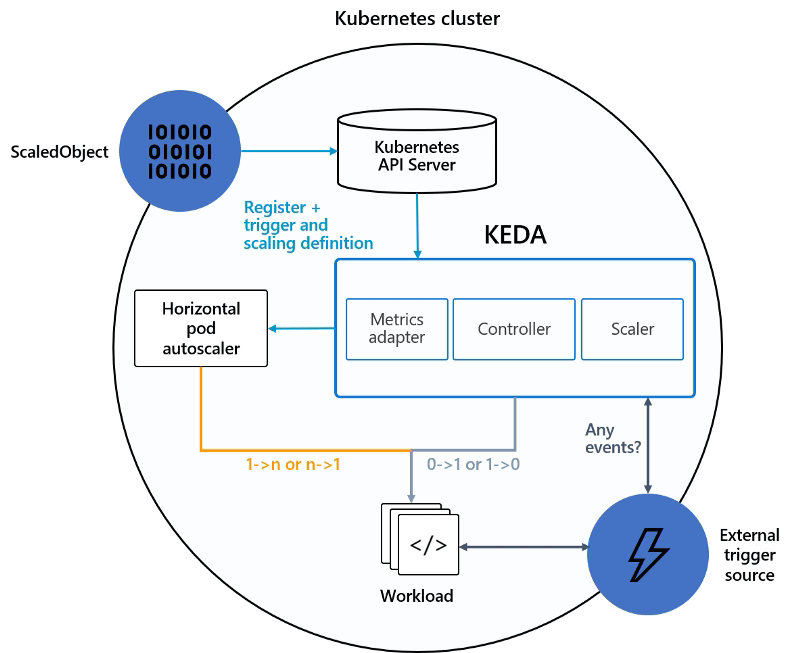
KEDA works as it is shown in the picture below:

Event-Driven Autoscaling in Kubernetes with KEDA (Beyond CPU and Memory Metrics)

We have our ScaledObject that links our external event source (i.e., Apache Kafka, Prometheus ..) with the Kubernetes Deployment we would like to scale and register that in the Kubernetes cluster.

KEDA will monitor the external source, and based on the metrics gathered, will communicate the Horizontal Pod Autoscaler to scale the workload as defined.

Testing the Approach with a Use-Case

So, now that we know how that works, we will do some tests to see it live. We are going to show how we can quickly scale one of our applications using this technology. And to do that, the first thing we need to do is to define our scenario.

In our case, the scenario will be a simple cloud-native application developed using a Flogo application exposing a REST service.

The first step we need to do is to deploy KEDA in our Kubernetes cluster, and there are several options to do that: Helm charts, Operation, or YAML files. In this case, we are going to use the Helm charts approach.

So, we are going to type the following commands to add the helm repository and update the charts available, and then deploy KEDA as part of our cluster configuration:

helm repo add kedacore https://kedacore.github.io/charts
helm repo update
helm install keda kedacore/keda

After running this command, KEDA is deployed in our K8S cluster, and it types the following command kubectl get all will provide a situation similar to this one:

pod/keda-operator-66db4bc7bb-nttpz 2/2 Running 1 10m
pod/keda-operator-metrics-apiserver-5945c57f94-dhxth 2/2 Running 1 10m

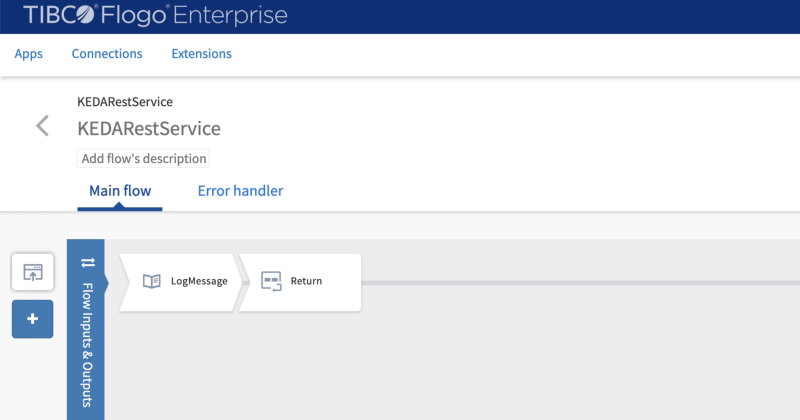
Now, we are going to deploy our application. As already commented to do that we are going to use our Flogo Application, and the flow will be as simple as this one:

Event-Driven Autoscaling in Kubernetes with KEDA (Beyond CPU and Memory Metrics)
Flogo application listening to the requests
  • The application exposes a REST service using the /hello as the resource.
  • Received requests are printed to the standard output and returned a message to the requester

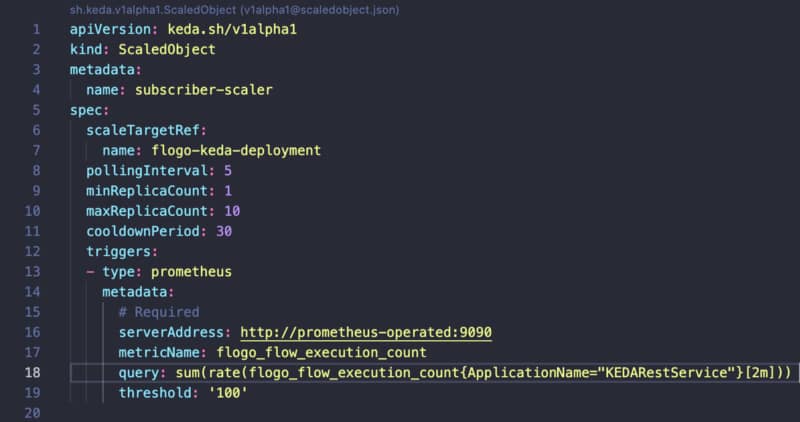
Once we have our application deployed on our Kubernetes application, we need to create a ScaledObject that is responsible for managing the scalability of that component:

Event-Driven Autoscaling in Kubernetes with KEDA (Beyond CPU and Memory Metrics)
ScaleObject configuration for the application

We use Prometheus as a trigger, and because of that, we need to configure where our Prometheus server is hosted and what query we would like to do to manage the scalability of our component.

In our sample, we will use the flogo_flow_execution_count that is the metric that counts the number of requests that are received by this component, and when this has a rate higher than 100, it will launch a new replica.

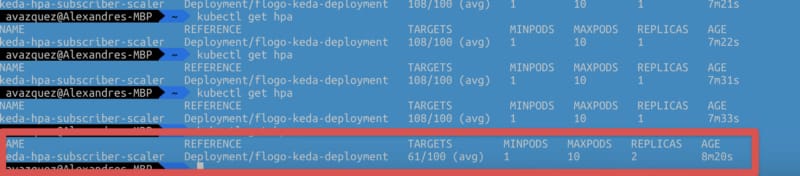
After hitting the service with a Load Test, we can see that as soon as the service reaches the threshold, it launch a new replica to start handling requests as expected.

Event-Driven Autoscaling in Kubernetes with KEDA (Beyond CPU and Memory Metrics)
Autoscaling being done using Prometheus metrics.

All of the code and resources are hosted in the GitHub repository shown below:

https://kubernetes.io/docs/tasks/run-application/horizontal-pod-autoscale/


Summary

This post has shown that we have unlimited options in deciding the scalability options for our workloads. We can use the standard metrics like CPU and memory, but if we need to go beyond that, we can use different external sources of information to trigger that autoscaling.

📚 Want to dive deeper into Kubernetes? This article is part of our comprehensive Kubernetes Architecture Patterns guide, where you’ll find all fundamental and advanced concepts explained step by step.

Kubernetes Health Checks Explained: Simplify Cluster Diagnostics with KubeEye

Kubernetes Health Checks Explained: Simplify Cluster Diagnostics with KubeEye

KubeEye supports you in the task of ensuring that your cluster is performing well and ensure all your best practices are being followed.

Kubernetes has become the new normal to deploy our applications and other serverless options, so the administration of these clusters has become critical for most enterprises, and doing a proper Kubernetes Health Check is becoming critical.

This task is clear that it is not an easy task. As always, the flexibility and power that technology provides to the users (in this case, the developers) also came with a trade-off with the operation and management’s complexity. And this is not an exception to that.

We have evolved, including managed options that simplify all the underlying setup and low-level management of the infrastructure behind it. However, many things need to be done for the cluster administration to have a happy experience in the journey of a Kubernetes Administrator.

A lot of concepts to deal with: namespaces, resource limits, quotas, ingress, services, routes, crd… Any help that we can get is welcome. And with this purpose in mind, KubeEye has been born.

KubeEye is an open-source project that helps to identify some issues in our Kubernetes Clusters. Using their creators’ words:

KubeEye aims to find various problems on Kubernetes, such as application misconfiguration(using Polaris), cluster components unhealthy and node problems(using Node-Problem-Detector). Besides predefined rules, it also supports custom defined rules.

So we can think like a buddy that is checking the environment to make sure that everything is well configured and healthy. Also, it allows us to define custom rules to make sure that all the actions that the different dev teams are doing are according to the predefined standards and best practices.

So let’s see how we can include KubeEye to do a health check of our environment. The first thing we need to do is to install it. At this moment, KubeEye only offers a release for Linux-based system, so if you are using other systems like me, you need to follow another approach and type the following commands:

git clone https://github.com/kubesphere/kubeeye.git
cd kubeeye
make install

After doing that, we end up with a new binary in our PATH named `ke`, and this is the only component needed to work with the app. The second step we need to do to get more detail on those diagnostics is to install the node problem detector component.

This component is a component installed in each node of the cluster. It helps to make more visible to the upstream layers issues regarding the behavior of the Kubernetes cluster. This is an optional step, but it will provide more meaningful data, and install that, we need to run the following command.

ke install npd

And now we’re ready to start checking our environment, and the order is as easy as this one.

ke diag

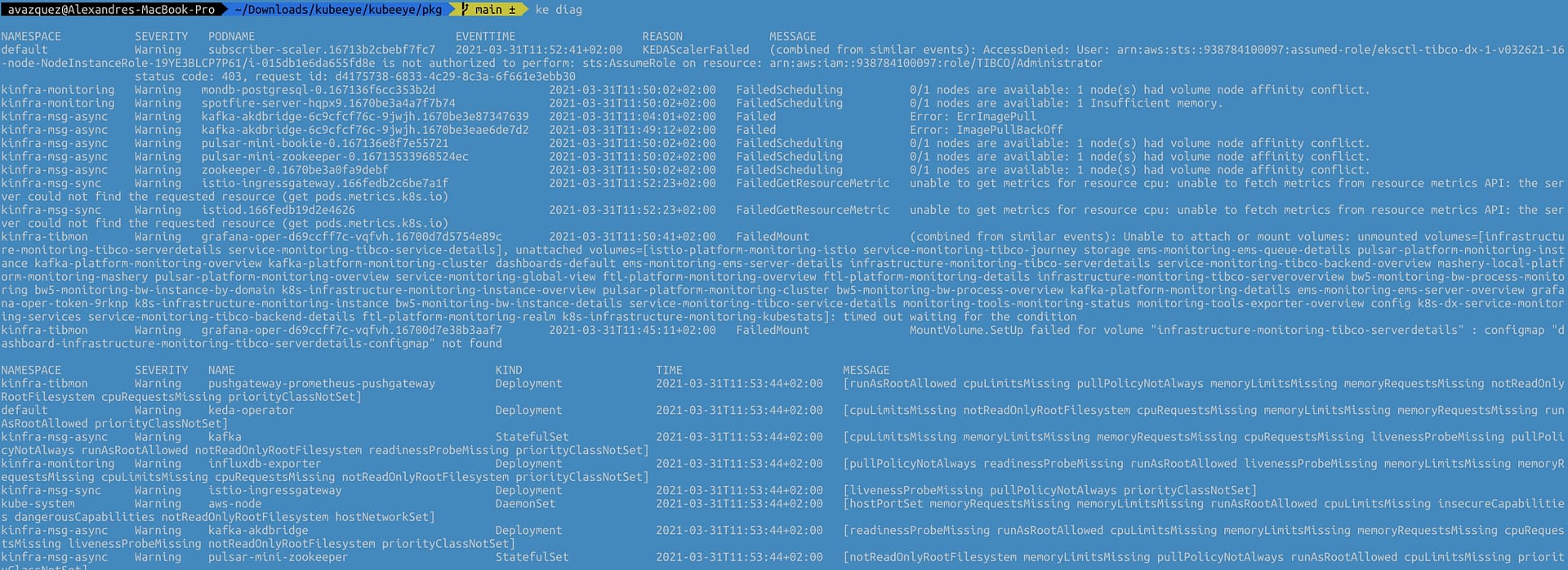
This will provide an output similar to this that is compounded by two different tables. The first one will be focused on the Pod and the issues and events raised as part of the platform’s status, and the other will focus on the rest of the elements and kinds of objects for the Kubernetes Clusters.

Kubernetes Health Checks Explained: Simplify Cluster Diagnostics with KubeEye
Output from the ke diag command

The table for the issues at the pod level has the following fields:

  • Namespace where the pod belongs to.
  • Severity of the issue.
  • Pod Name that is responsible for the issue
  • EventTime of where this event has been raised
  • Reason for the issue
  • Message with the detailed description of the issue

The second table for the other objects has the following structure:

  • Namespace where the object that has an issue that is being detected is deployed.
  • Severity of the issue.
  • Name of the component
  • Kind of the component
  • Time of where this issue has been raised
  • Message with the detailed description of the issue

Command’s output can also show other tables if some issues are detected at the node level.


Today we cover a fascinating topic as it is the Kubernetes Administration and introduce a new tool that helps your daily task.

I truly expect that this tool can be added to your toolbox and ease the path for a happy and healthy Kubernetes Cluster administration!

📚 Want to dive deeper into Kubernetes? This article is part of our comprehensive Kubernetes Architecture Patterns guide, where you’ll find all fundamental and advanced concepts explained step by step.

Improving Development Security with Open Source DevSecOps Tools (Syft & Grype)

Improving Development Security with Open Source DevSecOps Tools (Syft & Grype)

Discover how Anchore can help you to keep your software safe and secure without losing agility.

Development Security is one of the big topics of today’s development practice. All the improvements that we got following the DevOps practices have generated many issues and concerns from the security perspective.

The explosion of components that the security teams need to deal with, container approaches, and polyglot environments gave us many benefits from the development and the operational perspective. Still, it made the security side of it more complex.

This is why there have been many movements regarding the “Shift left” approach and including security as part of the DevOps process creating the new term for DevSecOps that is becoming the new normal.

So, today what I would like to bring to you is a set of tools that I have just discovered that are created with the approach of making your life easier from the development security perspective because also developers need to be part of this and not leave all the responsibility to a different team.

This set of tools is name Anchore Toolbox, and they are open source and free to use, as you can see on the official webpage (https://anchore.com/opensource/)

So, what Anchore can provide to us? At the moment, we are talking about two different applications: Syft and Grype.

Syft

Syft is a CLI tool and go library for generating a Software Bill of Materials (SBOM) from container images and filesystems. Installation is as easy as just executing the following command:

curl -sSfL https://raw.githubusercontent.com/anchore/syft/main/install.sh | sh -s -- -b /usr/local/bin

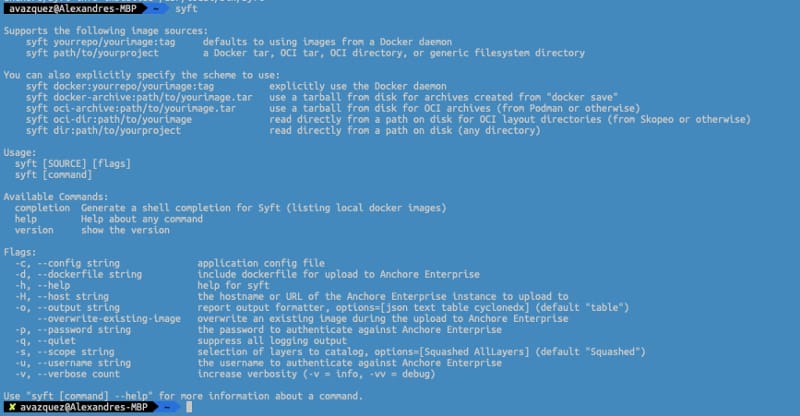
And after doing that, we need to type syft to see all the options at our disposal:

Improving Development Security with Open Source DevSecOps Tools (Syft & Grype)
Syft help menu with all the options available

So, in our case, I will use to generate a bill of materials from an existing Docker image from bitnami/kafka to show how this works. I need to type the following command:

syft bitnami/kafka

And after a few seconds to have the image loaded and analyzed, I get as the output the list of all and each of the packages that this image has installed and the version of each of them as shown in the picture below. One great thing is that it shows not only the operating system packages like what we have installed using apk or apt but also other components like java libraries as well so we can have a complete bill of materials for this container image.

 ✔ Loaded image
 ✔ Parsed image
 ✔ Cataloged image [204 packages]
[0019] WARN unexpectedly empty matches for archive ‘/opt/bitnami/kafka/libs/kafka_2.12–2.7.0-javadoc.jar’
[0019] WARN unexpectedly empty matches for archive ‘/opt/bitnami/kafka/libs/kafka_2.12–2.7.0-javadoc.jar’
[0019] WARN unexpectedly empty matches for archive ‘/opt/bitnami/kafka/libs/scala-java8-compat_2.12–0.9.1.jar’
[0019] WARN unexpectedly empty matches for archive ‘/opt/bitnami/kafka/libs/scala-java8-compat_2.12–0.9.1.jar’
[0019] WARN unexpectedly empty matches for archive ‘/opt/bitnami/kafka/libs/kafka_2.12–2.7.0-test-sources.jar’
[0019] WARN unexpectedly empty matches for archive ‘/opt/bitnami/kafka/libs/kafka_2.12–2.7.0-test-sources.jar’
[0019] WARN unexpectedly empty matches for archive ‘/opt/bitnami/kafka/libs/jackson-module-scala_2.12–2.10.5.jar’
[0019] WARN unexpectedly empty matches for archive ‘/opt/bitnami/kafka/libs/jackson-module-scala_2.12–2.10.5.jar’
[0019] WARN unexpectedly empty matches for archive ‘/opt/bitnami/kafka/libs/kafka-streams-scala_2.12–2.7.0.jar’
[0019] WARN unexpectedly empty matches for archive ‘/opt/bitnami/kafka/libs/kafka-streams-scala_2.12–2.7.0.jar’
[0019] WARN unexpectedly empty matches for archive ‘/opt/bitnami/kafka/libs/kafka_2.12–2.7.0-test.jar’
[0019] WARN unexpectedly empty matches for archive ‘/opt/bitnami/kafka/libs/kafka_2.12–2.7.0-test.jar’
[0019] WARN unexpectedly empty matches for archive ‘/opt/bitnami/kafka/libs/scala-collection-compat_2.12–2.2.0.jar’
[0019] WARN unexpectedly empty matches for archive ‘/opt/bitnami/kafka/libs/scala-collection-compat_2.12–2.2.0.jar’
[0020] WARN unexpectedly empty matches for archive ‘/opt/bitnami/kafka/libs/kafka_2.12–2.7.0.jar’
[0020] WARN unexpectedly empty matches for archive ‘/opt/bitnami/kafka/libs/kafka_2.12–2.7.0.jar’
[0020] WARN unexpectedly empty matches for archive ‘/opt/bitnami/kafka/libs/kafka_2.12–2.7.0-sources.jar’
[0020] WARN unexpectedly empty matches for archive ‘/opt/bitnami/kafka/libs/kafka_2.12–2.7.0-sources.jar’
[0020] WARN unexpectedly empty matches for archive ‘/opt/bitnami/kafka/libs/scala-logging_2.12–3.9.2.jar’
[0020] WARN unexpectedly empty matches for archive ‘/opt/bitnami/kafka/libs/scala-logging_2.12–3.9.2.jar’
NAME VERSION TYPE
 java-archive
acl 2.2.53–4 deb
activation 1.1.1 java-archive
adduser 3.118 deb
aopalliance-repackaged 2.6.1 java-archive
apt 1.8.2.2 deb
argparse4j 0.7.0 java-archive
audience-annotations 0.5.0 java-archive
base-files 10.3+deb10u8 deb
base-passwd 3.5.46 deb
bash 5.0–4 deb
bsdutils 1:2.33.1–0.1 deb
ca-certificates 20200601~deb10u2 deb
com.fasterxml.jackson.module.jackson.module.scala java-archive
commons-cli 1.4 java-archive
commons-lang3 3.8.1 java-archive
...

Grype

Grype is a vulnerability scanner for container images and filesystems. It is the next step because it checks the image’s components and checks if there is any known vulnerability.

To install this component again is as easy as type the following command:

curl -sSfL https://raw.githubusercontent.com/anchore/grype/main/install.sh | sh -s -- -b /usr/local/bin

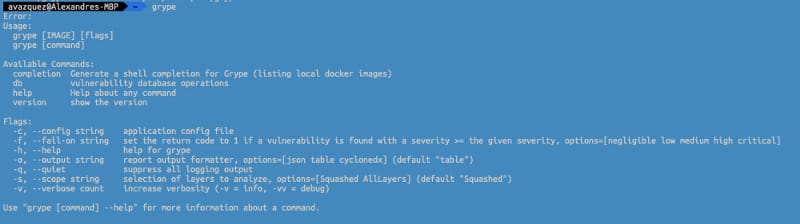
After doing that, we need to type grype to have the help menu with all the options at our disposal:

Improving Development Security with Open Source DevSecOps Tools (Syft & Grype)
Grype help menu with all the options available

Grype works in the following one. The first thing it does is load the vulnerability DB to check the different packages against this database to search for any known vulnerability. After doing that, follow the same pattern as syft and generate the bill of materials and check each of the components into the vulnerability database, and if there is a match. It just provides the ID of the vulnerability, the severity, and, if this is fixed into a higher version, provides the version where this vulnerability has been fixed.

Here you can see the output regarding the same image from bitnami/kafka with all the vulnerabilities detected

grype bitnami/kafka
 ✔ Vulnerability DB [updated]
 ✔ Loaded image
 ✔ Parsed image
 ✔ Cataloged image [204 packages]
 ✔ Scanned image [149 vulnerabilities]
[0018] ERROR matcher failed for pkg=Pkg(type=java-archive, name=, version=): matcher failed to fetch by CPE pkg=’’: product name is required
[0018] ERROR matcher failed for pkg=Pkg(type=java-archive, name=, version=): matcher failed to fetch by CPE pkg=’’: product name is required
[0018] ERROR matcher failed for pkg=Pkg(type=java-archive, name=, version=): matcher failed to fetch by CPE pkg=’’: product name is required
[0018] ERROR matcher failed for pkg=Pkg(type=java-archive, name=, version=): matcher failed to fetch by CPE pkg=’’: product name is required
[0018] ERROR matcher failed for pkg=Pkg(type=java-archive, name=, version=): matcher failed to fetch by CPE pkg=’’: product name is required
[0018] ERROR matcher failed for pkg=Pkg(type=java-archive, name=, version=): matcher failed to fetch by CPE pkg=’’: product name is required
NAME INSTALLED FIXED-IN VULNERABILITY SEVERITY
apt 1.8.2.2 CVE-2011–3374 Negligible
bash 5.0–4 CVE-2019–18276 Negligible
commons-lang3 3.8.1 CVE-2013–1907 Medium
commons-lang3 3.8.1 CVE-2013–1908 Medium
coreutils 8.30–3 CVE-2016–2781 Low
coreutils 8.30–3 CVE-2017–18018 Negligible
curl 7.64.0–4+deb10u1 CVE-2020–8169 Medium
..

Summary

These simple CLI tools help us a lot in the needed journey to keep our software current and free of known vulnerabilities and improve our development security. Also, as these are CLI apps and also can run on containers, it is effortless to include those as part of your CICD pipeline so vulnerabilities can check in an automated way.

They also provided a plugin to be included in the most used CI/CD systems such as Jenkins, Cloudbees, CircleCI, GitHub Actions, Bitbucket, Azure DevOps, and so on.

Optimize Prometheus Disk Usage: Practical TSDB Tuning and Retention Strategies

Optimize Prometheus Disk Usage: Practical TSDB Tuning and Retention Strategies

Check out the properties that will let you an optimized use of your disk storage and savings storing your monitoring data

Prometheus has become a standard component in our cloud architectures and Prometheus storage is becoming a critical aspect. So I am going to guess that if you are reading this you already know what Prometheus is. If this is not the case, please take your time to take a look at other articles that I have created:

We know that usually when we monitor using Prometheus we have so many exporters available at our disposal and also that each of them exposes a lot of very relevant metrics that we need to track everything we need to and that lead to very intensive usage of the storage available if we do not manage accordingly.

There are two factors that affect this. The first one is to optimize the number of metrics that we are storing and we already provide tips to do that in other articles as the ones shown below:

The other one is how long we store the metrics called the “retention period in Prometheus.” And this property has suffered a lot of changes during the different versions. If you would like to see all the history please take a look at this article from Robust Perception:

The main properties that you can configure are the following ones:

  • storage.tsdb.retention.time: Number of days to store the metrics by default to 15d. This property replaces the deprecated one storage.tsdb.retention.
  • storage.tsdb.retention.size: You can specify the limit of size to be used. This is not a hard limit but a minimum so please define some margin here. Units supported: B, KB, MB, GB, TB, PB, EB. Ex: “512MB”. This property is experimental so far as you can see in the official documentation:

https://prometheus.io/docs/prometheus/latest/storage

What about setting this configuration in the operator for Kubernetes? In that case, you also have similar options available in the values.yaml configuration file for the chart as you can see in the image below:

Optimize Prometheus Disk Usage: Practical TSDB Tuning and Retention Strategies
values.yml for the Prometheus Operator Helm Chart

This should help you get an optimized deployment of Prometheus that ensures all the features that Prometheus has but at the same time an optimal use of the resources at your disposal.

Additional to that, you should also check the Managed Service options that some providers have regarding Prometheus, such as the Amazon Managed Services for Prometheus, as you can see in the link below:

📚 Want to dive deeper into Kubernetes? This article is part of our comprehensive Kubernetes Architecture Patterns guide, where you’ll find all fundamental and advanced concepts explained step by step.

Loki vs ELK Stack: Lightweight Log Aggregation for Kubernetes and Cloud-Native

Loki vs ELK Stack: Lightweight Log Aggregation for Kubernetes and Cloud-Native

Learn about the new horizontally-scalable, highly available, multi-tenant log aggregation system inspired by Prometheus that can be the best fit for your logging architecture

Loki vs ELK is something you are reading and hearing each time more often as from some time it is a raise on the dispute of becoming the de-factor standard for log aggregation architectures.

When we talk about Cloud-Native Architecture, log aggregation is something key that you need to consider. The old practices that we followed in the on-premises virtual machine approach for logging are not valid anymore.
We already cover this topic in my previous post that I recommend you to talk a look in case you haven’t read it yet, but this is not the topic for today.

Elasticsearch as the core and the different derívate de stacks like ELK/EFK had gained popularity in the last years, being pretty much the default open-source option when we talked about log aggregation and one of the options. The main public cloud providers have also adopted this solution as part of their own offering as the Amazon Elasticsearch Service provides.

But Elasticsearch is not perfect. If you have already used it, you probably know about it. Still, because their features are so awesome, especially on the searching and indexing capabilities, it has been the kind of leader today. But other topics like the storage use, the amount of power you need to handle it, and the architecture with different kinds of nodes (master, data, ingester) increase its complexity for cases when we need something smaller.

And to fill this gap is where our main character for today’s post arrives: Loki or Grafana Loki.

Loki vs ELK Stack: Lightweight Log Aggregation for Kubernetes and Cloud-Native
Grafana Loki Logo from https://grafana.com/oss/loki/

Loki is a logging management system created as part of the Grafana project, and it has been created with a different approach in mind than Elasticsearch.

Loki is a horizontally-scalable, highly-available, multi-tenant log aggregation system inspired by Prometheus. It is designed to be very cost effective and easy to operate. It does not index the contents of the logs, but rather a set of labels for each log stream.

So as we can read in the definition from their own page above, it covers several interesting topics in comparison with Elasticsearch:

  • First of all, it addresses some of the usual pain points for ELK customers: It is very cost-effective and easy to operate.
  • It clearly says that the approach is not the same as ELK, you are not going to have a complete index of the payload for the events, but it is based on different labels that you can define for each log stream.
  • Prometheus inspires that, which is critical because it enabled the idea to use log traces as metrics to empower our monitoring solutions.

Let’s start with the initial questions when we show an interesting new technology, and we would like to start testing it.

How can I install Loki?

Loki is distributed in different flavors to be installed in your environment in the way you need it.

  • SaaS: provided as part of the hosting solution of Grafana Cloud.
  • On-Premises: Provided as a normal binary to be download to run in an on-premises mode.
  • Cloud: Provided a docker image or even a Helm Chart to be deployed into your Kubernetes-based environment.

GrafanaLabs teams also provide Enterprise Support for Loki if you would like to use it on production mode in your company. Still, at the same time, all the code is licensed using Apache License 2.0, so you can take a look at all the code and contribute to it.

How does Loki work?

Loki vs ELK Stack: Lightweight Log Aggregation for Kubernetes and Cloud-Native
High-level Loki Architecture from https://grafana.com/blog/2018/12/12/loki-prometheus-inspired-open-source-logging-for-cloud-natives/

Architecture wise is very similar to the ELK/EFK stack and follow the same approach of “collectors” and “indexers” as ELK has:

  • Loki itself is the central node of the architecture responsible for storing the log traces and their labels and provided an API to search among them based on their own language LogQL (a similar approach to the PromQL from Prometheus).
  • promtail is the agent component that runs in the edge getting all those log traces that we need that can be running on a machine on-prem or a DaemonSet fashion in our own Kubernetes cluster. It plays the same role as Logstash/Fluent-bit/Fluentd works in the ELK/EFK stack. Promtail provides the usual plugin mode to filter and transforms our log traces as the other solutions provide. At the same time, it provides an interesting feature to convert those log traces into Prometheus metrics that can be scraped directly by your Prometheus server.
  • Grafana is the UI for the whole stack and plays a similar role as Kibana in the ELK/EFK stack. Grafana, among other plugins, provides direct integration with Loki as a Datasource to explore those traces and include them in the Dashboards.

Summary

Grafana Loki can be a great solution for your logging architecture to cover address two points: Provide a Lightweight log aggregation solution for your environment and at the same time enable your log traces as a source for your metrics, allowing you to create detailed, more business-oriented metrics that use in your dashboards and your monitoring systems.

📚 Want to dive deeper into Kubernetes? This article is part of our comprehensive Kubernetes Architecture Patterns guide, where you’ll find all fundamental and advanced concepts explained step by step.